

How to Export Payments from Stripe (2026 Guide)
Follow these steps to export your Stripe payments as a CSV file. Once exported, you can use any of our converter tools to transform the data for your target system.
Export Steps
Log in to your Stripe Dashboard
Open your browser and navigate to dashboard.stripe.com. Enter your email and password to sign in. If you have two-factor authentication enabled, complete the verification step to access your account.

Navigate to the Payments page
In the left-hand navigation menu, click on 'Payments'. This opens the main payments view showing all charges processed through your Stripe account, including successful, failed, and refunded transactions.
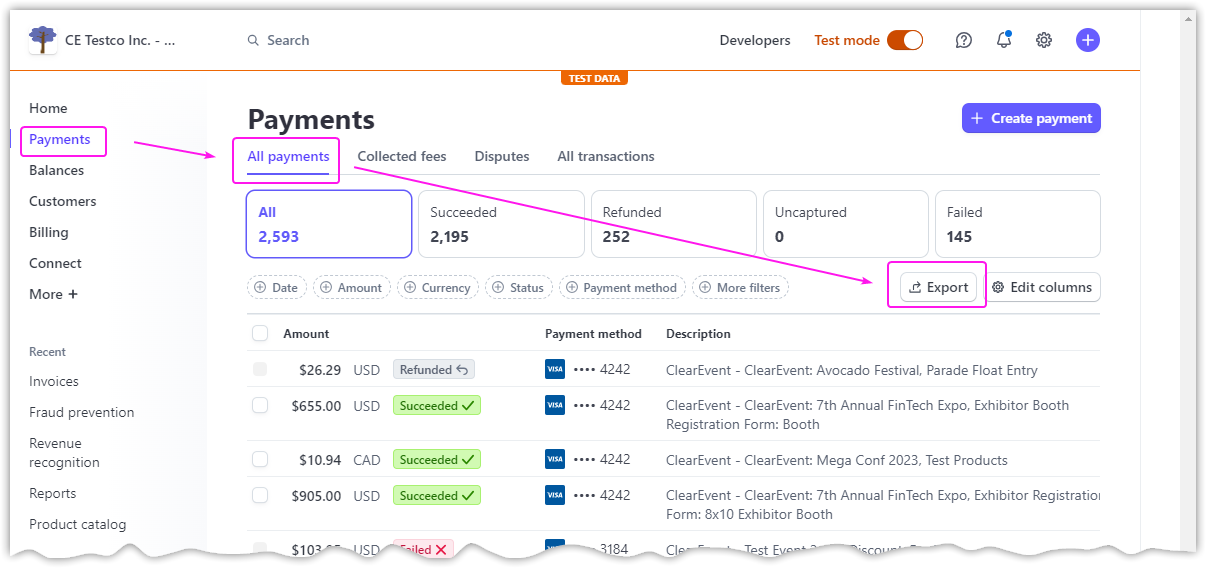
Filter your payment data
Use the status tabs at the top of the page to switch between Successful, Refunded, Uncaptured, or All payments. You can also click the 'Filter' button in the upper-right area to narrow results by date, amount, currency, customer, or other criteria.
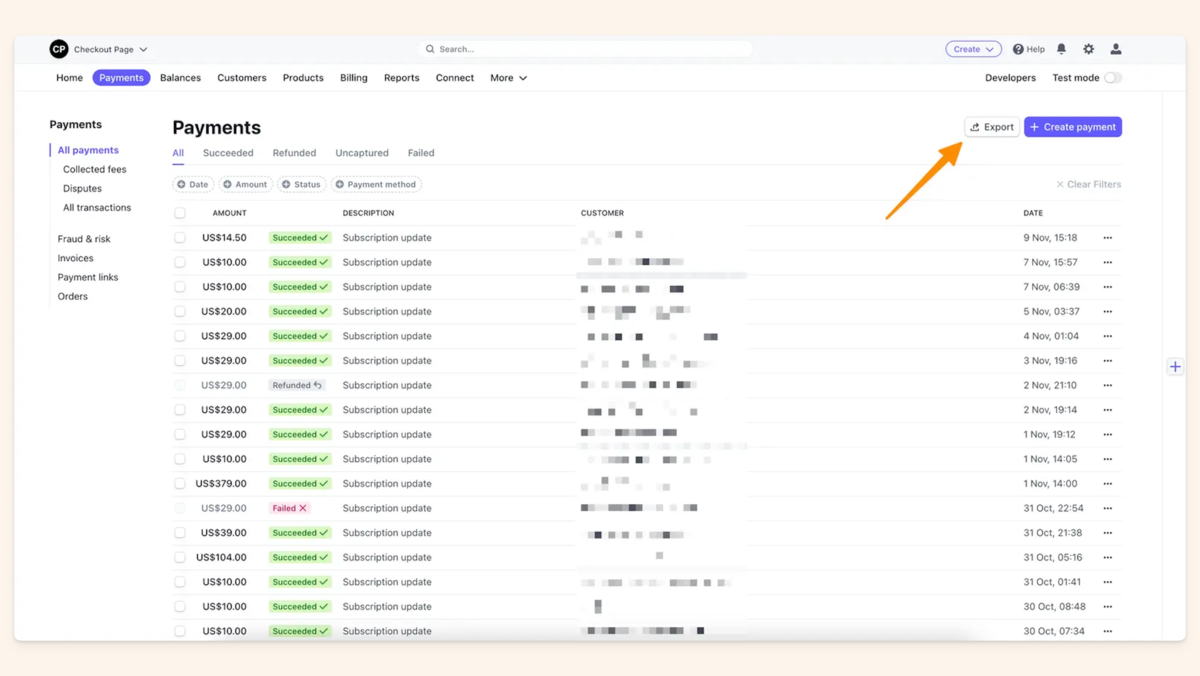
Click the Export button
In the upper-right corner of the Payments page, click the 'Export' button. A dialog window will appear with options to configure your export, including date range and column selection.
Set your date range
In the export dialog, choose a preset date range (such as last 7 days, last 30 days, or this month) or select 'Custom' to specify exact start and end dates. Set the time zone that matches your accounting records.

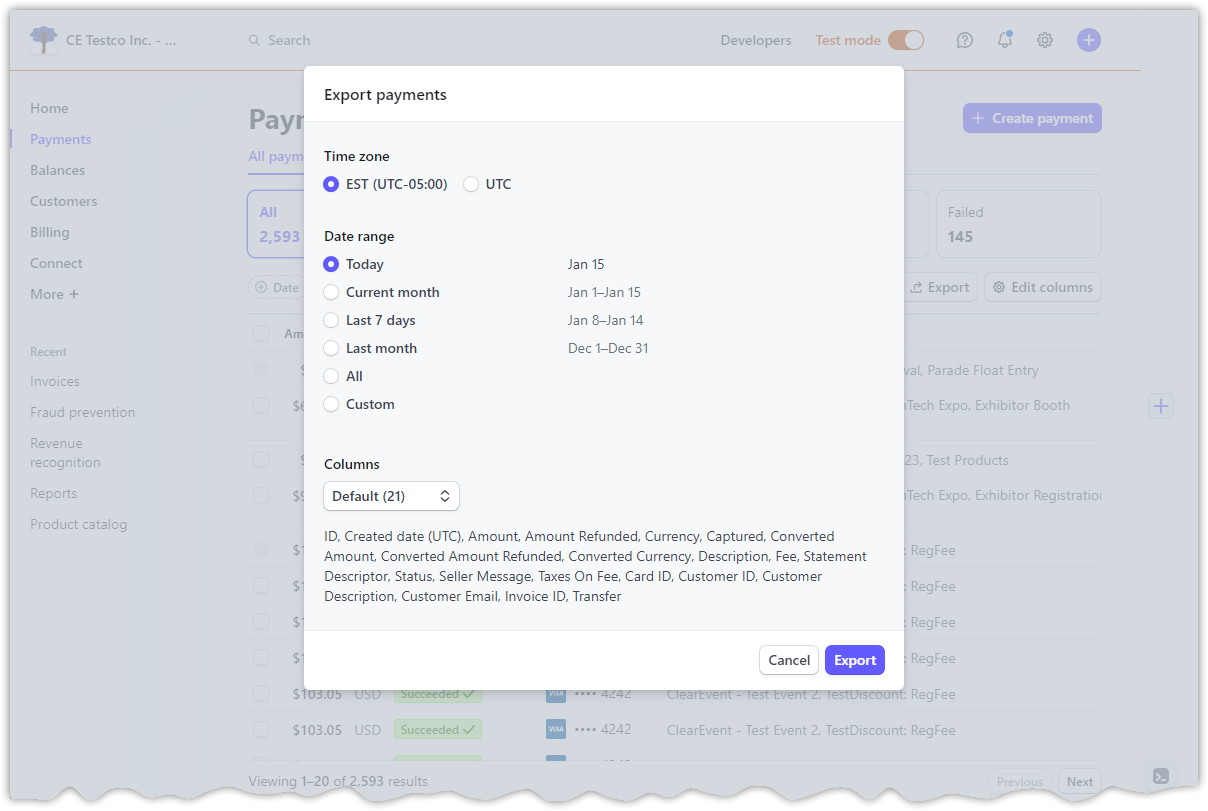
Choose columns to include
In the Columns section of the export dialog, select 'Default' to include the standard set of columns, or choose 'Custom' to pick specific fields. For bookkeeping, make sure to include Amount, Fee, Net, Currency, Customer Email, and Description at a minimum.
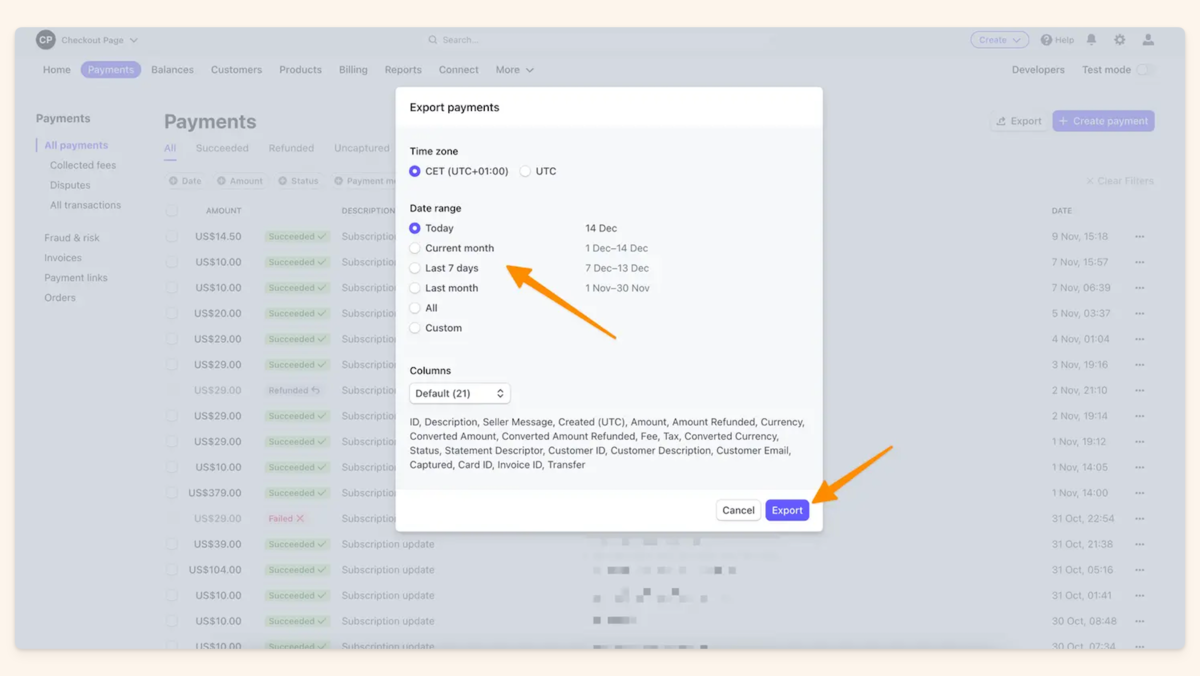
Download the CSV file
Click the 'Export' button at the bottom of the dialog. Stripe will generate and download a CSV file to your computer. The file contains one row per payment charge, with amounts in major currency units (e.g., 10.00 for ten dollars, not 1000 cents).
Verify the exported file
Open the downloaded CSV file in a spreadsheet application like Excel or Google Sheets. Check that the date range, number of rows, and column headers match your expectations. The 'id' column will contain charge IDs in ch_XXXXX format.
Required Payments Fields
| Field | Type | Description | Example |
|---|---|---|---|
| id | Text | Charge ID (ch_XXXXX format) | ch_1KX7YZQg123abc |
| Created (UTC) | Date/Time | Charge creation timestamp (ISO 8601) | 2025-01-15 14:23:00 |
| Amount | Currency | Gross charge amount | 100.00 |
Your Stripe export must include these fields for successful conversion.
