

How to Export Balance Transactions from Stripe (2026 Guide)
Follow these steps to export your Stripe balance transactions as a CSV file. Once exported, you can use any of our converter tools to transform the data for your target system.
Export Steps
Log in to your Stripe Dashboard
Open your browser and go to dashboard.stripe.com. Sign in with your email and password. Complete two-factor authentication if prompted. You will need at least read access to the Balance section of the dashboard.
Navigate to the Balance section
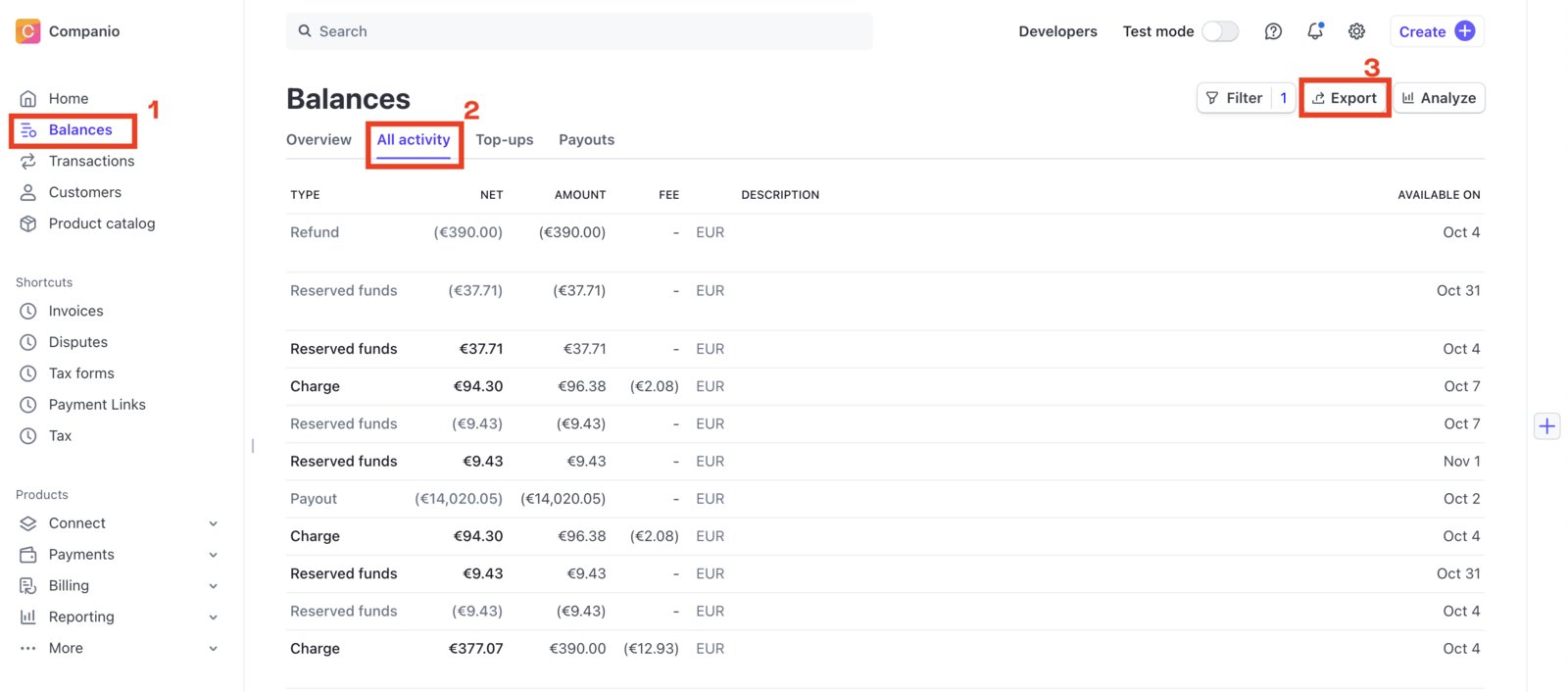
In the left-hand navigation menu, click on 'Balance'. This opens the Balance overview page showing your current Stripe balance, pending funds, and recent activity. The balance report functions similarly to a bank statement for reconciliation purposes.
Open the Balance Transactions view
From the Balance page, click on 'Transactions' in the top tab bar. This view shows every event that impacted your Stripe balance, including charges, refunds, payouts, disputes, adjustments, fees, and transfers.

Set the date range for your report
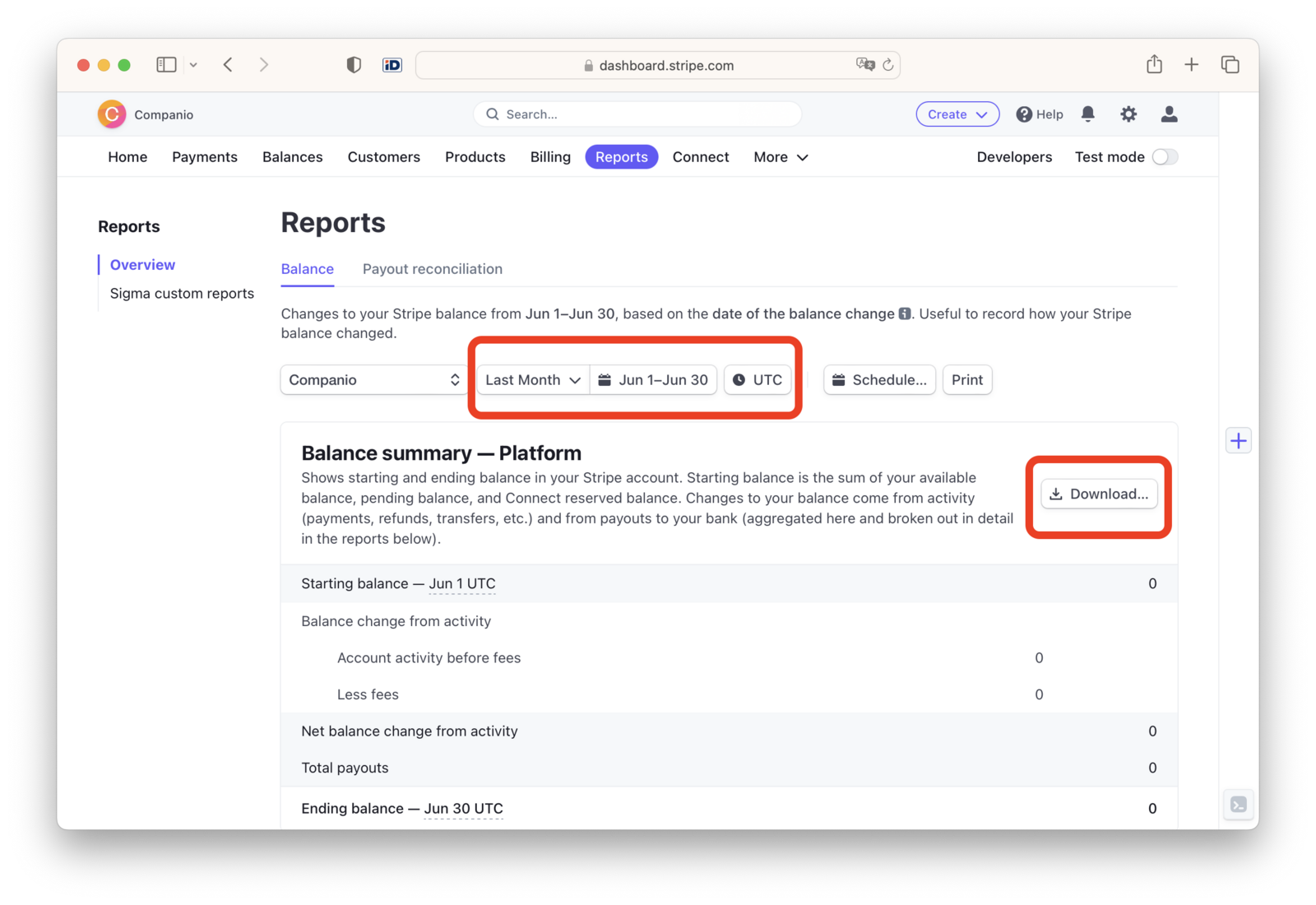
Use the date controls at the top of the page to select your desired reporting period. You can choose from preset ranges or specify custom start and end dates. Account activity is processed daily starting at midnight UTC, with data becoming available by noon the next day.

Apply filters if needed
Click the 'Filter' button to narrow your results by transaction type (charge, refund, payout, dispute), status (available, pending), currency, or other criteria. Filtering before export ensures your CSV contains only the transactions you need.
Click the Download button
Click the 'Download' button in the upper-right corner of the transactions section. You will see two format options: 'Summary' downloads the data exactly as displayed in the dashboard, while 'Itemized' downloads the full list of individual transactions.
Select columns and export
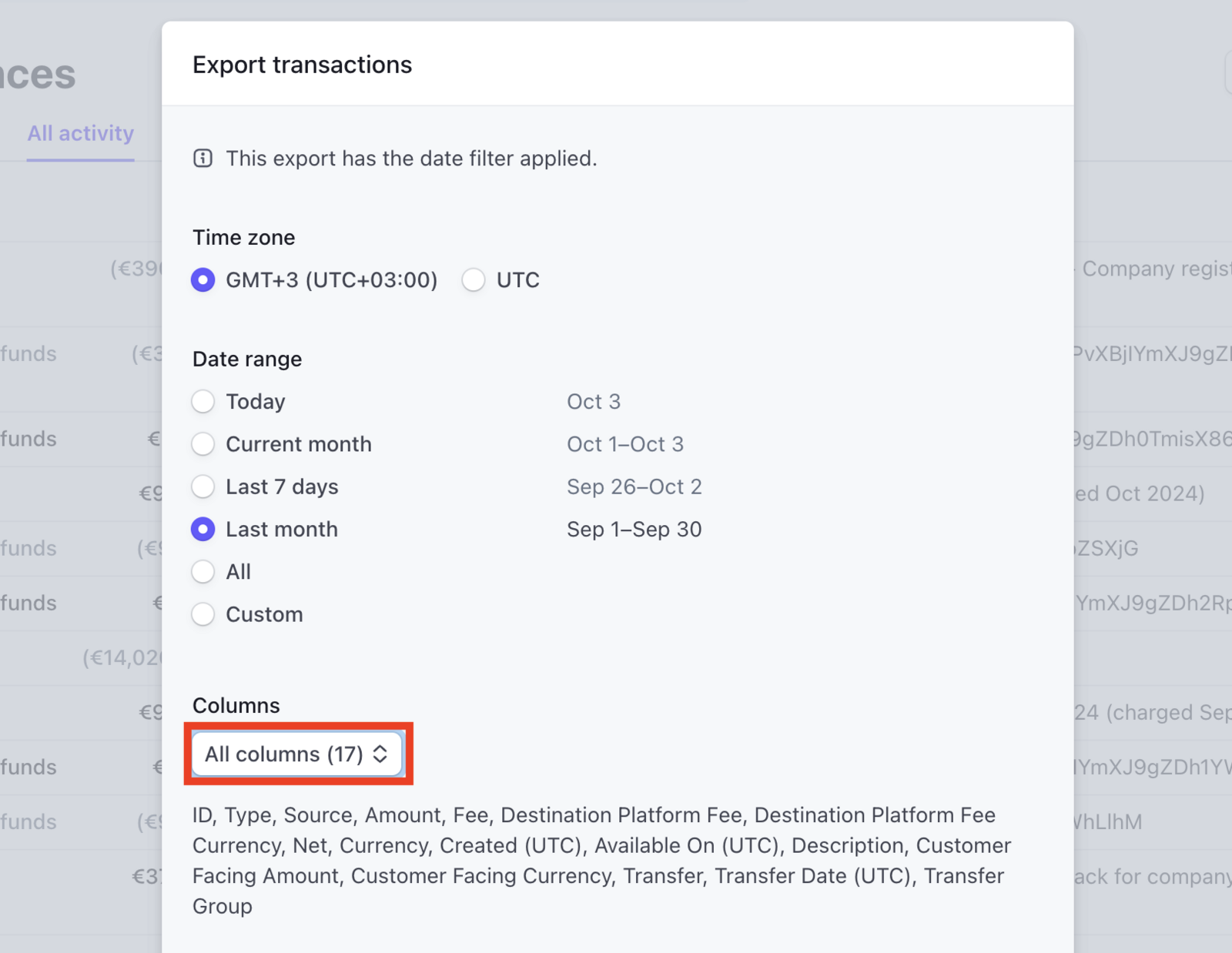
In the export dialog, select the columns you want to include. For accounting purposes, ensure you include Amount, Fee, Net, Type, Source ID, and Description. You can also include custom metadata columns if your business uses them. Click 'Export' to download.
Verify the exported file
Open the CSV in a spreadsheet application and confirm the data matches your expected date range. Each row represents a single balance transaction with a txn_XXXXX identifier. Amounts are shown in your settlement currency after any foreign currency conversion.
Required Balance Transactions Fields
| Field | Type | Description | Example |
|---|---|---|---|
| id | Text | Balance transaction ID (txn_XXXXX) | txn_1AbcXYZ123def |
| Type | Text | Transaction type (charge, refund, payout, dispute, etc.) | charge |
| Created (UTC) | Date/Time | Transaction timestamp | 2025-01-15 14:00:00 |
| Amount | Currency | Gross transaction amount (positive for credits) | 100.00 |
Your Stripe export must include these fields for successful conversion.
