

How to Export Transactions from PayPal (2026 Guide)
Follow these steps to export your PayPal transactions as a CSV file. Once exported, you can use any of our converter tools to transform the data for your target system.
Export Steps
Log in to your PayPal business account
Open your web browser and go to paypal.com. Sign in with your business account email and password. If you have two-factor authentication enabled, complete the verification step to access your dashboard.

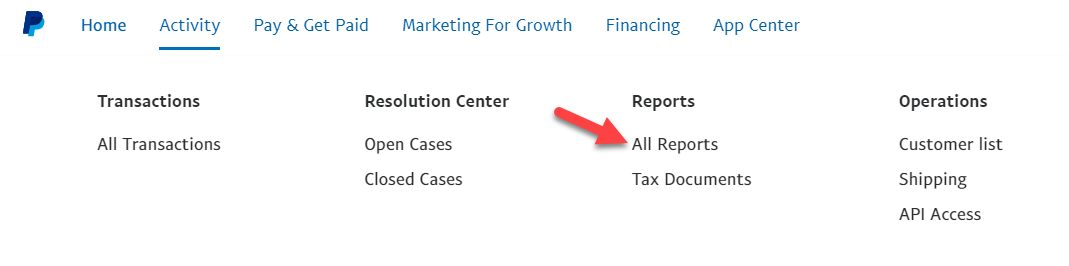
Navigate to the Reports section
From the main PayPal dashboard, look for the 'Activity' tab in the top navigation bar and click on it. Then select 'All Reports' from the dropdown menu. This takes you to PayPal's reporting hub where you can generate various data exports.

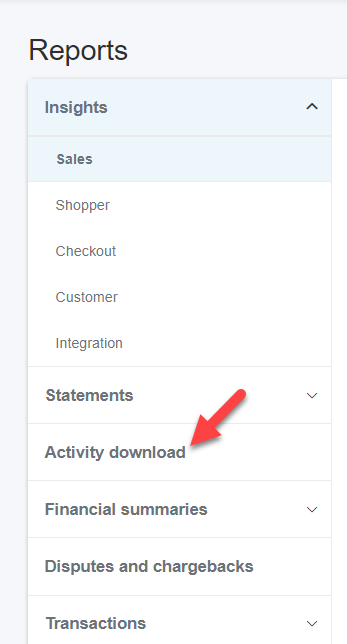
Select Activity Download
In the Reports section, click on 'Activity download' from the available report types. This report provides a comprehensive CSV file of all your transactions including payments received, payments sent, refunds, fees, and transfers.
Choose the transaction type filter
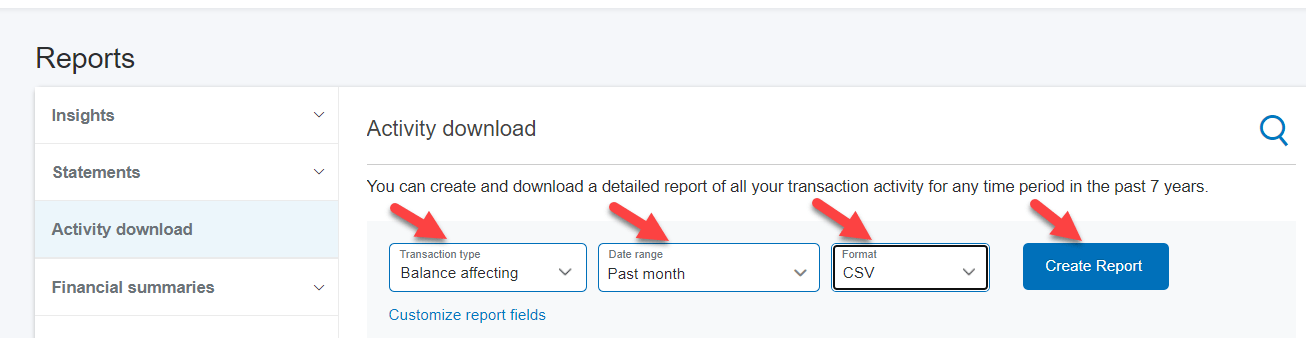
Under the transaction type dropdown, select 'Balance affecting' to include only transactions that impacted your PayPal balance. This filters out authorizations, pending holds, and other non-balance events that can clutter your export.
Set your date range
Choose the start and end dates for the period you want to export. PayPal allows you to download up to 12 months of data per export, and your transaction history is available going back 7 years. For quarterly bookkeeping, set the range to cover one full quarter.

Select CSV as the output format
In the file format dropdown, choose 'CSV' as your output format. PayPal also offers PDF and QIF formats, but CSV is the most versatile option for importing into spreadsheets and accounting software.
Create and download the report
Click the 'Create Report' button to generate your file. PayPal will process the request, which usually takes a few seconds. Once the report is ready, a 'Download' link will appear. Click it to save the CSV file to your computer.
Verify your downloaded file
Open the CSV file in a spreadsheet application like Excel or Google Sheets. Check that the date range matches what you requested and that the transaction count looks reasonable. Confirm that key columns like Date, Gross, Fee, and Net are populated correctly.
Required Transactions Fields
| Field | Type | Description | Example |
|---|---|---|---|
| Date | Date | Transaction completion date (MM/DD/YYYY) | 01/15/2025 |
| Name | Text | Counterparty name (payer or payee) | John Smith |
| Type | Text | Transaction type/T-Code description | Express Checkout Payment |
| Status | Choice | Transaction status | Completed |
| Currency | Text | ISO 4217 currency code | USD |
| Gross | Currency | Total amount before fees (positive = received, negative = sent) | 100.00 |
| Fee | Currency | PayPal transaction fee (negative value for deductions) | -2.90 |
| Net | Currency | Net amount after fees (Gross + Fee = Net) | 97.10 |
| Transaction ID | Text | Unique PayPal transaction identifier (17 characters) | 9AB12345CD678901E |
Your PayPal export must include these fields for successful conversion.
