

How to Export Transactions from eBay Seller (2026 Guide)
Follow these steps to export your eBay Seller transactions as a CSV file. Once exported, you can use any of our converter tools to transform the data for your target system.
Export Steps
Sign in to eBay and open Seller Hub
Go to ebay.com and sign in with your seller account. Navigate to Seller Hub by clicking the My eBay dropdown and selecting Selling, or go directly to ebay.com/sh/overview. Seller Hub is the central management console for eBay sellers.
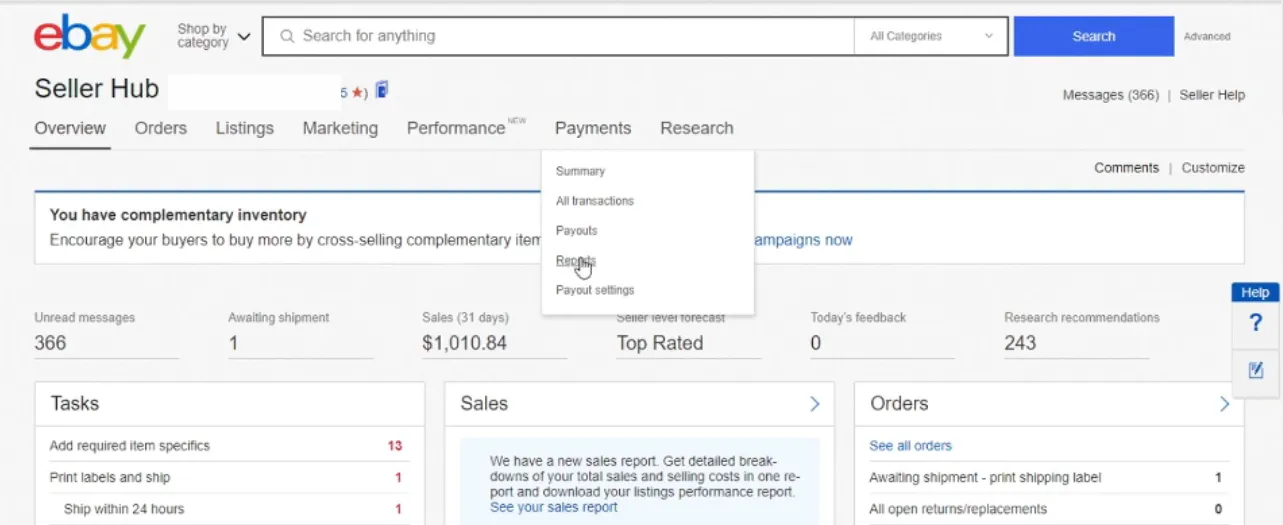
Navigate to the Payments tab
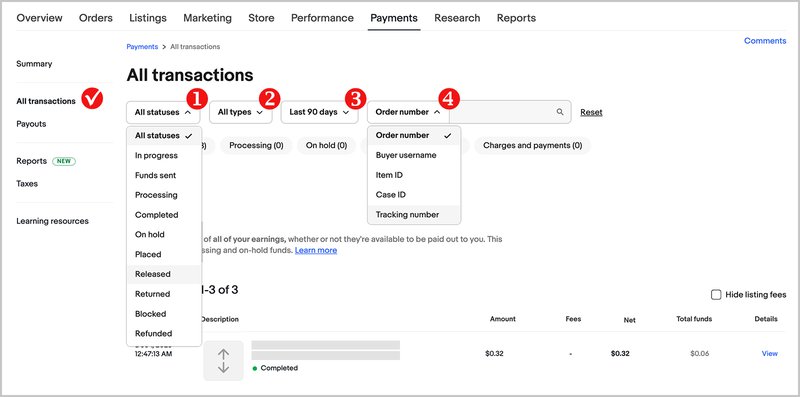
At the top of Seller Hub, click the Payments tab. This section provides a complete view of your financial activity under eBay Managed Payments, including earnings, payouts, and transaction history.
Open the Reports section
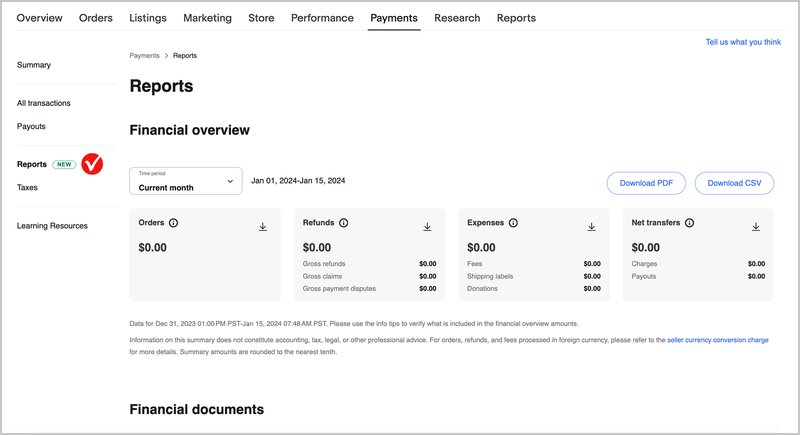
In the left-hand menu under the Payments tab, click Reports. This page allows you to generate, download, and manage financial reports. You will see a Transaction report option in the download section.
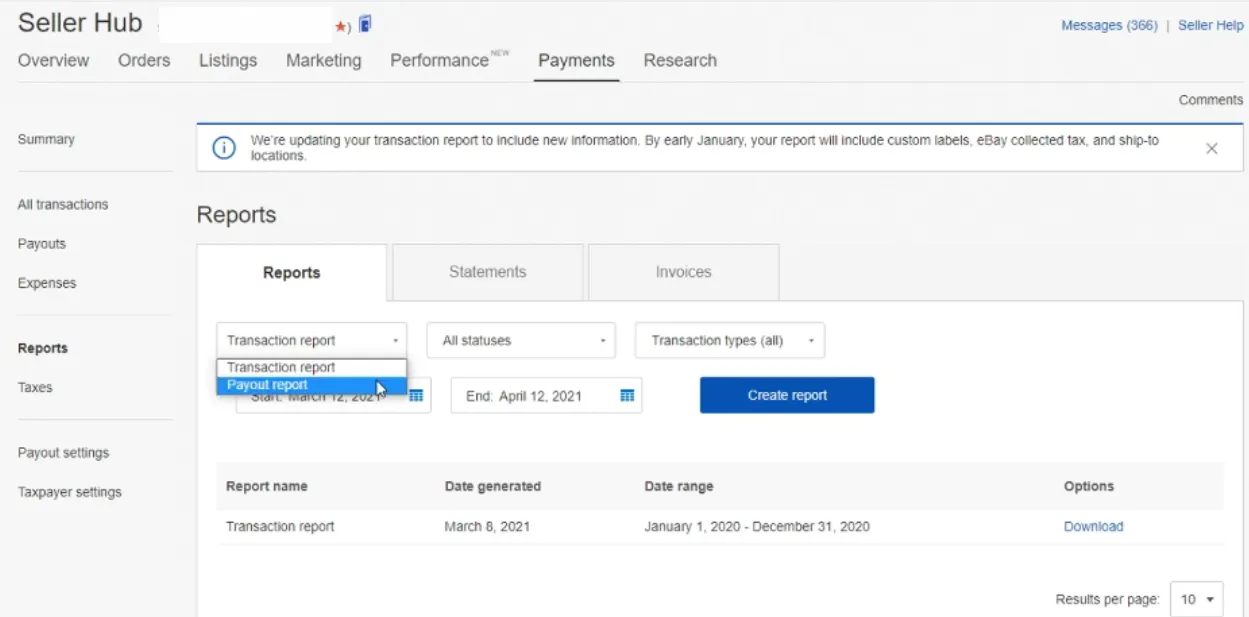
Configure the transaction report
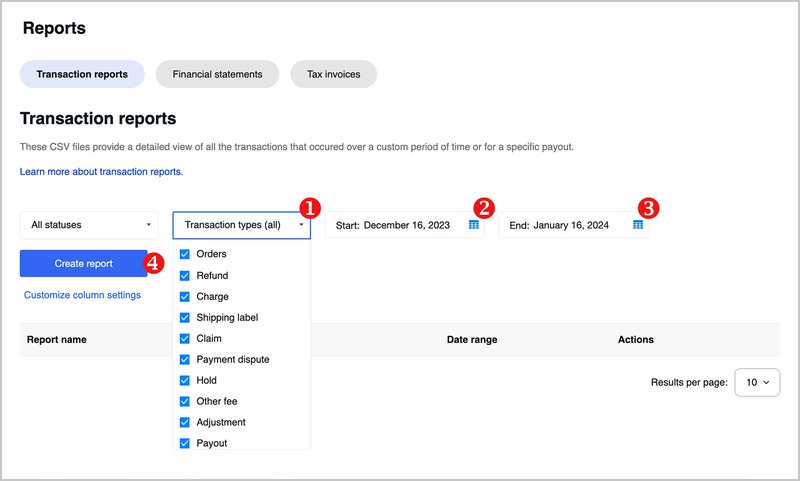
Select Transaction report from the download section. Choose the transaction type you want to include (e.g., all types, or filter to specific types like Orders, Refunds, or Payouts). Set the start and end dates for your desired reporting period.

Optionally customize column settings
Before generating the report, you can click Customize column settings to choose which columns appear in the CSV. The default includes all financial columns (gross amount, fees, net amount, payout details). Add or remove columns based on your accounting needs.

Click Create report
Click the Create report button. eBay will begin generating your CSV file in the background. Depending on the volume of transactions and the date range, this may take anywhere from a few seconds to several minutes.
Download the report when ready
eBay will notify you by email when the report is ready for download. You can also check the recent downloads section on the Reports page. Click Download next to your report to save the CSV file to your computer.
Review the transaction data
Open the CSV in a spreadsheet application. Each row represents a financial event: orders, fees, refunds, shipping labels, or payouts. Verify that the Type, Gross transaction amount, Total fees, and Net amount columns are present and the data covers your expected date range.
Required Transactions Fields
| Field | Type | Description | Example |
|---|---|---|---|
| Transaction creation date | Date/Time | Transaction date/time | Jan-15-2026 |
| Type | Choice | Transaction type | Order |
| Order number | Text | eBay order number (e.g., 11-12345-67890) | 11-12345-67890 |
| Gross transaction amount | Currency | Total amount (Item + Shipping + Tax) | 108.00 |
Your eBay Seller export must include these fields for successful conversion.
