

How to Export Settlements from Amazon Seller (2026 Guide)
Follow these steps to export your Amazon Seller settlements as a CSV file. Once exported, you can use any of our converter tools to transform the data for your target system.
Export Steps
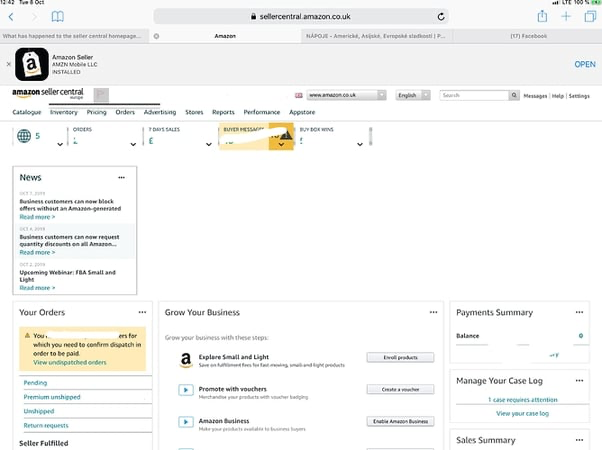
Log in to Amazon Seller Central
Open your web browser and go to sellercentral.amazon.com. Enter your seller account email and password, then complete any two-factor authentication prompts. Make sure you are logged into the correct marketplace if you sell on multiple Amazon regions.

Navigate to the Payments dashboard
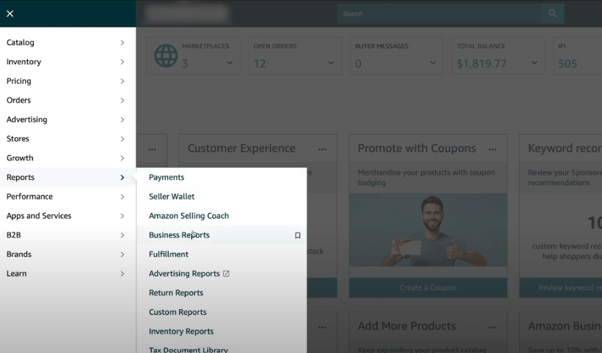
From the top navigation bar, hover over the 'Reports' menu. In the dropdown that appears, click on 'Payments'. This takes you to the Payments dashboard where you can see your current balance, recent transactions, and settlement history.
Open the All Statements view
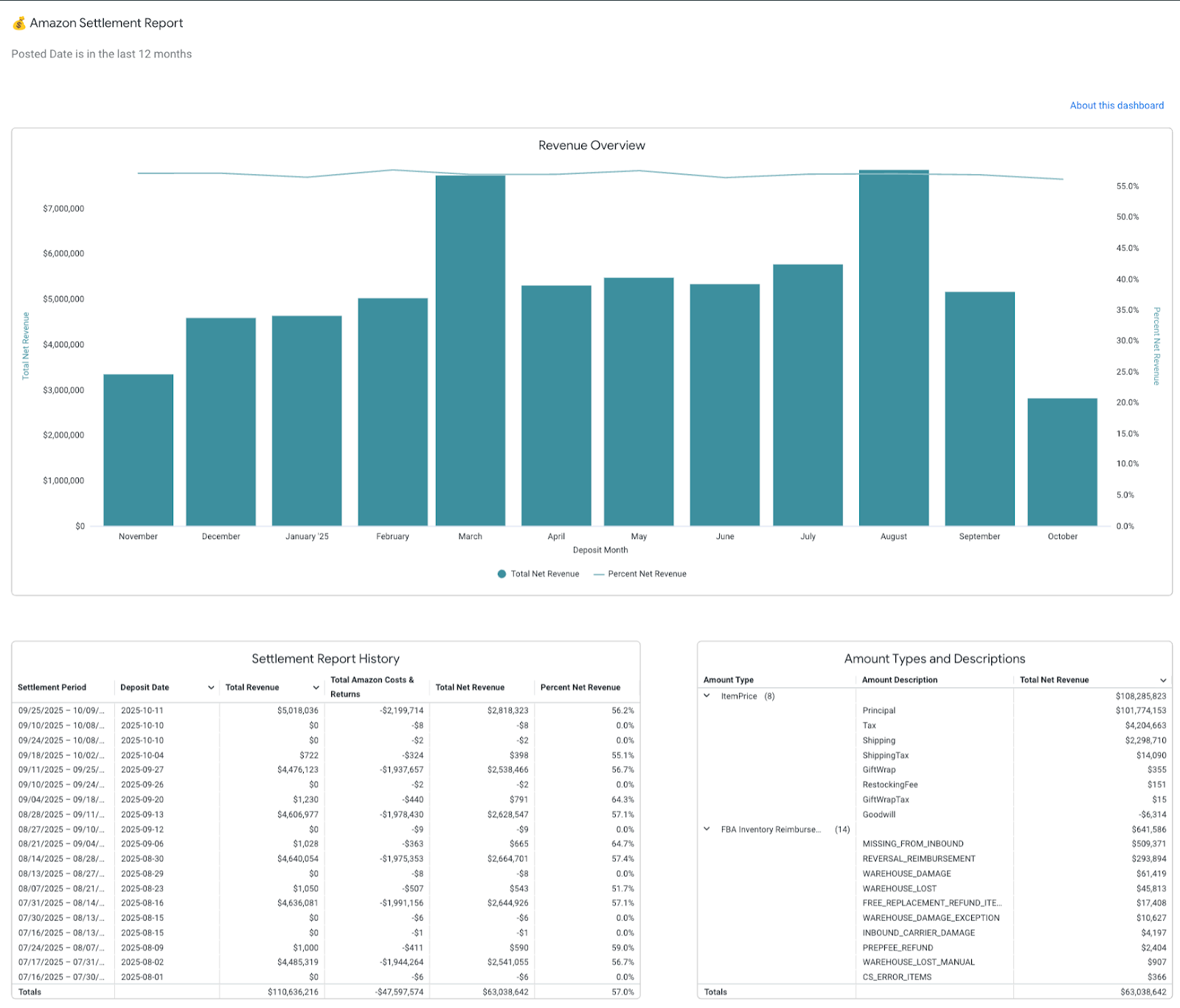
On the Payments dashboard, click the 'All Statements' tab. This view lists every settlement period with its date range, deposit amount, and current status. Each row represents one settlement cycle, which is typically bi-weekly.
Select the settlement period date range
Use the date range filter at the top of the page to narrow the list to the settlement periods you need. Enter a start and end date, then click 'Search' to refresh the results. Settlement reports are available for up to 90 days from the original settlement date.

Request the settlement report
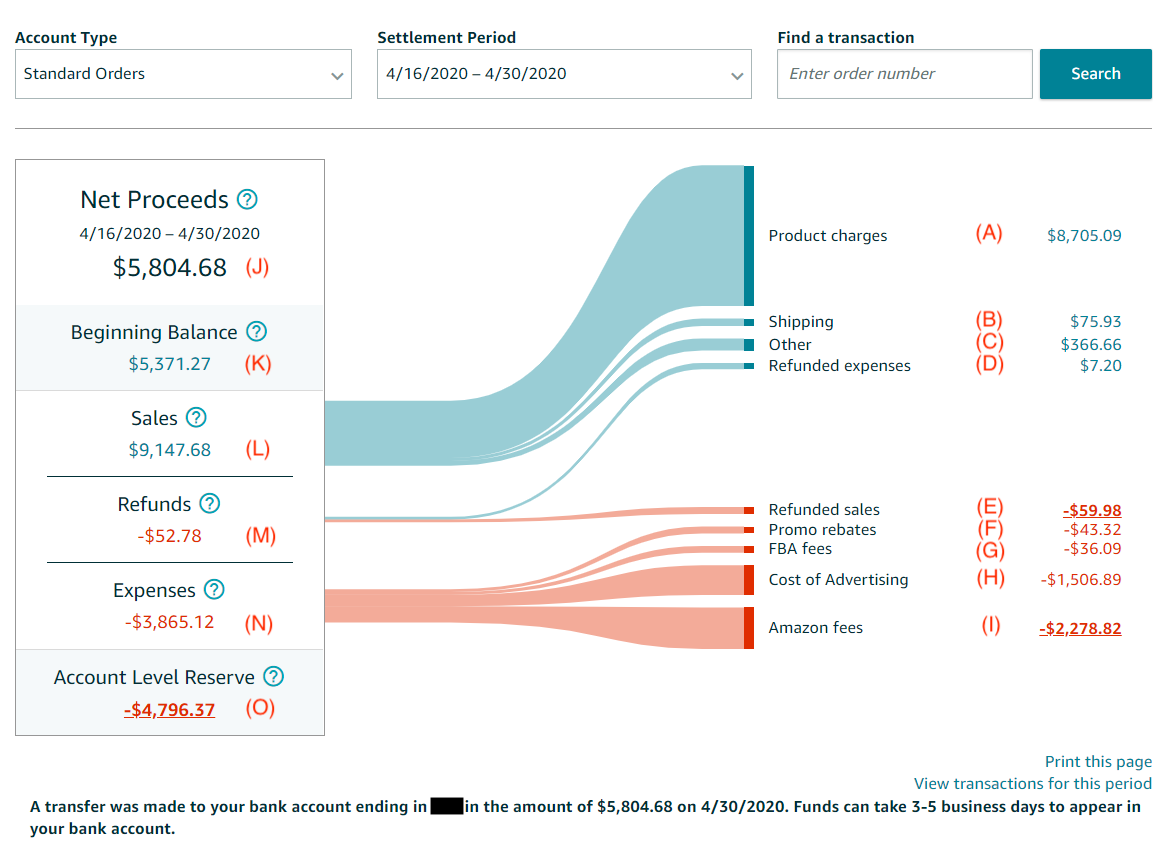
Locate the settlement period you want to download in the list. In the 'Actions' column on the right side, click 'Request Report' if the report has not been generated yet. Amazon will begin preparing the file, which usually takes a few seconds to a couple of minutes.
Download the Flat File V2
Once the report is ready, click 'Download Flat File V2' in the Actions column for that settlement period. The file will download as a tab-delimited text file (.txt) containing all transaction-level details for the settlement including sales, fees, refunds, and adjustments.
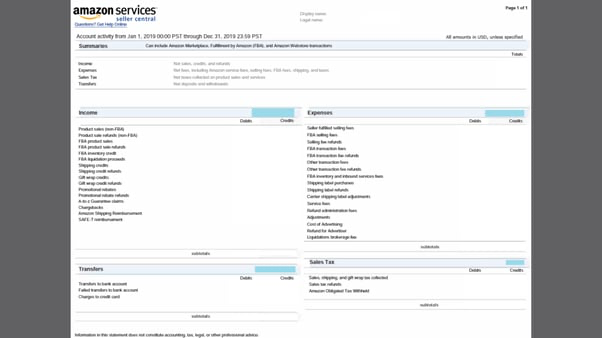
Open and verify the downloaded file
Open the downloaded .txt file in a spreadsheet application such as Microsoft Excel or Google Sheets. When importing, select 'Tab' as the delimiter. Verify that the column headers are present and that the transaction rows display the expected data for your settlement period.
Save as CSV if needed
If your accounting tool requires a CSV file rather than a tab-delimited text file, use your spreadsheet application to re-save the file. In Excel, go to File > Save As and choose 'CSV (Comma delimited)' from the format dropdown. Confirm the data looks correct after saving.
Required Settlements Fields
| Field | Type | Description | Example |
|---|---|---|---|
| settlement-id | Text | Unique settlement identifier (used as reference in QuickBooks) | 16427587891 |
| settlement-start-date | Date/Time | Settlement period start date (ISO 8601) | 2025-01-01T00:00:00+00:00 |
| settlement-end-date | Date/Time | Settlement period end date (ISO 8601) | 2025-01-15T23:59:59+00:00 |
| transaction-type | Choice | Primary transaction category | Order |
| amount-type | Choice | Amount category (revenue, fees, or promotions) | ItemPrice |
| amount-description | Text | Granular fee/charge type (maps to Chart of Accounts) | Commission |
| amount | Currency | Transaction amount (positive=revenue, negative=fees) | -15.00 |
Your Amazon Seller export must include these fields for successful conversion.
