

How to Export Customers from Stripe (2026 Guide)
Follow these steps to export your Stripe customers as a CSV file. Once exported, you can use any of our converter tools to transform the data for your target system.
Export Steps
Log in to your Stripe Dashboard
Navigate to dashboard.stripe.com and sign in with your email and password. Complete two-factor authentication if enabled on your account.
Navigate to the Customers page
In the left-hand navigation menu, click on 'Customers'. This page displays all customer records stored in your Stripe account, including their names, email addresses, and creation dates.
Filter your customer list
Use the 'Filter' button in the upper-right corner to narrow down customers by creation date, email, or other parameters. You can combine multiple filters to target a specific subset of customers for export.

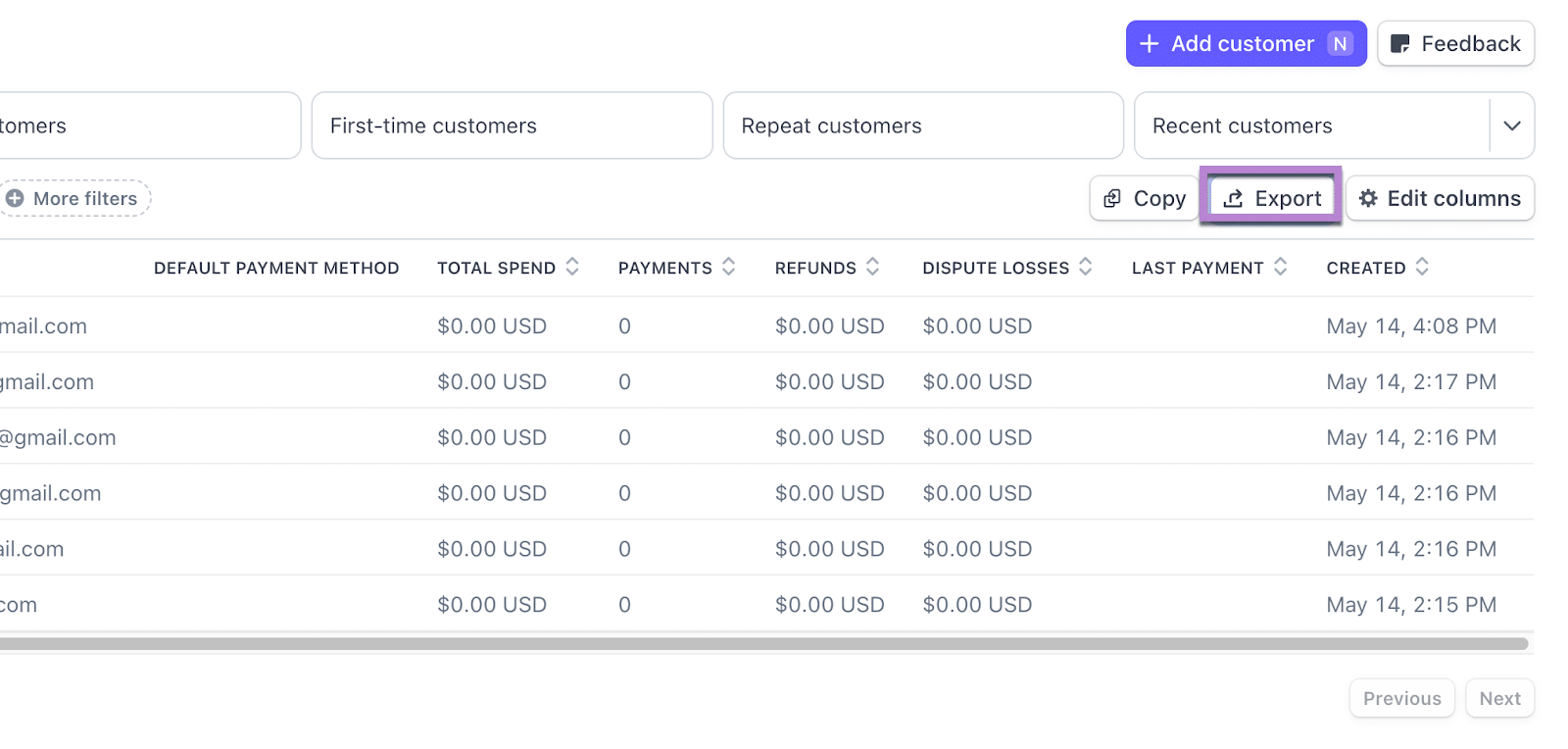
Click the Export button
In the upper-right corner of the Customers page, click the 'Export' button. An export dialog will appear where you can configure the date range, time zone, and which columns to include in the CSV.
Configure export preferences
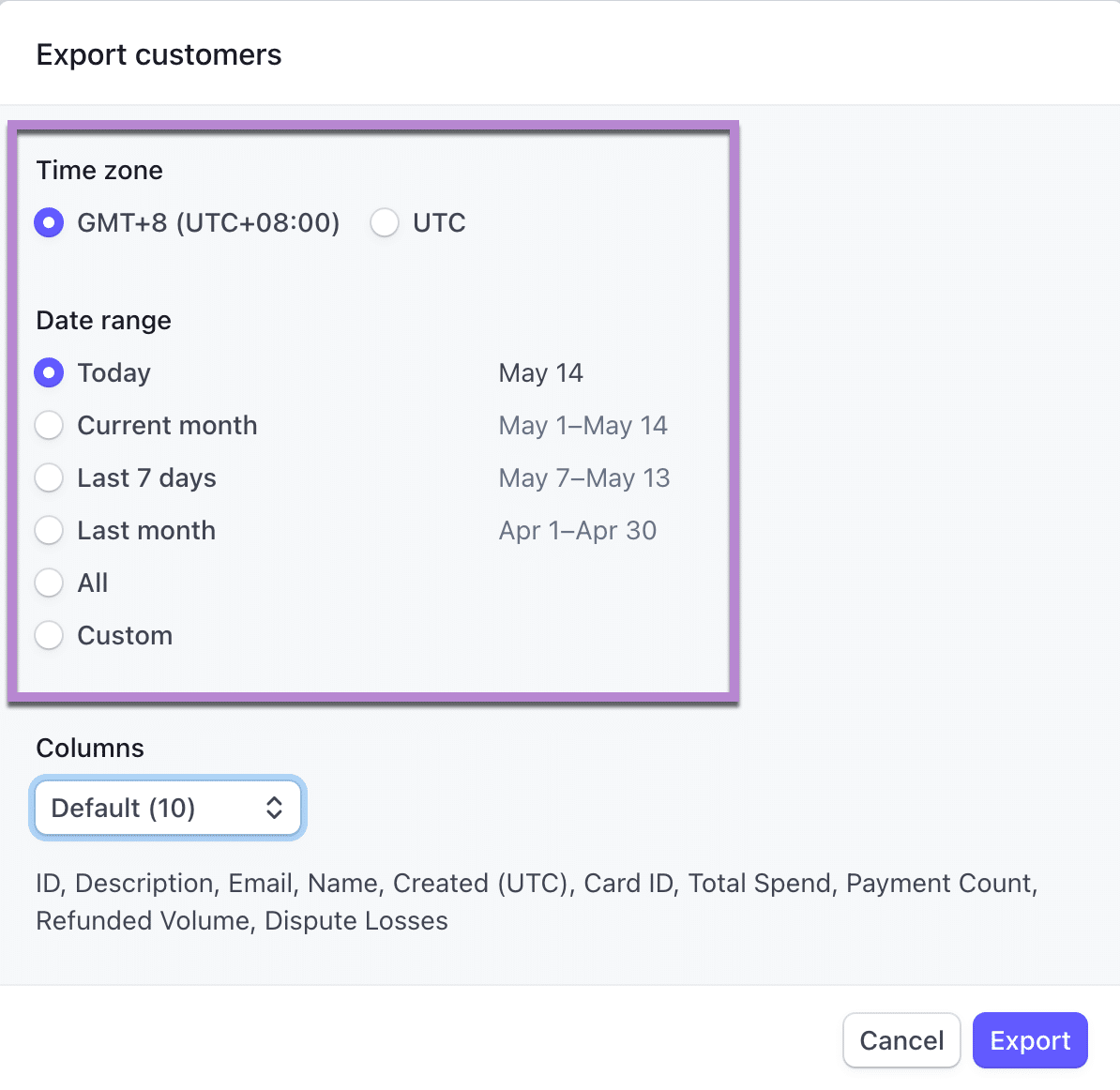
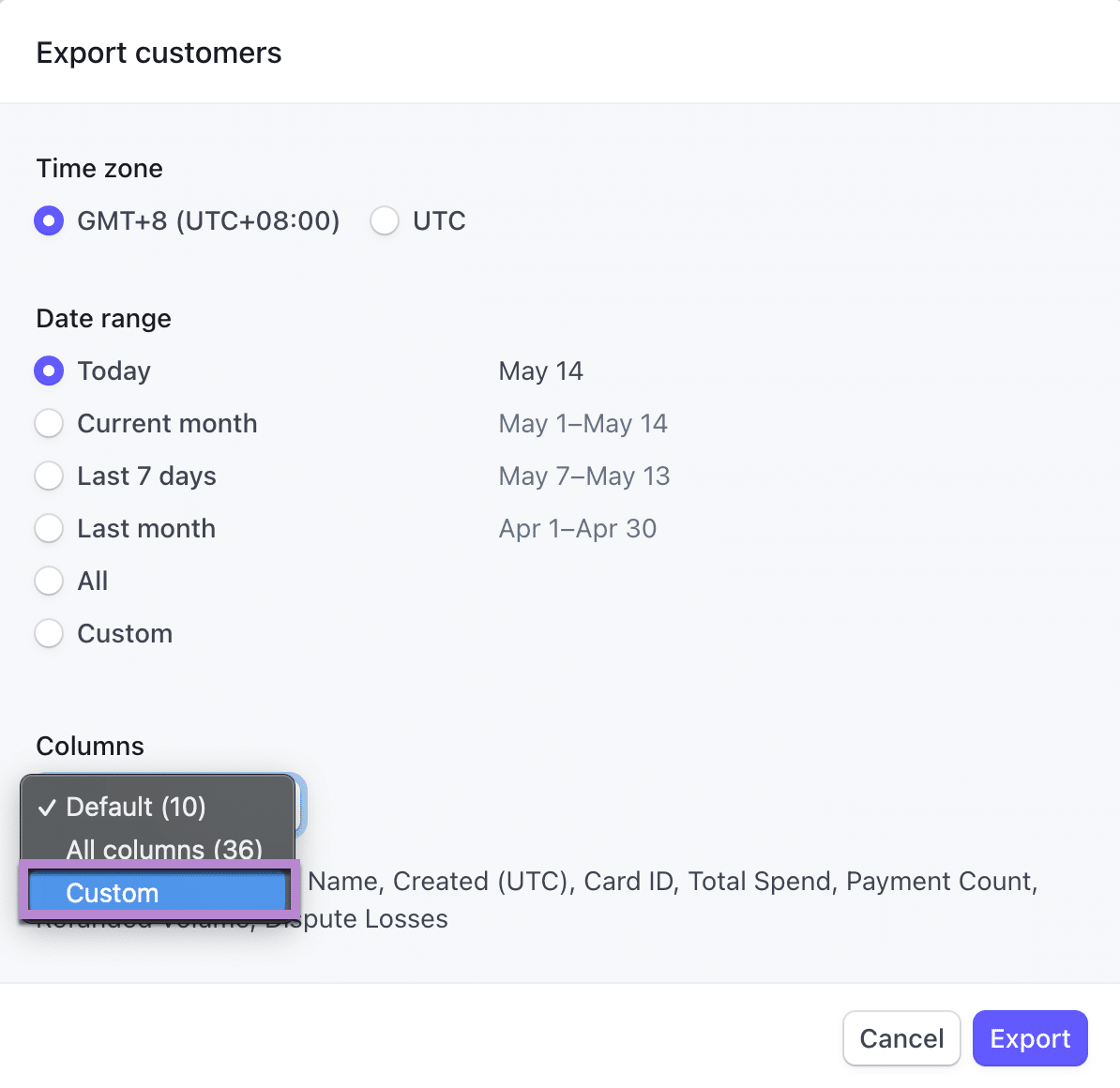
In the export dialog, set your preferred time zone and date range. Under Columns, select 'Default' for the standard set of fields, or choose 'Custom' to pick specific columns. For importing into accounting software, include Name, Email, Phone, and Address fields.
Download the CSV file
Click 'Export' at the bottom of the dialog to generate and download the CSV file. Each row in the file represents one customer record with a cus_XXXXX identifier. The file includes all contact details and addresses stored in Stripe.
Review the exported data
Open the CSV in a spreadsheet application and verify the customer records. Check that names, email addresses, and addresses are populated correctly. Some fields may be empty if customers were created without full contact details.

Required Customers Fields
| Field | Type | Description | Example |
|---|---|---|---|
| id | Text | Customer ID (cus_XXXXX) | cus_JdW02JwM87c |
Your Stripe export must include these fields for successful conversion.
