

How to Export Products from Shopify (2026 Guide)
Follow these steps to export your Shopify products as a CSV file. Once exported, you can use any of our converter tools to transform the data for your target system.
Export Steps
Log in to your Shopify admin
Open your browser and go to your-store.myshopify.com/admin. Sign in with your credentials. You need at least the Products permission on your staff account to access the product catalog and export functionality.
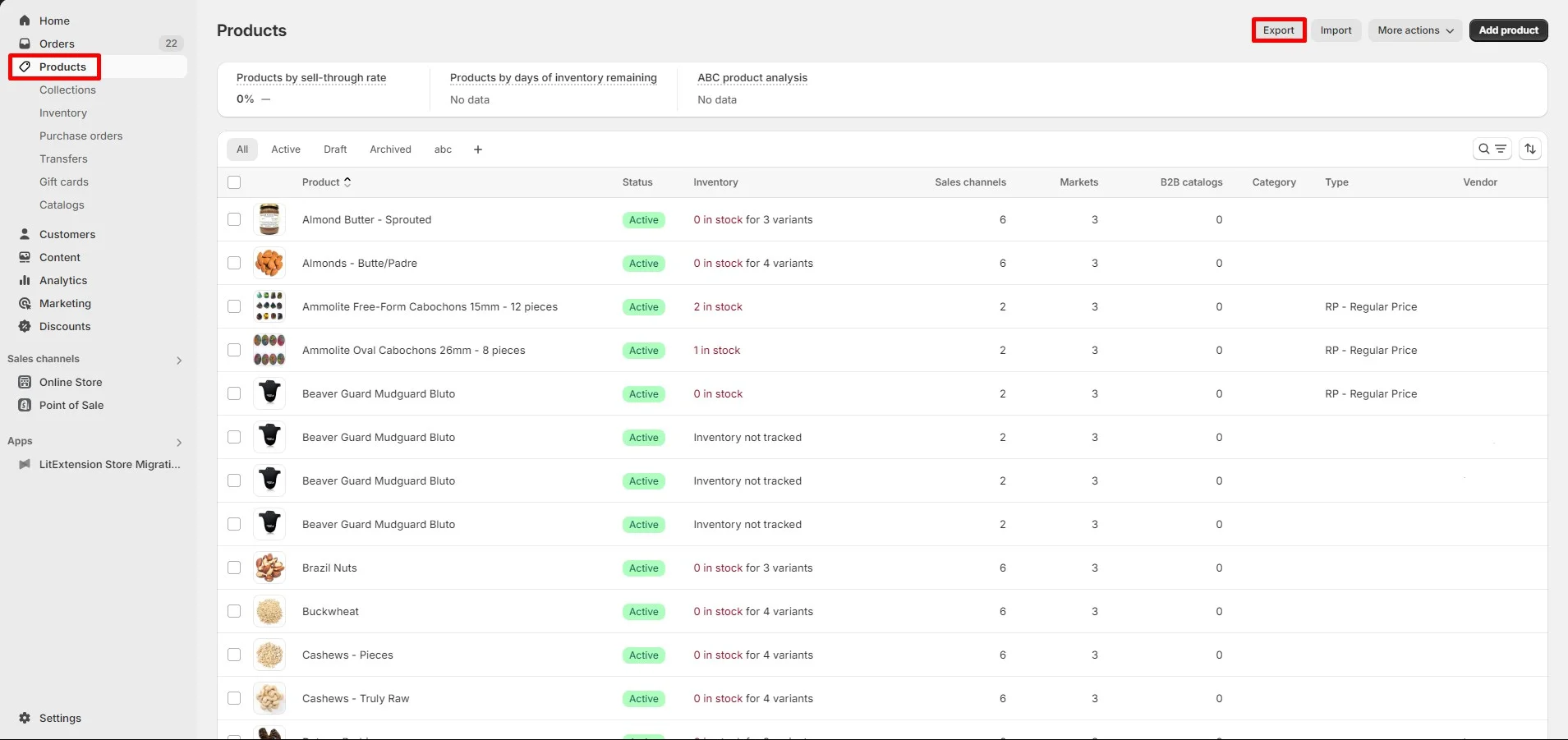
Navigate to the Products page
Click Products in the left-hand sidebar of your Shopify admin. This shows your complete product catalog. The Export button is in the upper-right area of the page, next to the Import button.
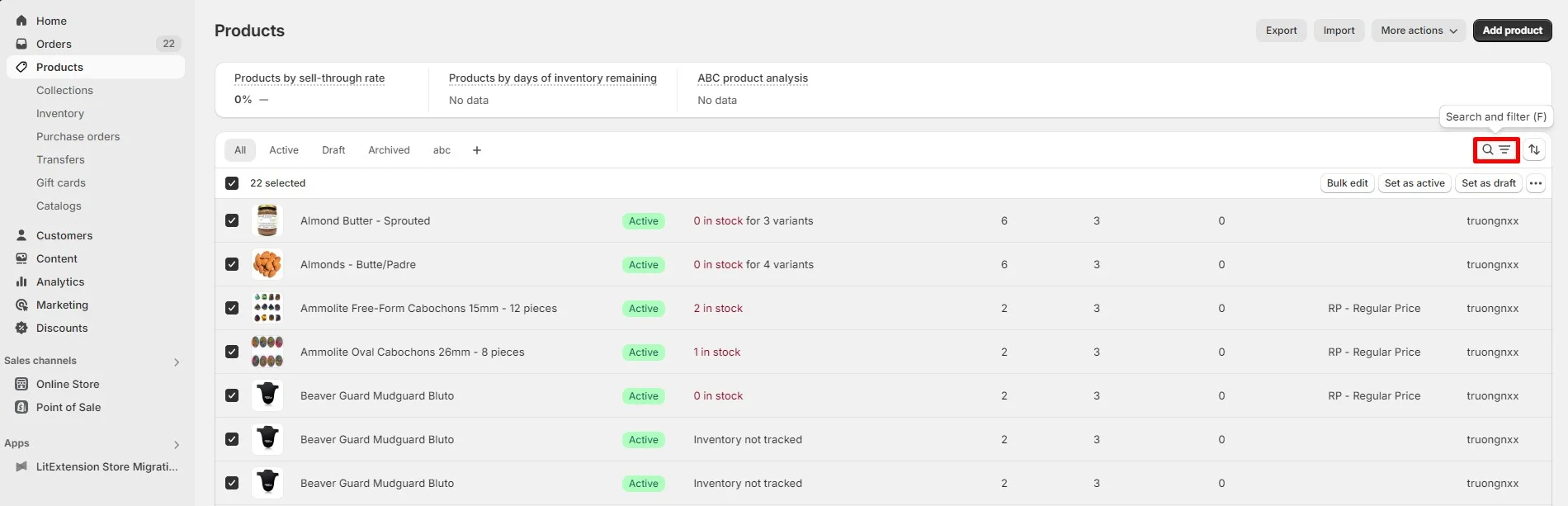
Filter or select specific products (optional)
If you only need certain products, use the search bar and filters before exporting. You can filter by product status (active, draft, archived), vendor, product type, tags, or collection. You can also manually select products using the checkboxes next to each product name.

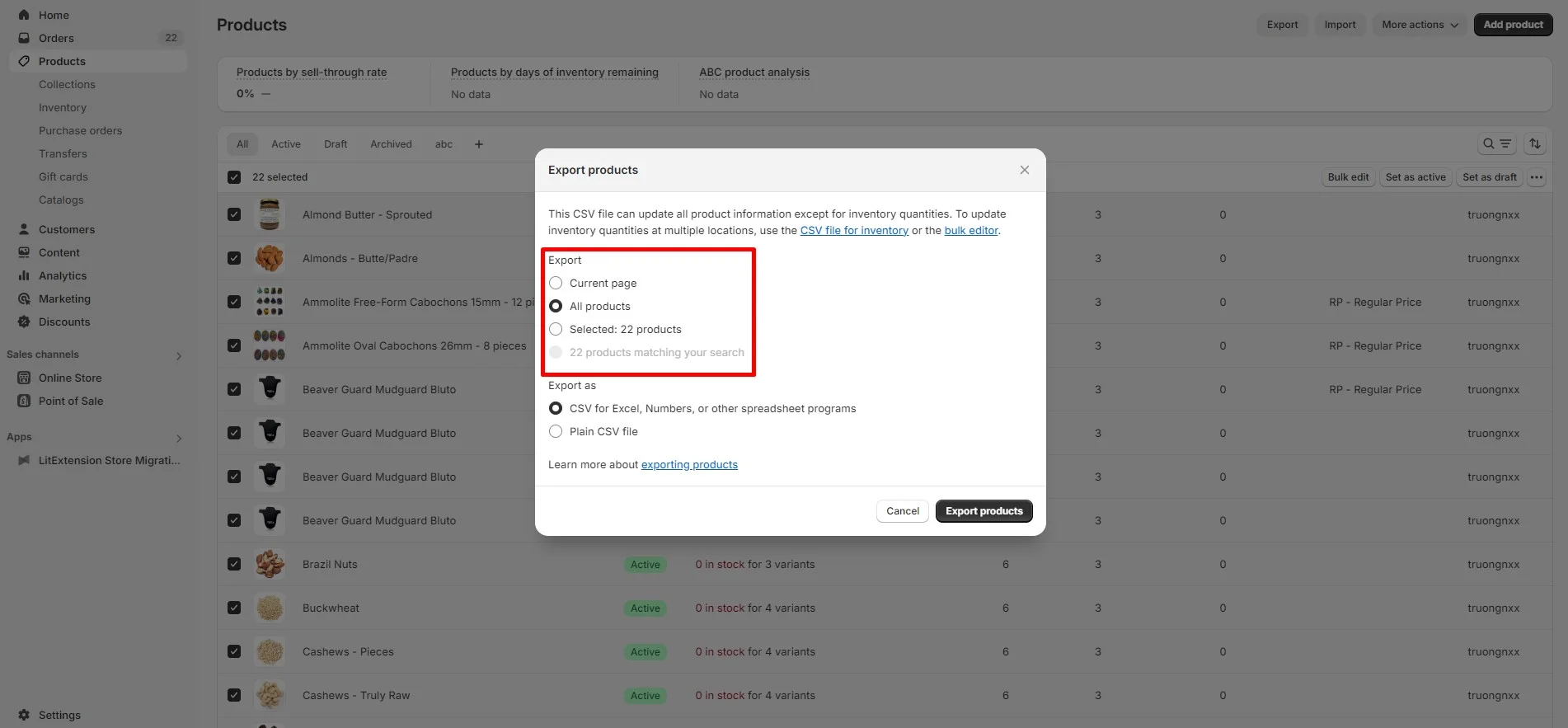
Click Export and choose the export scope
Click the Export button to open the export dialog. You will see options including: all products in your store, all products on the current page, products you have selected manually, or products matching your search and filter criteria. Choose the option that covers the products you need.
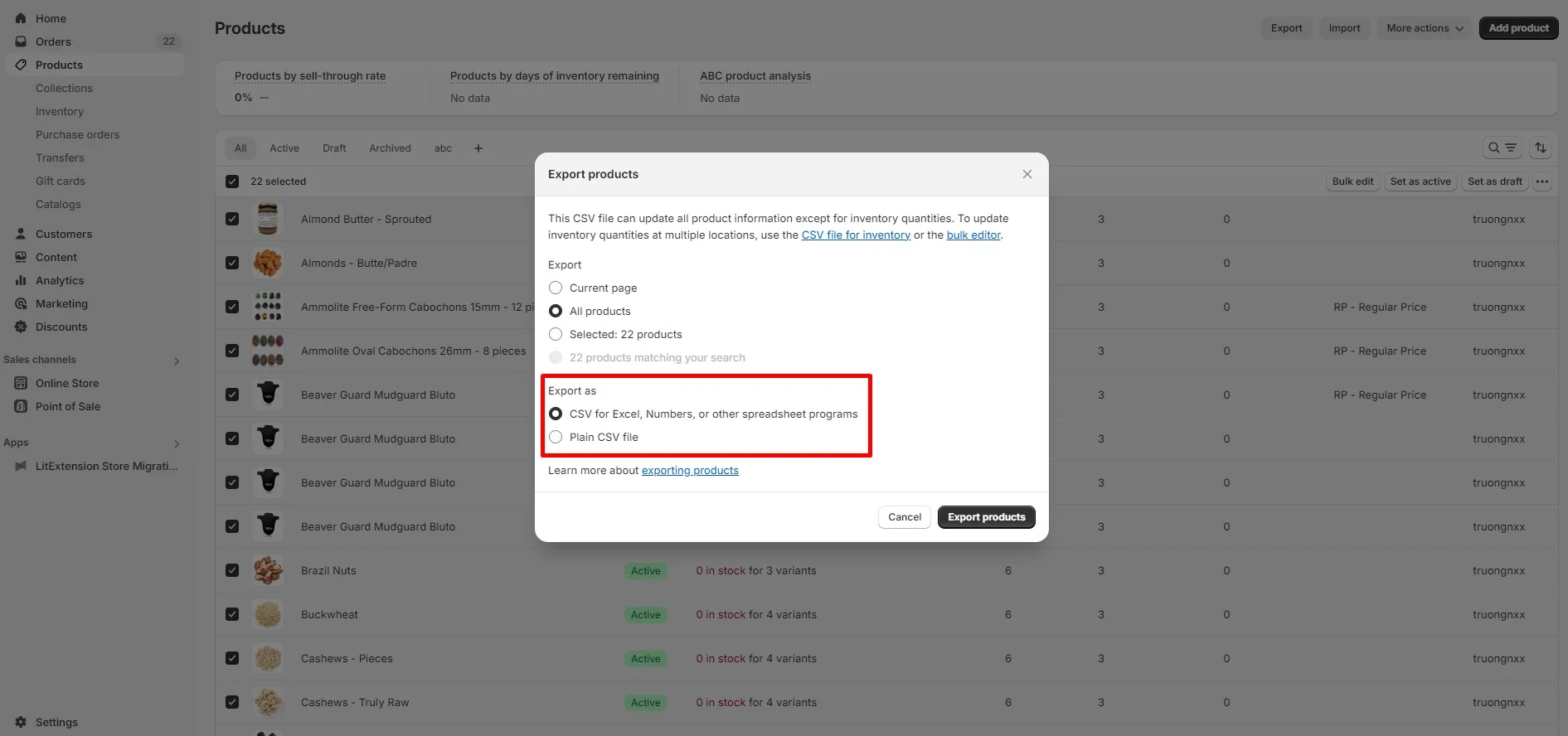
Select the CSV file format
Under the format section, choose 'CSV for Excel, Numbers, or other spreadsheet programs' if you plan to edit the file in a spreadsheet. Choose 'Plain CSV file' if you are importing into another system. The spreadsheet-friendly format includes encoding that helps Excel display special characters correctly.
Click Export products and download
Click the 'Export products' button to generate the file. If your catalog has fewer than 50 products, the CSV downloads directly to your browser. For larger catalogs, Shopify processes the export in the background and emails a download link to the store owner's address. Large catalogs may take several minutes to process.
Understand the CSV row structure
Open the CSV in your spreadsheet application. Each row represents one product variant, not one product. A t-shirt with three sizes will have three rows sharing the same Handle value. The first row of each Handle group contains the product-level information (Title, Body HTML, Vendor, Tags), while subsequent rows contain only variant-specific data (Option values, SKU, Price, Inventory).

Required Products Fields
| Field | Type | Description | Example |
|---|---|---|---|
| Handle | Text | Unique product identifier (URL slug) | example-t-shirt |
| Title | Text | Product display name | Example T-Shirt |
| Vendor | Text | Manufacturer/supplier name | Acme Clothing |
| Variant Price | Currency | Selling price | 25.00 |
Your Shopify export must include these fields for successful conversion.
