

How to Export Monthly Statement from Etsy Seller (2026 Guide)
Follow these steps to export your Etsy Seller monthly statement as a CSV file. Once exported, you can use any of our converter tools to transform the data for your target system.
Export Steps
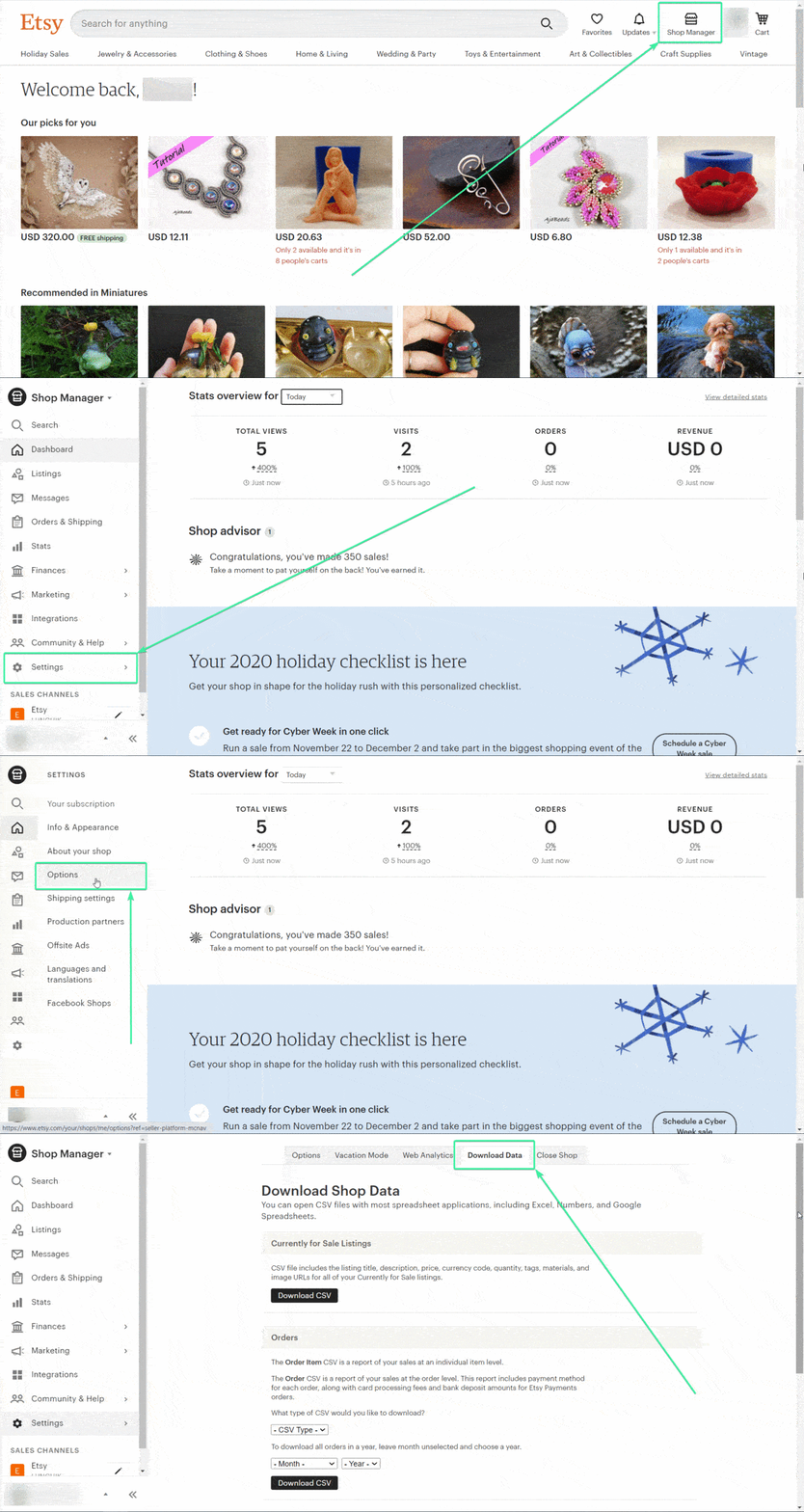
Sign in to Etsy and open Shop Manager
Go to Etsy.com and sign in with your seller account. Click the Shop Manager icon in the top-right corner of the page to access your seller dashboard. You need an active Etsy Payments account to generate monthly statements.
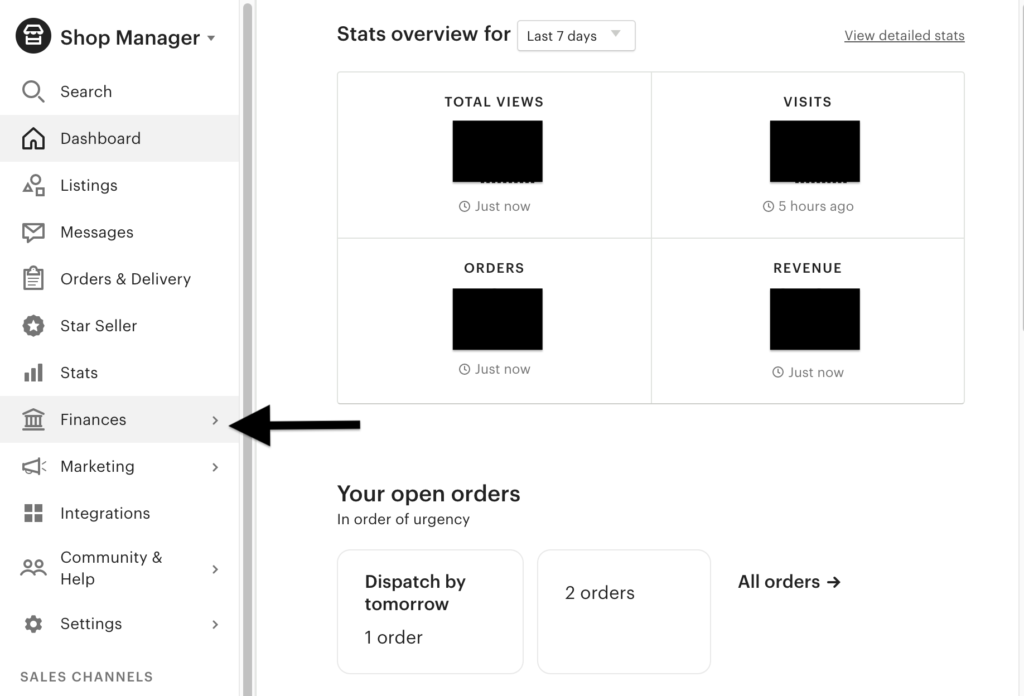
Navigate to Finances
In the left-hand sidebar of Shop Manager, click Finances. This section shows your payment account overview including recent deposits, current balance, and links to detailed financial reports.
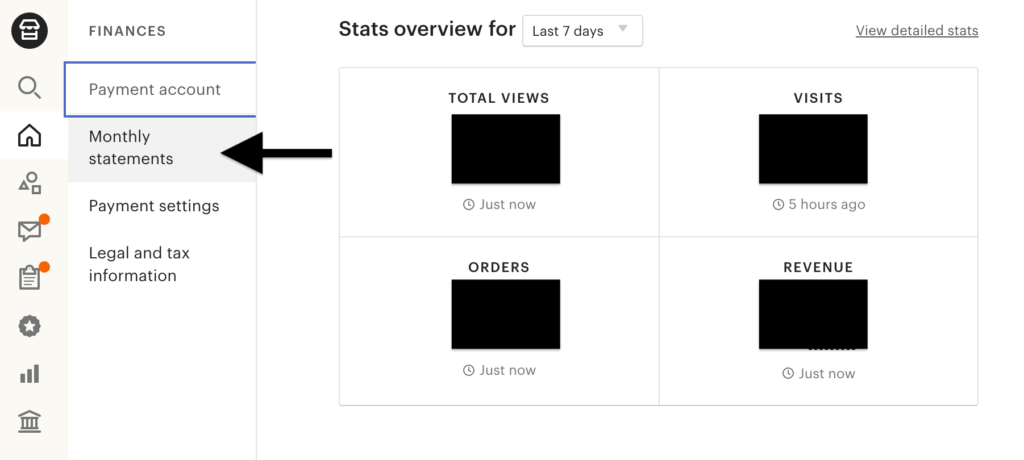
Open Monthly Statements
From the Finances page, click Monthly statements in the submenu. You will see a list of available statements organized by month and year. Each statement summarizes all financial activity for that period including sales, fees, refunds, and deposits.
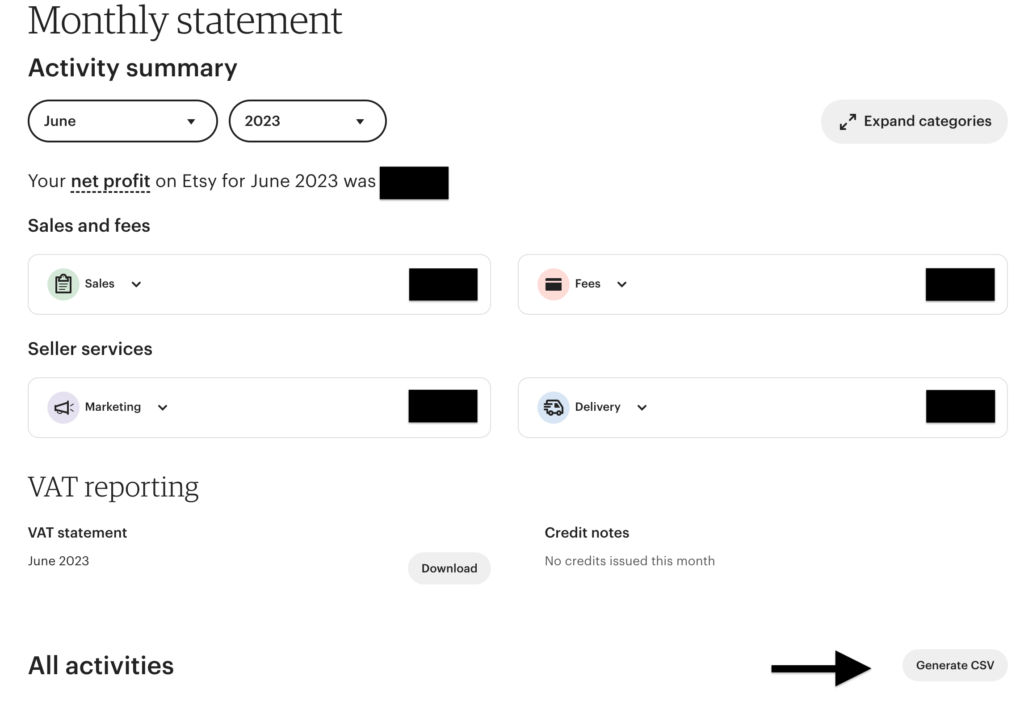
Select the month and year
Choose the specific month and year you want to download. Etsy generates statements on a calendar-month basis, so each statement covers the 1st through the last day of that month. You can only download one month at a time.

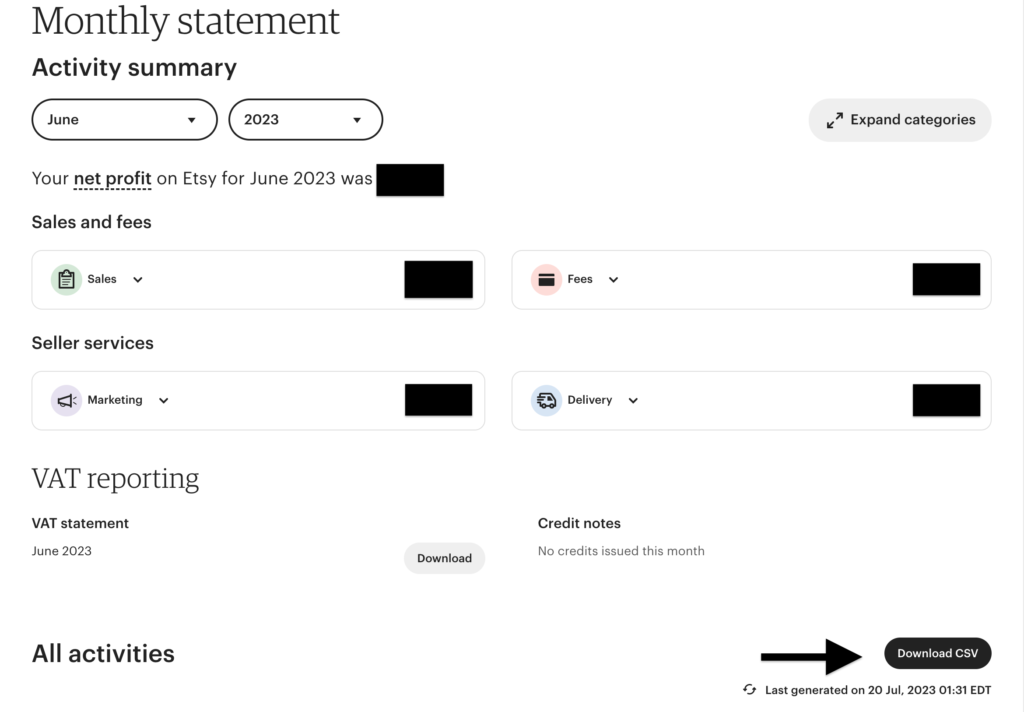
Click Generate CSV
On the selected monthly statement page, click the Generate CSV button. Etsy will begin preparing your CSV file in the background. This may take a moment depending on the volume of transactions in that month.
Download the CSV file
Once the file is ready, the button changes to Download CSV. Click it to save the file to your computer. Etsy may also send you an email notification with a download link when the file is ready, especially for months with high transaction volumes.
Review the statement data
Open the CSV file in your preferred spreadsheet application. Each row represents a single financial event such as a sale, fee charge, refund, or bank deposit. Verify that the Date, Type, Amount, Fees & Taxes, and Net columns are present and that the totals align with your Etsy dashboard figures.

Required Monthly Statement Fields
| Field | Type | Description | Example |
|---|---|---|---|
| Date | Date | Transaction date | Jan 15, 2026 |
| Type | Choice | Transaction type | Sale |
| Amount | Currency | Gross transaction amount | 55.57 |
Your Etsy Seller export must include these fields for successful conversion.
