

How to Import Products to WooCommerce (2026 Guide)
After converting your data with one of our tools, follow these steps to import the products into WooCommerce.
Import Steps
Prepare your CSV file
Create your product CSV with all the necessary columns such as SKU, Name, Type, Regular price, Stock, and Categories. Make sure the file is saved in UTF-8 encoding. Wrap any values that contain commas in double quotes to prevent parsing errors during import.

Navigate to the WooCommerce import tool
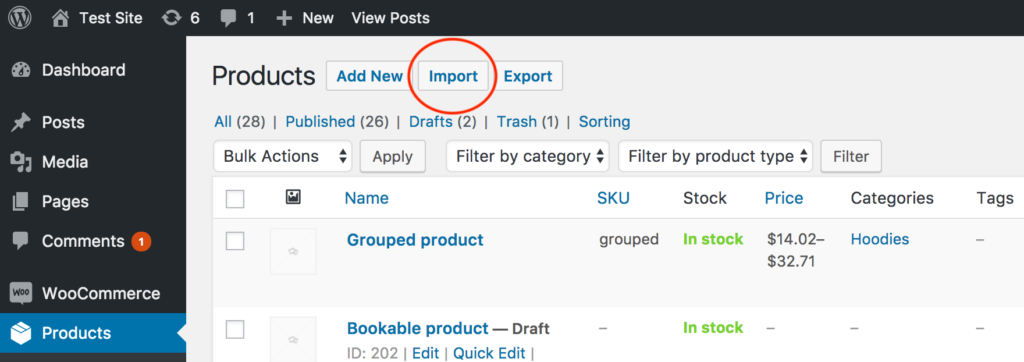
Log in to your WordPress admin dashboard. In the left sidebar, go to Products, then click All Products. At the top of the product list page, click the Import button to launch the built-in WooCommerce CSV Product Importer.
Upload your CSV file
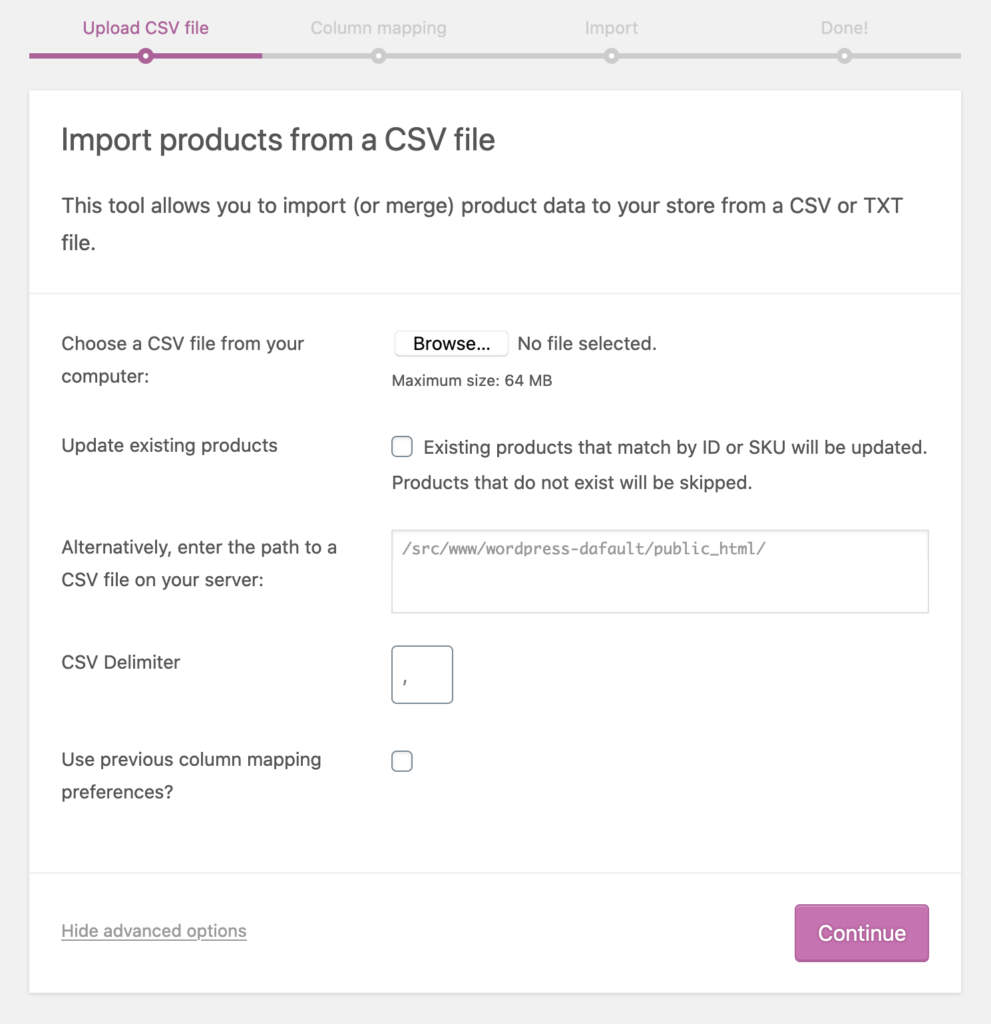
On the Upload CSV File screen, click Choose File and select your prepared CSV. The maximum file size allowed is 2 GB, though smaller files process faster. If you want to update existing products rather than create new ones, check the Update existing products checkbox.

Map columns to WooCommerce fields
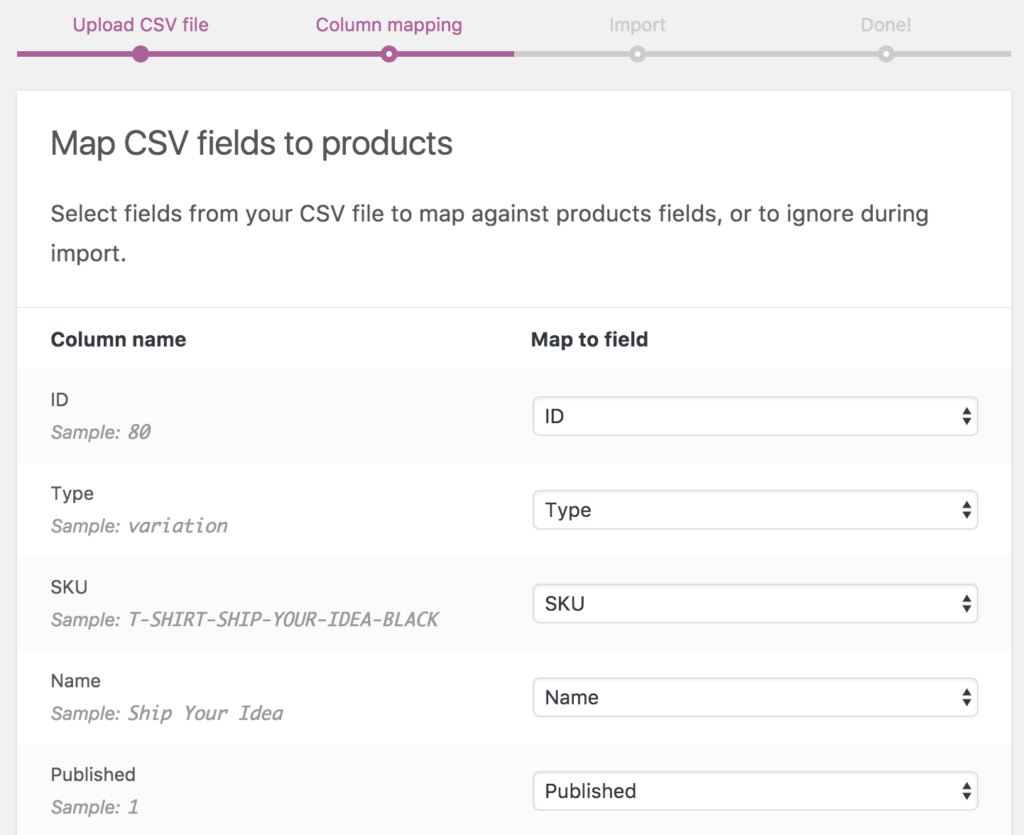
WooCommerce will display a Column Mapping screen where it automatically attempts to match your CSV column headers to WooCommerce product fields. Review each mapping carefully. Use the dropdown menus on the right side to adjust any incorrect mappings, or set a column to Do not import if it should be skipped.
Run the importer
Click Run the Importer to begin processing your CSV file. A progress bar will show the import status. Do not refresh or navigate away from the page while the import is in progress, as this could interrupt the process and leave your product catalog in an incomplete state.
Review the import results
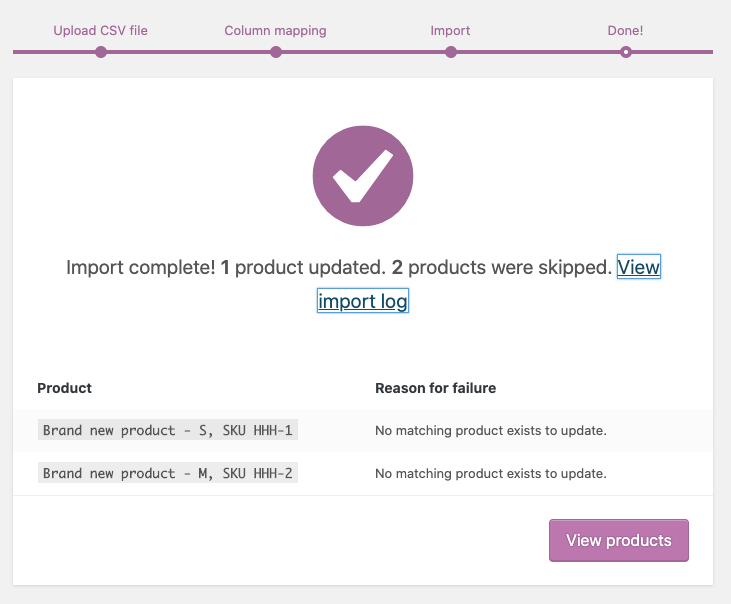
When the import finishes, WooCommerce displays a summary showing how many products were created, updated, or skipped due to errors. Click View Products to see the imported items in your catalog. Check a few products to confirm that names, prices, images, and categories all came through correctly.
Handle import errors
If any rows failed, WooCommerce will list them with error descriptions. Common issues include missing required fields, invalid product types, or SKU conflicts. Fix the problems in your CSV file and re-run the import for just the corrected rows, making sure to check Update existing products if needed.
Required WooCommerce Fields
| Field | Type | Description | Example |
|---|---|---|---|
| Type | Choice | Product type | simple |
| SKU | Text | Stock keeping unit (unique identifier) | PROD-001 |
| Name | Text | Product title | Blue Cotton Shirt |
WooCommerce requires these fields for successful import.

