

How to Export Settlement from TikTok Shop (2026 Guide)
Follow these steps to export your TikTok Shop settlement as a CSV file. Once exported, you can use any of our converter tools to transform the data for your target system.
Export Steps
Log in to TikTok Shop Seller Center
Open your web browser and navigate to seller-us.tiktok.com (or the Seller Center for your region). Sign in with your seller account credentials. The settlement report export is only available through the web-based Seller Center.
Navigate to the Finance section
In the left-hand navigation menu, hover over 'Finance' to expand the submenu. Click on 'Statements' to open the settlement statements page where all your completed payment periods are listed.
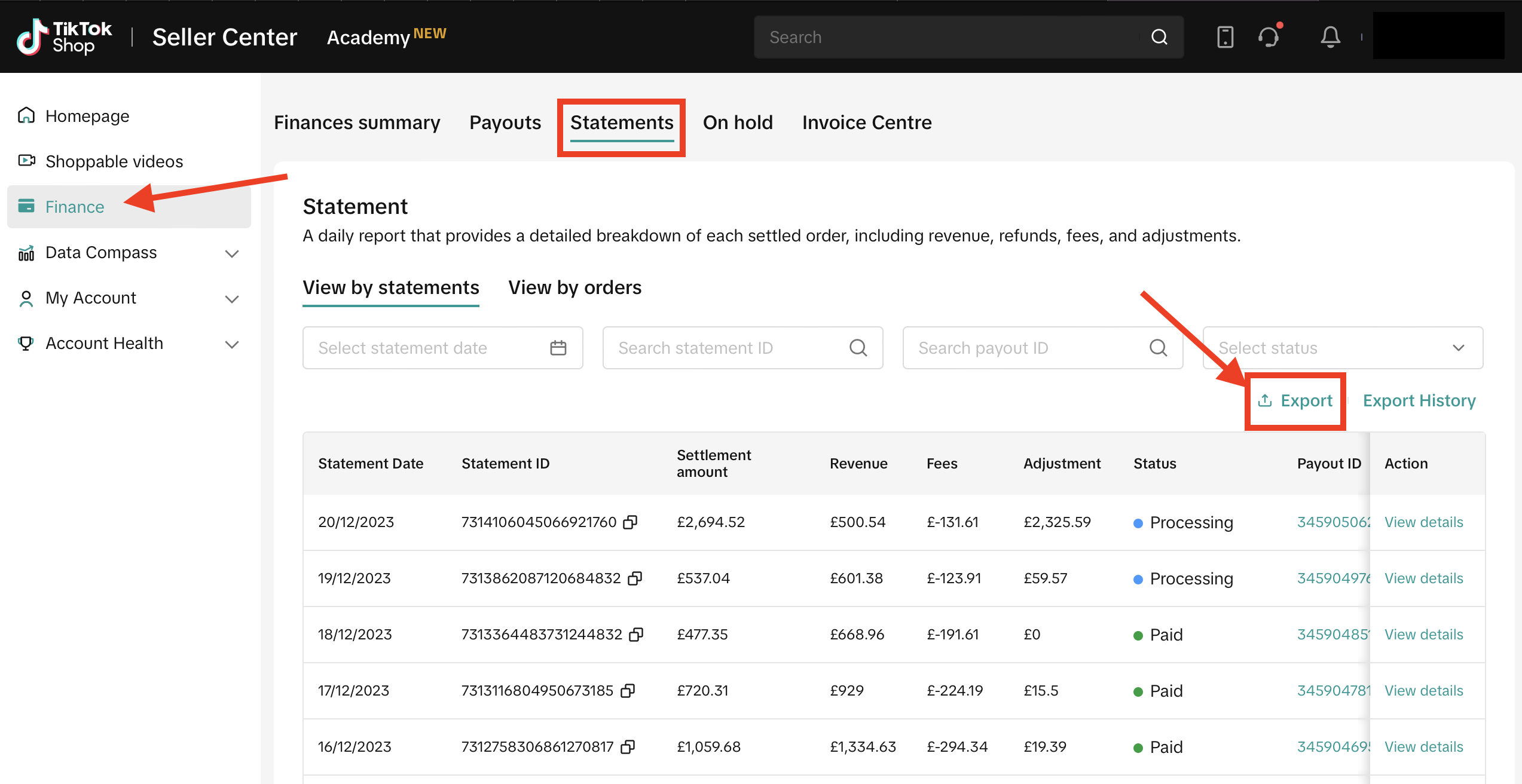
Select the statement period
Browse the list of available settlement statements. Each statement covers a specific payment period. Click on the statement you want to download to view its summary, including total sales, fees, and net settlement amount.

Click Export to download the report
Click the 'Export' button on the statement detail page. TikTok Shop generates an Excel file containing multiple sheets: Order Details, Summary, Reserve Details, and Adjustments. The Order Details sheet contains the SKU-level financial breakdown used for bookkeeping.
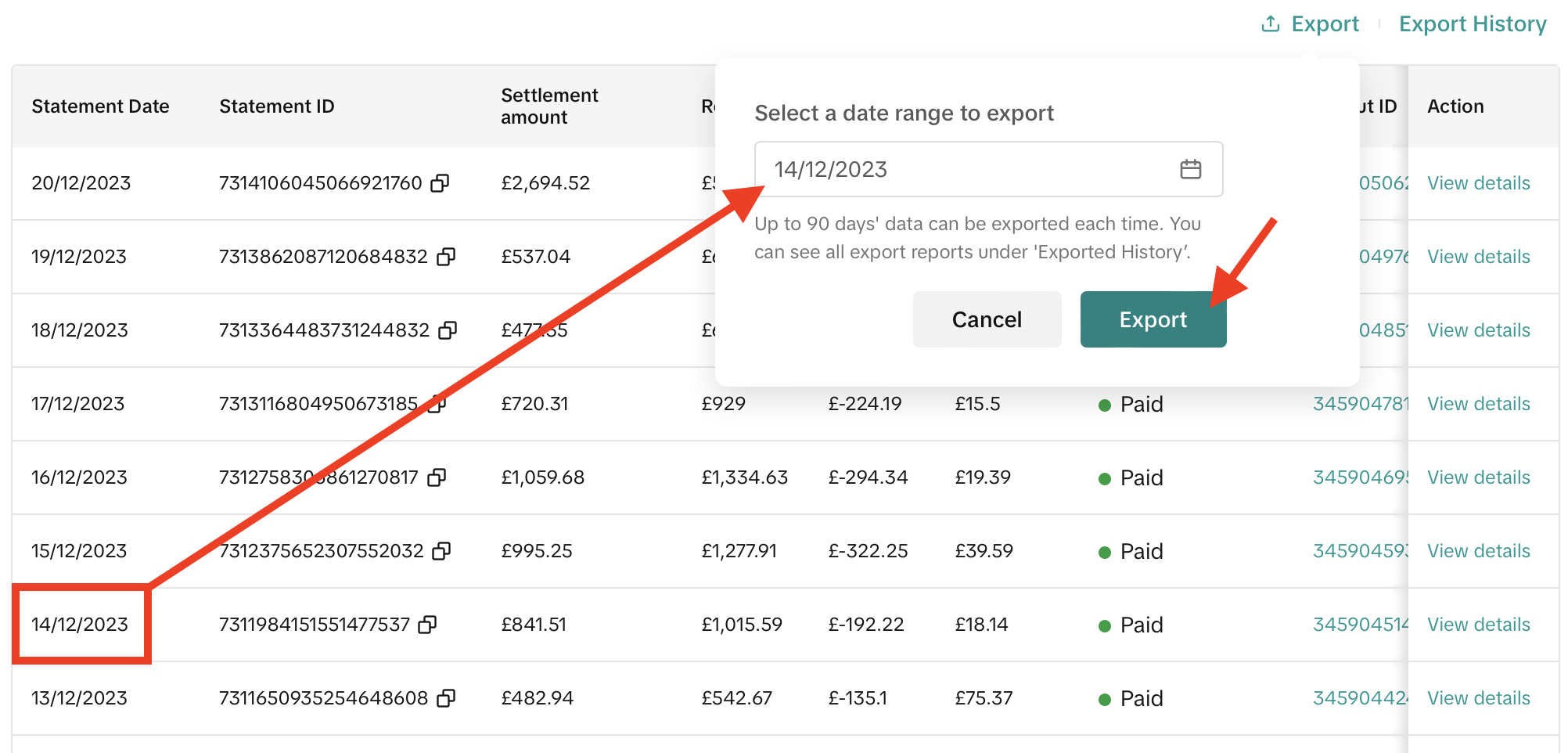
Wait for the file to generate
Large settlement reports may take a few moments to generate. A progress indicator or download prompt will appear once the file is ready. The file saves to your browser's default download location.
Open and review the Order Details sheet
Open the downloaded Excel file and navigate to the 'Order Details' sheet. Each row represents one SKU within an order, with columns for statement date, order ID, product details, pricing, discounts, shipping fees, marketplace fees, taxes, and net settlement amount.

Reconcile fees and adjustments
Review the Summary sheet to verify the total net settlement matches your bank deposit. Check the Adjustments sheet for any corrections, chargebacks, or platform credits that affect your final payout. Record referral fees, transaction fees, and affiliate commissions as separate expense line items in your books.
Required Settlement Fields
| Field | Type | Description | Example |
|---|---|---|---|
| Statement Date | Date | Date when order was settled | 2025-01-15 |
| Order ID | Text | TikTok order identifier | 576123456789012 |
Your TikTok Shop export must include these fields for successful conversion.
