

How to Import Products to Shopify (2026 Guide)
After converting your data with one of our tools, follow these steps to import the products into Shopify.
Import Steps
Download the Shopify CSV template
Before creating your own product CSV, download Shopify's sample product CSV file from the official help center. Open it in a spreadsheet program like Google Sheets or Excel and review the column headers so you understand the expected format. Delete the sample product rows before adding your own data.

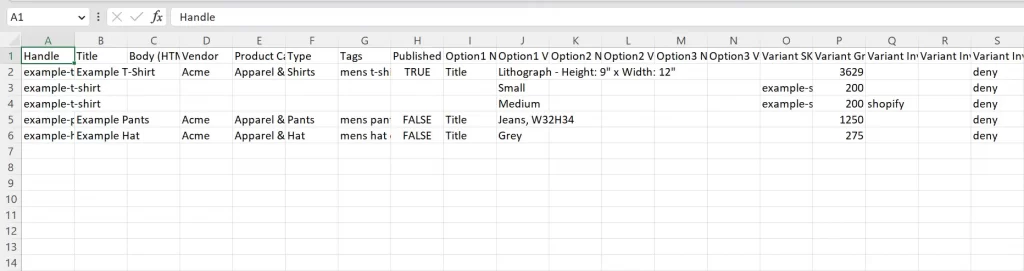
Prepare your product data
Enter your product information into the CSV template. Each row represents a product or variant. Fill in required fields like Handle and Title first, then add prices, inventory quantities, images, and variant options. Use the Handle column to group variants that belong to the same product.
Format and save as CSV (UTF-8)
When your data is complete, save or export the spreadsheet as a CSV file with UTF-8 encoding. This encoding is critical because without it, special characters like accented letters or currency symbols may break during import. In Google Sheets, use File > Download > Comma-separated values.

Open the Shopify product importer
Log in to your Shopify admin panel. From the left sidebar, click Products. On the Products page, click the Import button in the top-right area. A dialog box will appear where you can upload your CSV file.
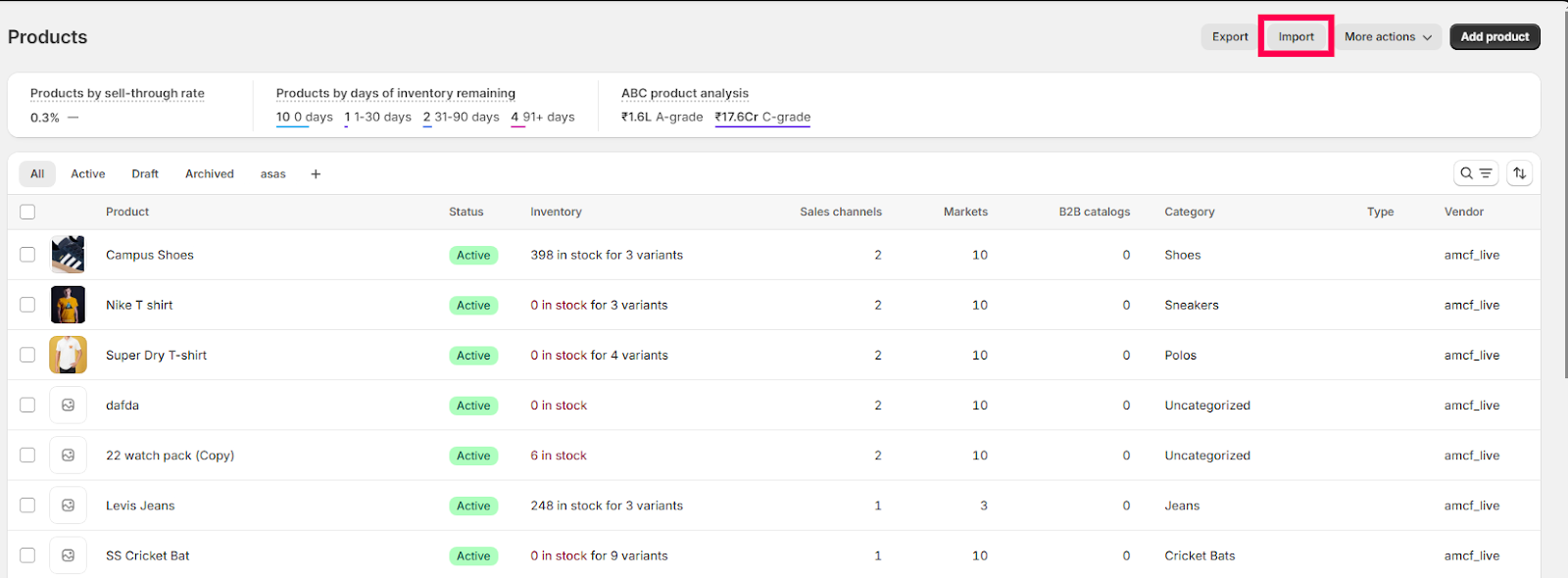
Upload your CSV file
In the import dialog, click Choose File and select your prepared CSV file from your computer. If you want to update existing products that share the same Handle, check the Overwrite existing products option. Then click Upload and continue.
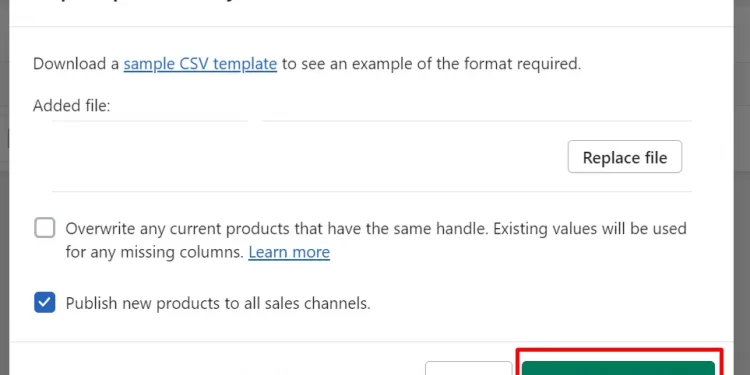
Preview and review the import
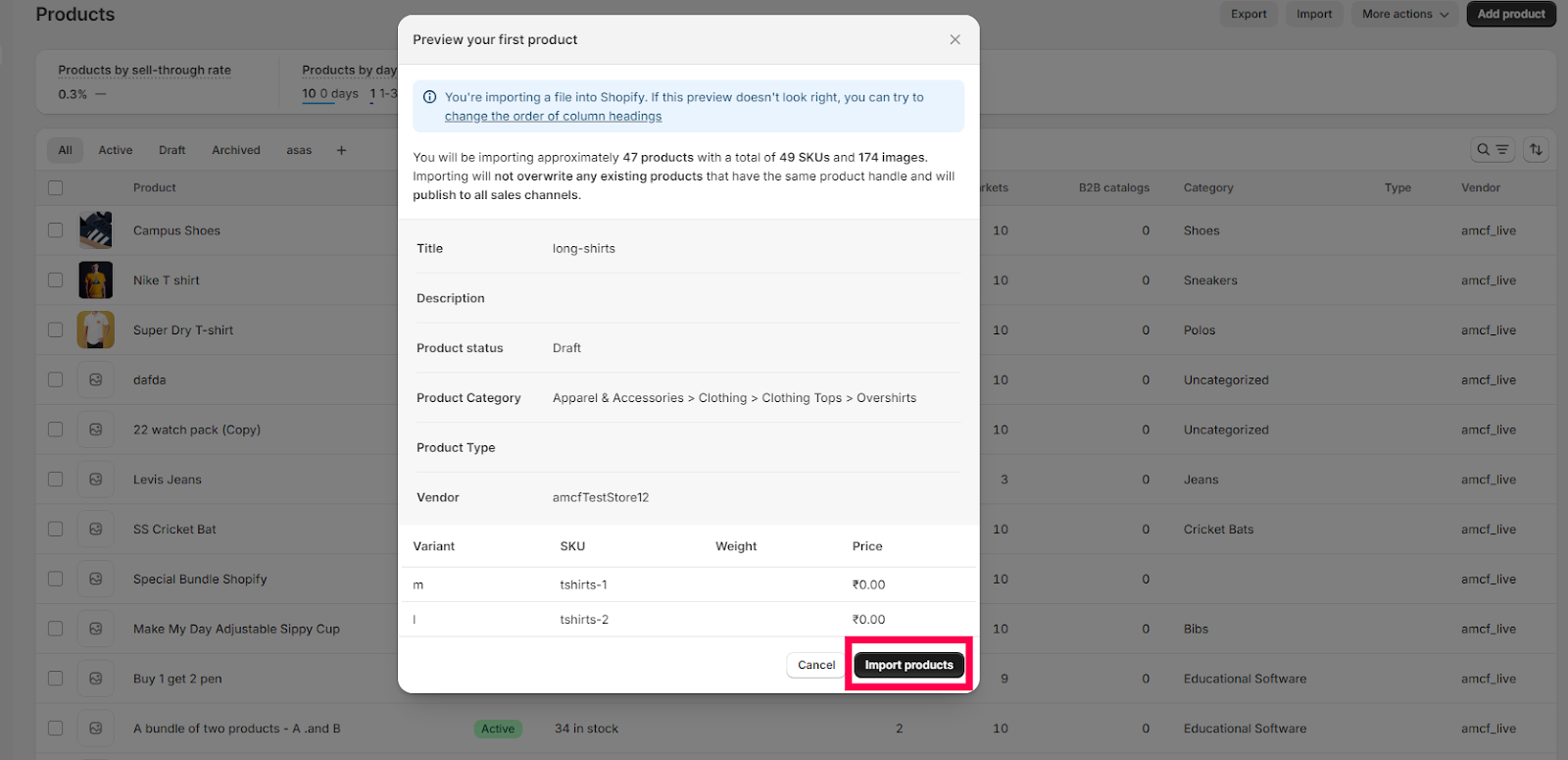
Shopify will display a preview of the data it found in your CSV, including the number of products and variants detected. Review this summary carefully to ensure the counts match your expectations. Check that the first product looks correct.
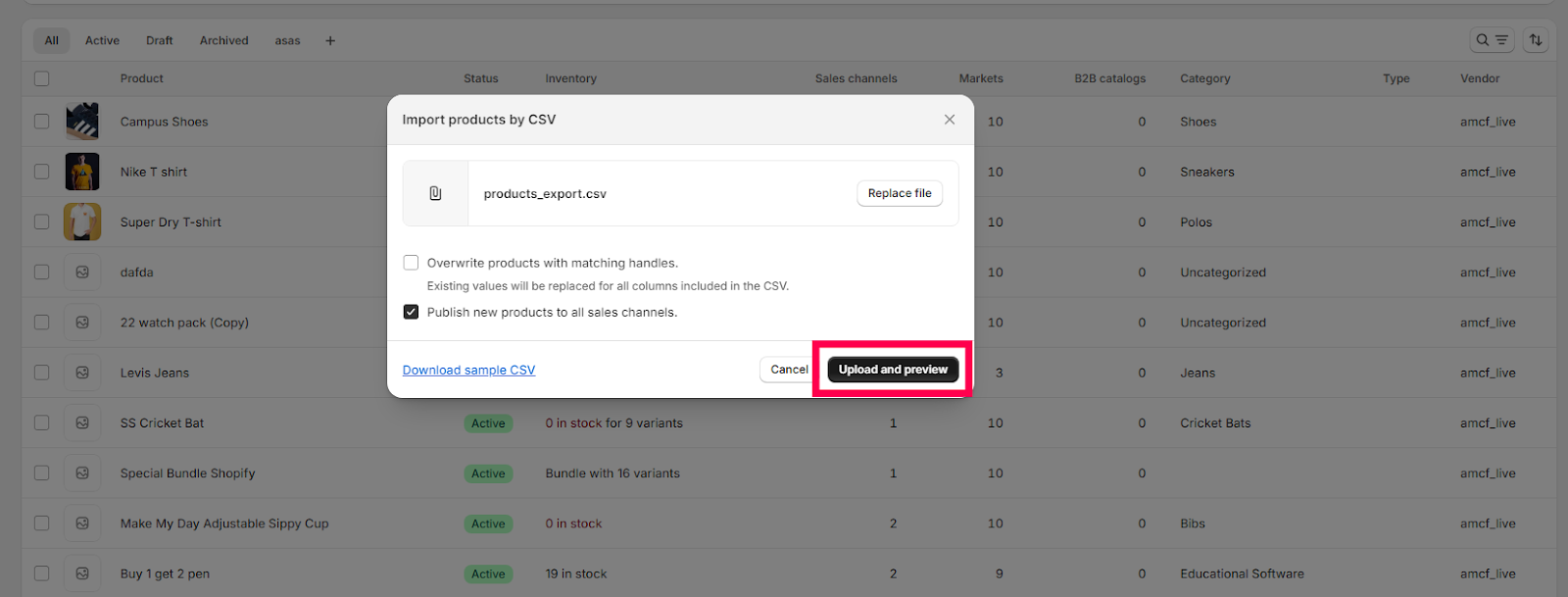
Start the import
Click Import Products to begin the process. Shopify will process your file in the background. You can navigate away from the page while the import runs. Shopify sends a confirmation email to your store's admin email address when the import finishes.
Verify your imported products
Once the import completes, go to Products in your Shopify admin and browse through the imported items. Spot-check a few products to confirm that titles, prices, images, and variants all imported correctly. Fix any issues directly in the Shopify admin or by re-importing a corrected CSV.
Required Shopify Fields
| Field | Type | Description | Example |
|---|---|---|---|
| Handle | Text | URL-safe product identifier (groups variants and images) | classic-cotton-tshirt |
| Title | Text | Product name | Classic Cotton T-Shirt |
Shopify requires these fields for successful import.

