

How to Export Product Export from QuickBooks Online (2026 Guide)
Follow these steps to export your QuickBooks Online product export as a CSV file. Once exported, you can use any of our converter tools to transform the data for your target system.
Export Steps
Log in to QuickBooks Online
Open your browser and go to qbo.intuit.com. Sign in with your Intuit account. You need at least Sales or Inventory permissions to access the Products and Services list.
Open the Products and Services list
From the left-hand navigation menu, click on Sales and then select Products and Services. Alternatively, you can click the Gear icon in the upper-right corner and select Products and Services under the Lists section. This opens your complete inventory of items, services, and bundles.
Run the Product/Service List report
On the Products and Services page, click the More dropdown button (located in the upper-right area) and select Run Report. This generates a detailed report of all your products and services including names, types, descriptions, prices, costs, and quantities on hand.

Customize the report columns (optional)
Click the Customize button at the top of the report to choose which fields to include. You can add columns for SKU, sales description, purchase description, income account, expense account, taxable status, and inventory asset account. Click Run Report after making your changes.
Export the report to Excel
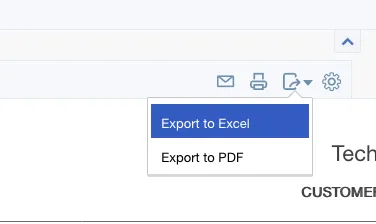
Click the Export icon in the top-right corner of the report and select Export to Excel. The file will download to your default downloads folder as an Excel workbook containing all the product and service data you see in the report.
Alternative: Use the Export Data tool
You can also export through the built-in data export feature. Click the Gear icon in the upper-right corner, then select Export Data under the Tools section. Switch to the Lists tab, toggle on Products and Services, and click Export to Excel. This method exports all available fields in one step.
Convert to CSV and review
Open the downloaded Excel file in your preferred spreadsheet application. Save it as a CSV file using File then Save As and selecting CSV format. Verify that key fields like product names, types, prices, and quantities exported correctly. The file is now ready for upload to our converter tool.

Required Product Export Fields
| Field | Type | Description | Example |
|---|---|---|---|
| Product/Service | Text | Product or service name (unique) | Widget Pro - Blue / Large |
Your QuickBooks Online export must include these fields for successful conversion.
