

How to Import Contacts Csv Export to Google Contacts (2026 Guide)
After converting your data with one of our tools, follow these steps to import the contacts csv export into Google Contacts.
Import Steps
Locate your downloaded CSV file
Find the Google Contacts CSV file in your downloads folder. The file uses Google's specific column naming format with fields like Given Name, Family Name, E-mail 1 - Value, Phone 1 - Value, and Organization 1 - Name. This format is designed for seamless import into Google Contacts.
Optional: Edit in a spreadsheet
Before importing, you can open the CSV in Excel or Google Sheets to review and edit the contacts. The numbered field format (E-mail 1, Phone 1, etc.) supports multiple values per contact. Make sure to keep the column headers exactly as they are since Google Contacts relies on exact header names.

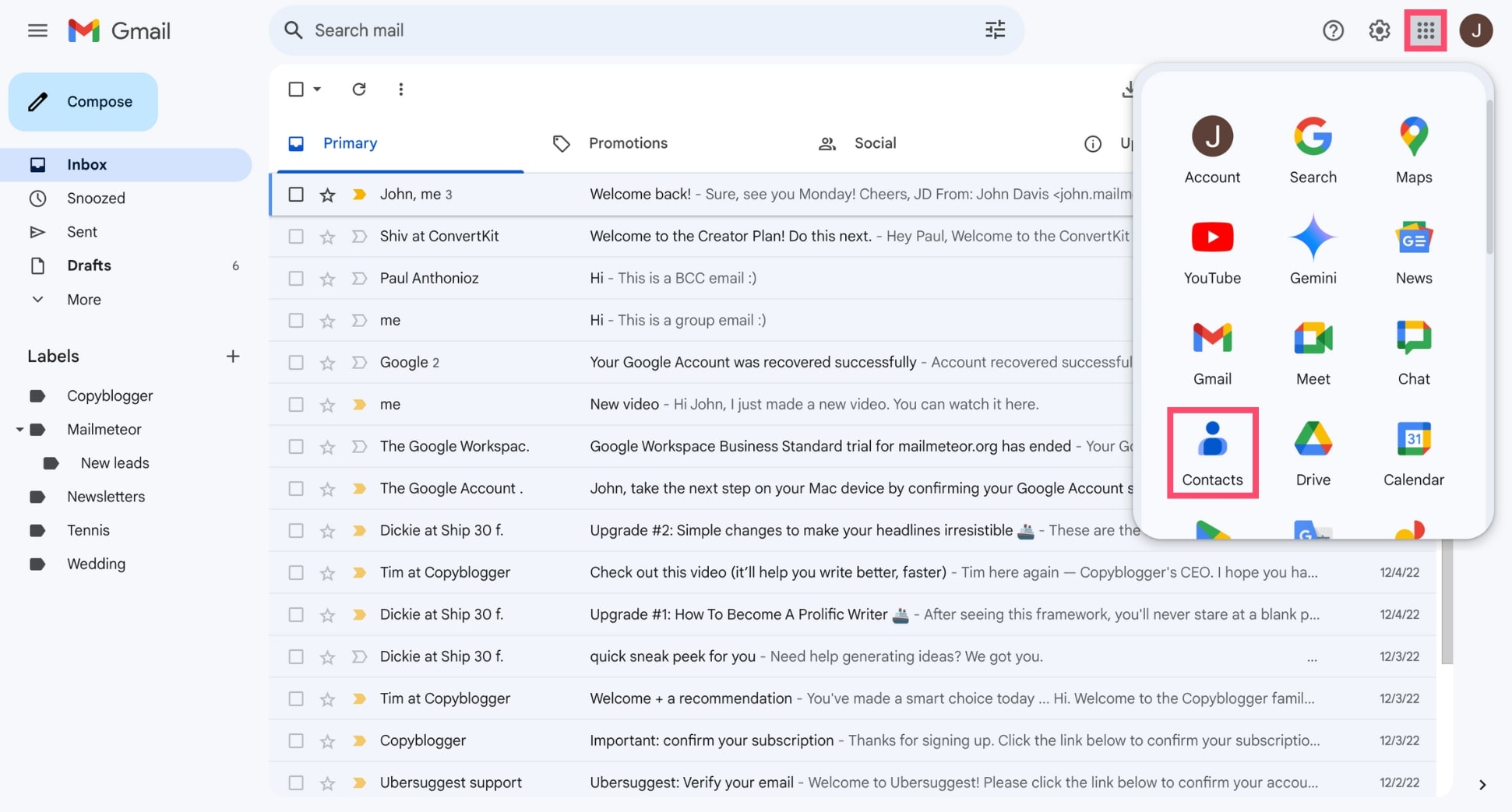
Open Google Contacts
Go to contacts.google.com in your browser and sign in with your Google account. If you are importing into a Google Workspace account, make sure you are signed into the correct account.
Start the import
In the left sidebar, click Import. If you do not see the sidebar, click the menu icon (three horizontal lines) at the top left to expand it. In the import dialog, click Select file, browse to your CSV file, and click Open.
Complete the import
Click the Import button to add the contacts to your Google account. Google Contacts will process the file and display the newly imported contacts. The process typically takes just a few seconds for files with fewer than 3,000 contacts.

Verify and organize imported contacts
Review the imported contacts to verify names, email addresses, phone numbers, and addresses are correct. Contacts will be added to your main contacts list. Use the Group Membership field to automatically sort contacts into labels and groups for easier organization.
Required Google Contacts Fields
| Field | Type | Description | Example |
|---|---|---|---|
| Given Name | Text | First name | John |
| Family Name | Text | Last name | Doe |
Google Contacts requires these fields for successful import.

