

How to Export Products from Wix (2026 Guide)
Follow these steps to export your Wix products as a CSV file. Once exported, you can use any of our converter tools to transform the data for your target system.
Export Steps
Log in to your Wix dashboard
Navigate to manage.wix.com and sign in with your Wix account credentials. You need site owner or eCommerce manager permissions to access the product export functionality.
Navigate to the Products page
In the left sidebar of your dashboard, click on Store Products or Products under the eCommerce section. This opens the product catalog page where all your physical, digital, and service products are listed.
Select products to export
Choose which products to include in your export. To export all products, click the checkbox at the top-left of the product list to select all. To export a specific category, click Filter, select the product type or collection, and then select those filtered results. You can also individually check specific products.

Open the export dialog
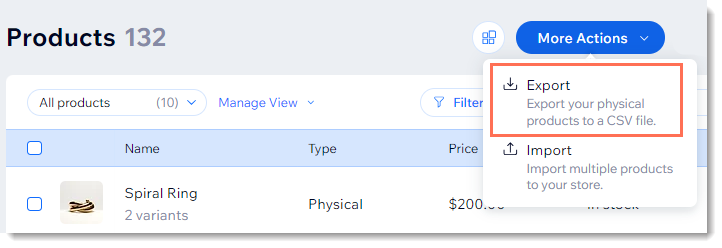
With products selected, click the More Actions button (sometimes shown as three dots or an ellipsis menu) and then click Export. Alternatively, some Wix dashboard versions show the Export option directly in the top action bar.
Choose export options
In the export dialog, select which data fields to include. You can export all product information or choose a subset of fields. The export includes product handle IDs, names, descriptions, prices, SKUs, inventory settings, images, and collection assignments.

Download the CSV file
Click the Export button to generate and download the CSV file. The file will be saved to your default downloads folder. The export typically completes within a few seconds for catalogs under a few hundred products.
Verify the exported product data
Open the CSV in Google Sheets or a spreadsheet application to confirm the data is correct. Check that product names, prices, SKUs, and visibility settings are present. The handleId field is Wix's internal product identifier used to match products during re-import.
Required Products Fields
| Field | Type | Description | Example |
|---|---|---|---|
| handleId | Text | Unique product identifier | 00000000-0000-0000-0000-000000000001 |
| fieldType | Text | Field type (Product for main item) | Product |
| name | Text | Product name | Blue Widget |
| price | Currency | Regular price | 49.99 |
Your Wix export must include these fields for successful conversion.
