

How to Export Refunds from Stripe (2026 Guide)
Follow these steps to export your Stripe refunds as a CSV file. Once exported, you can use any of our converter tools to transform the data for your target system.
Export Steps
Log in to your Stripe Dashboard
Navigate to dashboard.stripe.com and sign in with your email and password. Complete two-factor authentication if prompted.
Navigate to the Payments page
In the left-hand navigation menu, click on 'Payments'. This opens the main payments view. From here you can access refund data either through the payment list or through the dedicated refund filtering options.
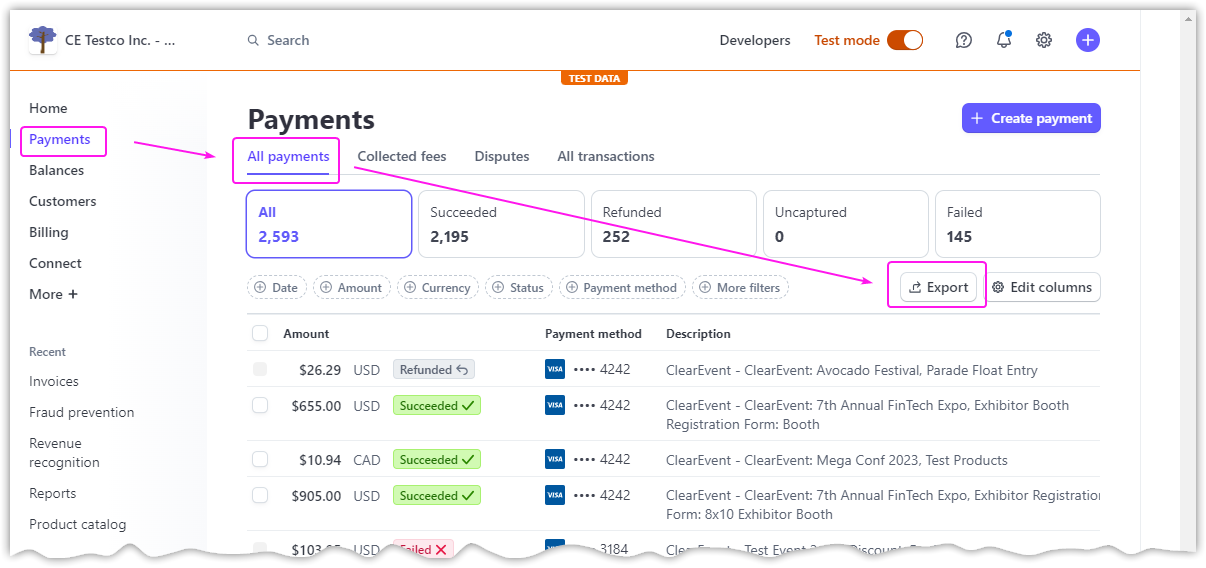
Filter for refunded payments
Click the 'Refunded' tab at the top of the Payments page to show only payments that have been fully or partially refunded. Alternatively, use the 'Filter' button and select the 'Refunded' status to include refunds in your results.

Click the Export button
In the upper-right corner of the page, click the 'Export' button. A dialog will appear where you can configure the date range, time zone, and columns for your refund data export.
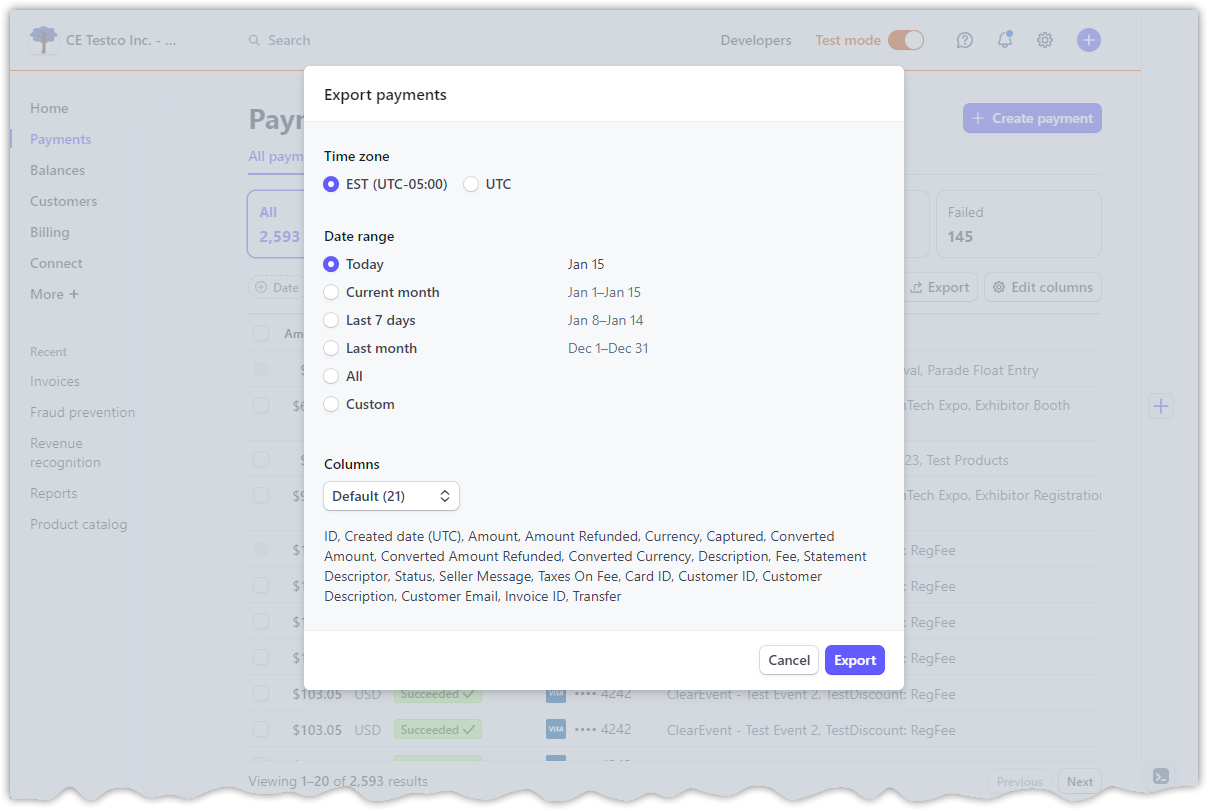
Set the date range and time zone
Choose a preset date range or specify custom start and end dates for the refunds you want to export. Set the time zone to match your accounting records so that refund dates align with your books.

Select columns and download
Choose the columns to include in your export. Make sure to include the 'Amount Refunded' column to see refund amounts. Click 'Export' to generate and download the CSV file.
Alternative: Export from Balance Transactions
For a more detailed refund export, navigate to Balance, then Transactions. Filter by Type = 'refund' to see only refund balance transactions. Export this filtered view to get individual refund records with their own transaction IDs, fees, and net amounts.
Verify the refund data
Open the CSV in a spreadsheet application and check that the refund amounts, dates, and associated charge IDs are correct. Each refund should reference the original charge ID (ch_XXXXX) so you can match refunds to their original payments.
Required Refunds Fields
| Field | Type | Description | Example |
|---|---|---|---|
| id | Text | Refund ID (re_XXXXX) | re_1Xyz12A123abc |
| Amount | Currency | Refund amount | 50.00 |
| Created (UTC) | Date/Time | Refund creation timestamp | 2025-01-20 10:00:00 |
Your Stripe export must include these fields for successful conversion.
