

How to Export Payouts from Stripe (2026 Guide)
Follow these steps to export your Stripe payouts as a CSV file. Once exported, you can use any of our converter tools to transform the data for your target system.
Export Steps
Log in to your Stripe Dashboard
Go to dashboard.stripe.com in your browser and sign in with your credentials. Complete any two-factor authentication prompts. You need access to the Balance section to export payout data.
Navigate to the Payouts page
In the left-hand navigation menu, click on 'Balance', then select 'Payouts' from the top tab bar. This page lists every bank deposit Stripe has made to your connected bank account, along with the expected arrival dates and amounts.
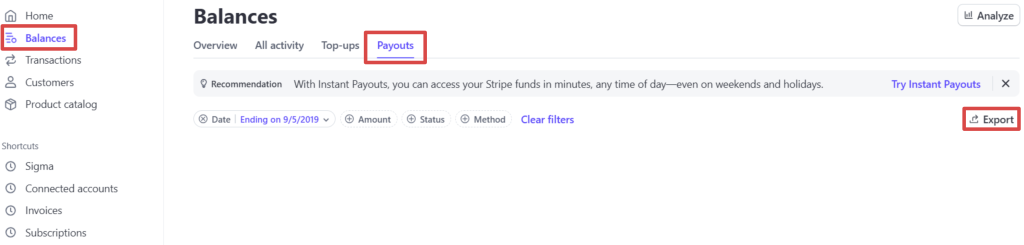
Filter payouts by date or status
Use the filter controls to narrow down payouts by date range, status (paid, pending, in transit, failed), or arrival date. This is helpful if you only need payouts for a specific month or want to isolate failed transfers.

Click the Export button
In the upper-right corner of the Payouts page, click the 'Export' button. A dialog will open where you can configure the date range, time zone, and columns for your CSV export.
Configure the date range and time zone
Select your desired date range from the preset options or enter custom dates. Set the time zone to match your bank statements so payout arrival dates line up correctly when you reconcile.

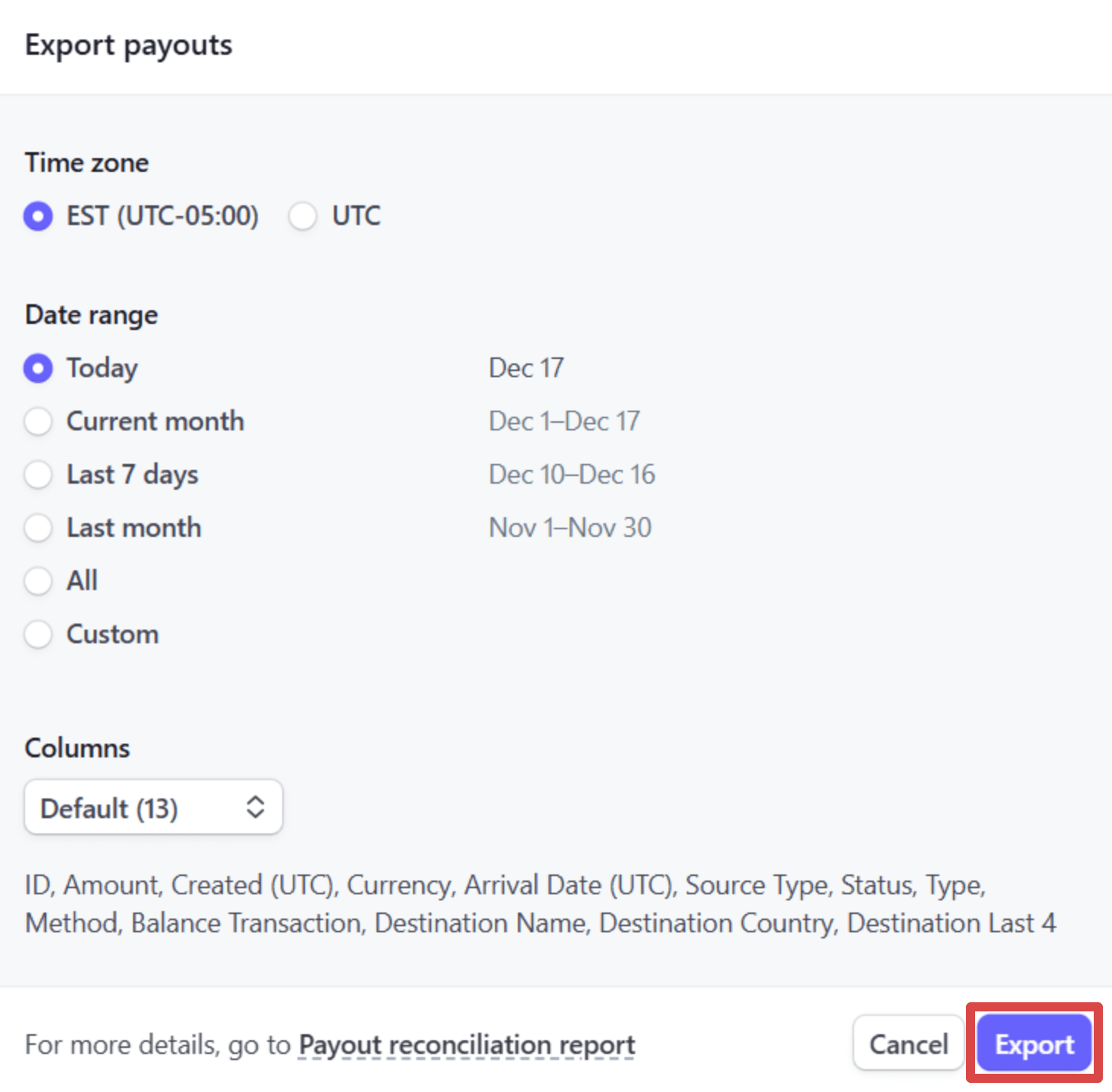
Select columns and download
Choose which columns to include in the export. For bank reconciliation, ensure you include Amount, Arrival Date, Status, and Destination. Click 'Export' to generate and download the CSV file.
Verify the payout data
Open the CSV file in a spreadsheet application. Each row represents a single payout with a po_XXXXX identifier. Cross-reference the amounts and arrival dates with your bank statement to confirm the data is complete and accurate.
Required Payouts Fields
| Field | Type | Description | Example |
|---|---|---|---|
| id | Text | Payout ID (po_XXXXX) | po_1A2B3Cd123xyz |
| Amount | Currency | Payout amount (net of fees) | 1000.00 |
| Arrival Date | Date | Expected bank deposit date | 2025-01-17 |
Your Stripe export must include these fields for successful conversion.
