

How to Export Disputes from Stripe (2026 Guide)
Follow these steps to export your Stripe disputes as a CSV file. Once exported, you can use any of our converter tools to transform the data for your target system.
Export Steps
Log in to your Stripe Dashboard
Go to dashboard.stripe.com and sign in with your email and password. Complete two-factor authentication if your account requires it.
Navigate to the Disputes page
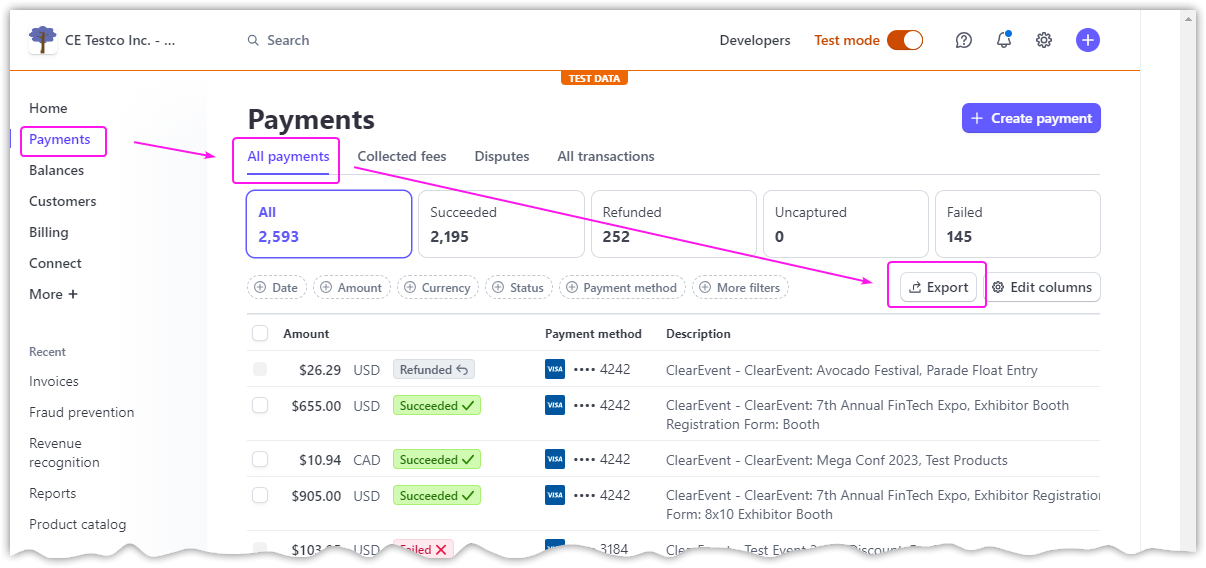
In the left-hand navigation menu, click on 'Disputes'. This page lists all chargebacks and disputes filed against your Stripe account, showing each dispute's status, amount, reason, and associated charge.
Filter disputes by status or date
Use the 'Filter' button to narrow disputes by status (needs response, under review, won, lost), reason code, or date range. Filtering helps you isolate specific dispute categories for reporting or analysis.

Click the Export button
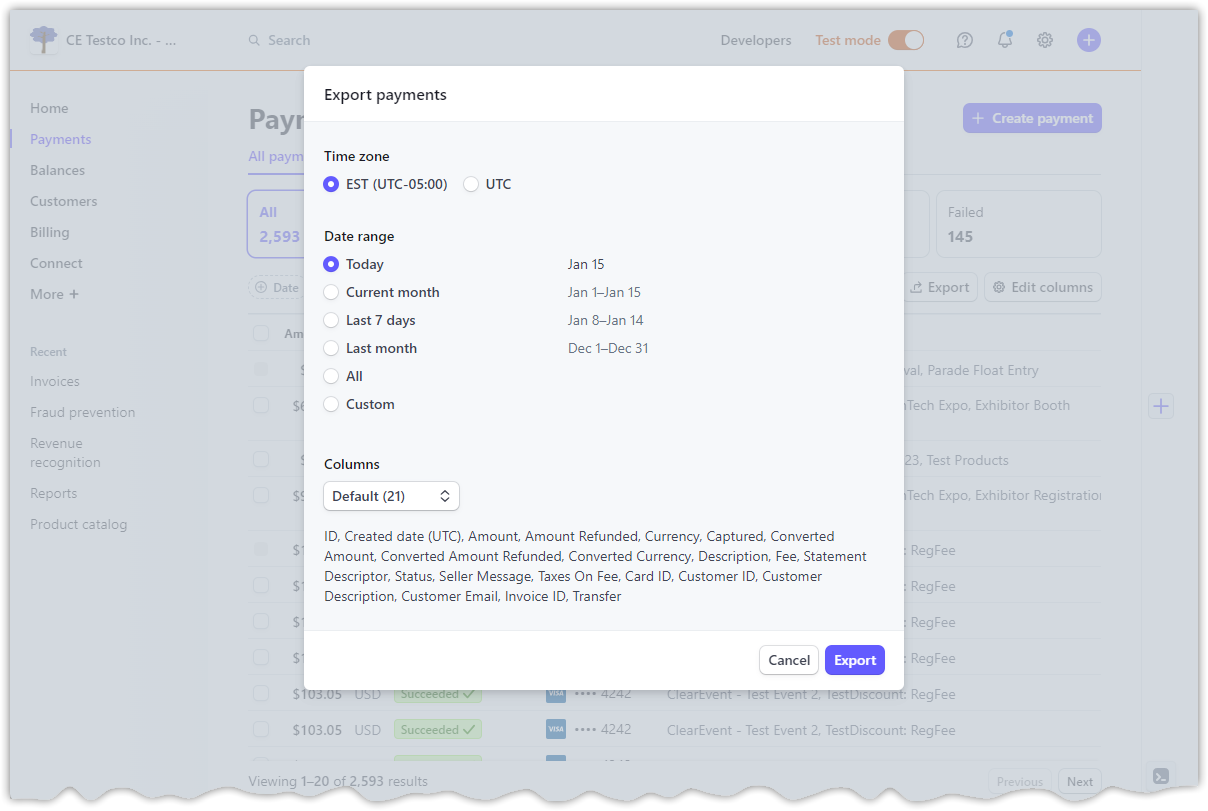
In the upper-right corner of the Disputes page, click the 'Export' button. A dialog will appear with options to set the date range, time zone, and columns for your export.
Configure date range and columns
Select a preset date range or enter custom dates. Choose the columns you want to include, such as Amount, Status, Reason, and Charge ID. For accounting purposes, include the dispute amount and reason to properly categorize the chargeback expense.

Download the CSV file
Click 'Export' to generate and download the CSV file. Each row represents one dispute with a dp_XXXXX identifier, linked to the original charge via the Charge ID column.
Review disputes analytics for additional context
For more context, navigate to Payments, then Analytics, then Disputes in the dashboard. This view shows dispute trends, win rates, and reason breakdowns. You can download charts as CSV files by clicking 'Download' at the top of each chart.
Required Disputes Fields
| Field | Type | Description | Example |
|---|---|---|---|
| id | Text | Dispute ID (dp_XXXXX) | dp_1G87Ik2m123abc |
| Amount | Currency | Disputed amount | 100.00 |
| Created (UTC) | Date/Time | Dispute creation timestamp | 2025-01-25 08:00:00 |
Your Stripe export must include these fields for successful conversion.
