

How to Export Items from Square (2026 Guide)
Follow these steps to export your Square items as a CSV file. Once exported, you can use any of our converter tools to transform the data for your target system.
Export Steps
Sign in to your Square Dashboard
Go to squareup.com and sign in with your Square account. Verify you are logged into the business account whose item catalog you want to export.
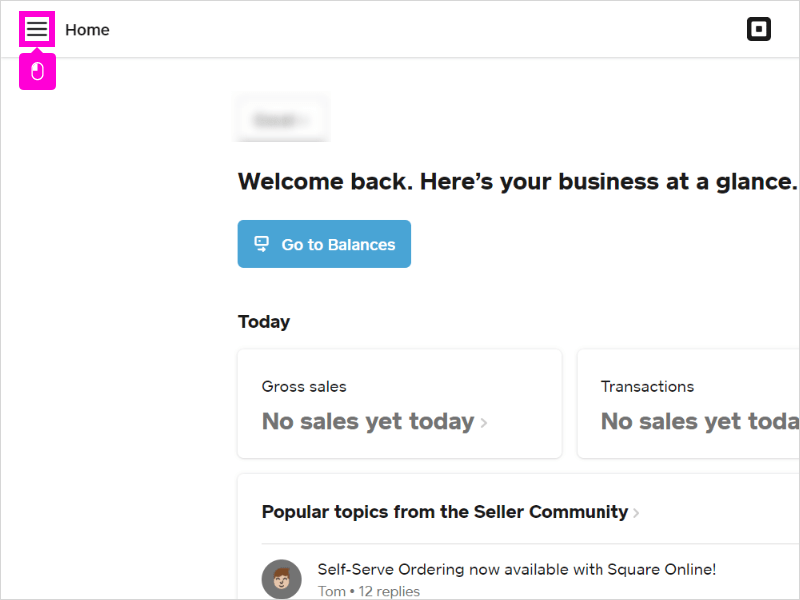
Navigate to Items and services
In the left-side navigation menu, click Items & services (this may also appear as Items & menus or Items & inventory depending on your Square product type). Then select Items to view your item library.
Filter items if needed
By default, the item library shows all items. If you only want to export a subset of your catalog, use the filter options to narrow down by category, location, or stock status. The export will only include items currently displayed in your filtered view.

Click Actions and select Export Library
Look for the Actions button (or a similar dropdown menu) in the upper area of the item library page. Click it and select Export Library from the dropdown options. This initiates the export process for your item catalog.
Choose export scope and format
Square will ask whether you want to export all items or only items matching your current filters. Select your preference, then choose CSV as the file format. Click Export to generate the file.
Download and review the CSV
Once the file is ready, download it to your computer. Open it in a spreadsheet application and verify the columns include Item Name, Variation Name, SKU, Price, Cost, Category, Tax, Stock, and Enabled status. Each row represents one item variant, so items with multiple sizes or options will have multiple rows.

Required Items Fields
| Field | Type | Description | Example |
|---|---|---|---|
| Item Name | Text | Product name (max 128 chars) | Latte |
| Variation Name | Text | Variant name (max 128 chars) | Large |
Your Square export must include these fields for successful conversion.
