

How to Export Item Sales from Square (2026 Guide)
Follow these steps to export your Square item sales as a CSV file. Once exported, you can use any of our converter tools to transform the data for your target system.
Export Steps
Sign in to your Square Dashboard
Go to squareup.com and sign in with your Square account. Ensure you are viewing the correct business location if you operate multiple stores or locations.
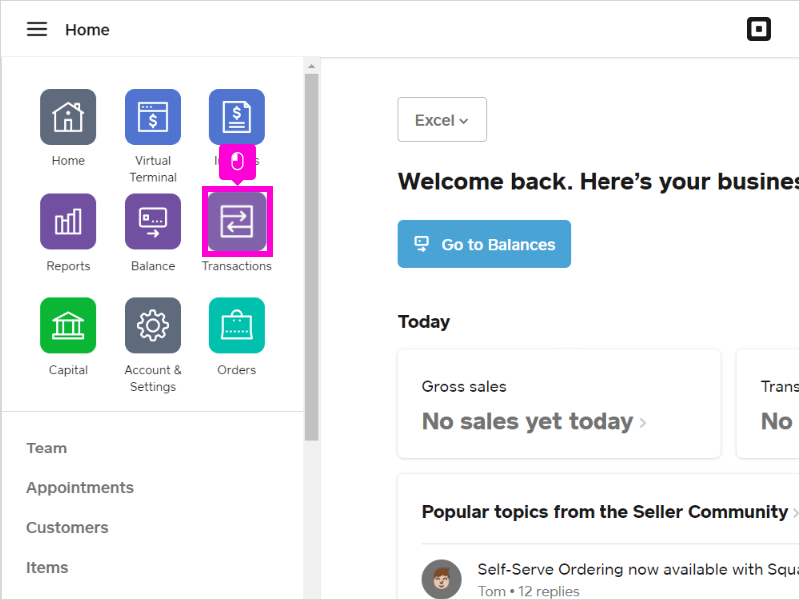
Navigate to Reports
Click Reports in the left-side navigation menu. The Reports section contains various sales and financial reports. Look for the Item Sales report, which may be listed under Sales reports or accessible through a submenu.
Open the Item Sales report
Select the Item Sales report from the available report types. This report shows a breakdown of sales at the individual item level, including quantities sold, gross sales, discounts, and tax for each product and variation.
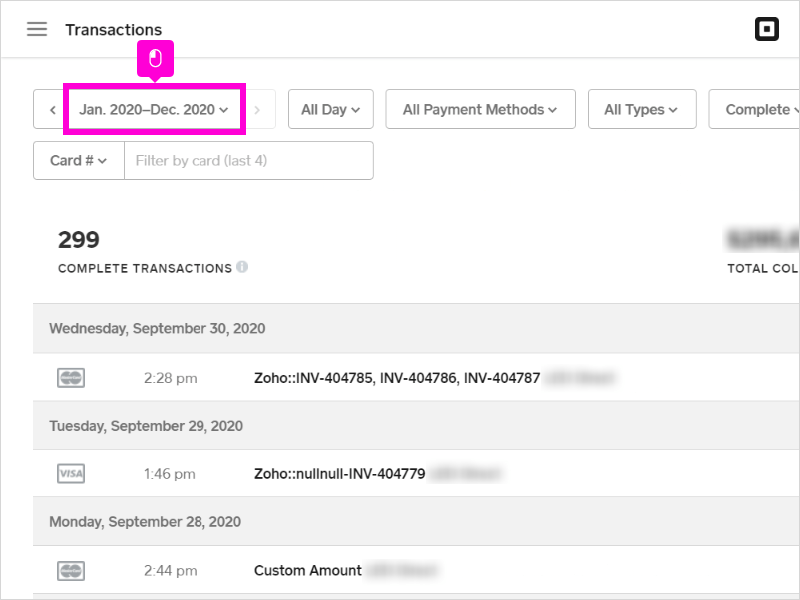
Configure filters and date range
Set the date range for the report using the date picker. You can also filter by location, category, or specific items to narrow the results. For a complete export, select all locations and the full date range you need.

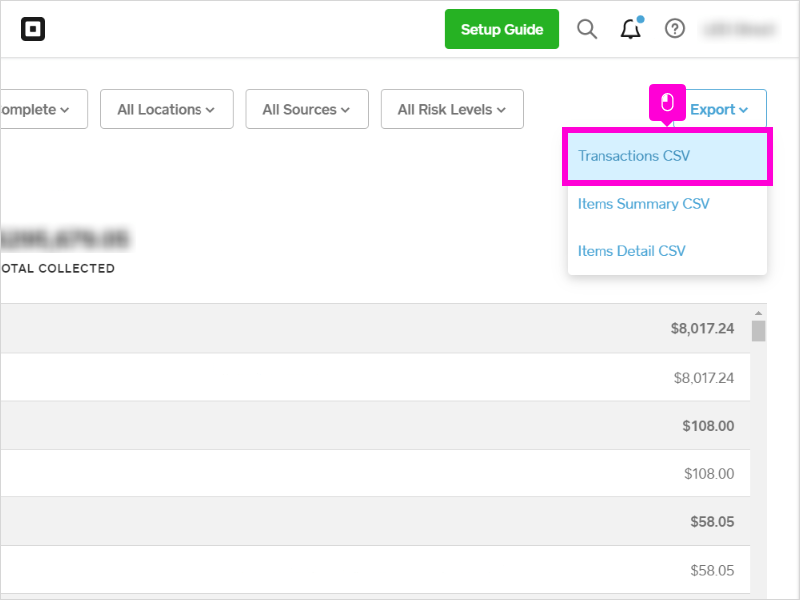
Click Export and select CSV
Click the Export button in the upper-right corner of the report. Choose CSV as the file format from the available options. Square generates the file and downloads it to your device. Each row in the file represents one item sold within a transaction.
Review the exported data
Open the CSV in a spreadsheet application. Verify that the columns include Transaction ID, Date, Item Name, Variation, Quantity, Unit Price, Gross Sales, Discounts, Net Sales, and Tax. Multi-item transactions will have multiple rows sharing the same Transaction ID.
Required Item Sales Fields
| Field | Type | Description | Example |
|---|---|---|---|
| Transaction ID | Text | Links to parent transaction | abc123def456 |
| Date | Date | Transaction date | 2026-01-15 |
| Item Name | Text | Product name | Latte |
| Quantity | Number | Number of items sold | 2 |
| Gross Sales | Currency | Revenue from this line item | 9.00 |
Your Square export must include these fields for successful conversion.
