

How to Export Customers from Square (2026 Guide)
Follow these steps to export your Square customers as a CSV file. Once exported, you can use any of our converter tools to transform the data for your target system.
Export Steps
Sign in to your Square Dashboard
Go to squareup.com and sign in with your Square account. Make sure you are logged into the correct business account that contains the customer data you want to export.
Navigate to the Customers section
In the left-side navigation menu, click Customers. This opens the Customer Directory, which contains profiles for all customers who have been manually added, imported, collected via email tools, or automatically created from card transactions.
Open the Import / Export menu
On the Customer Directory page, look for the Import / Export button (or a gear/actions icon in the upper area of the page). Click it to reveal options for importing new customers or exporting your existing customer data.
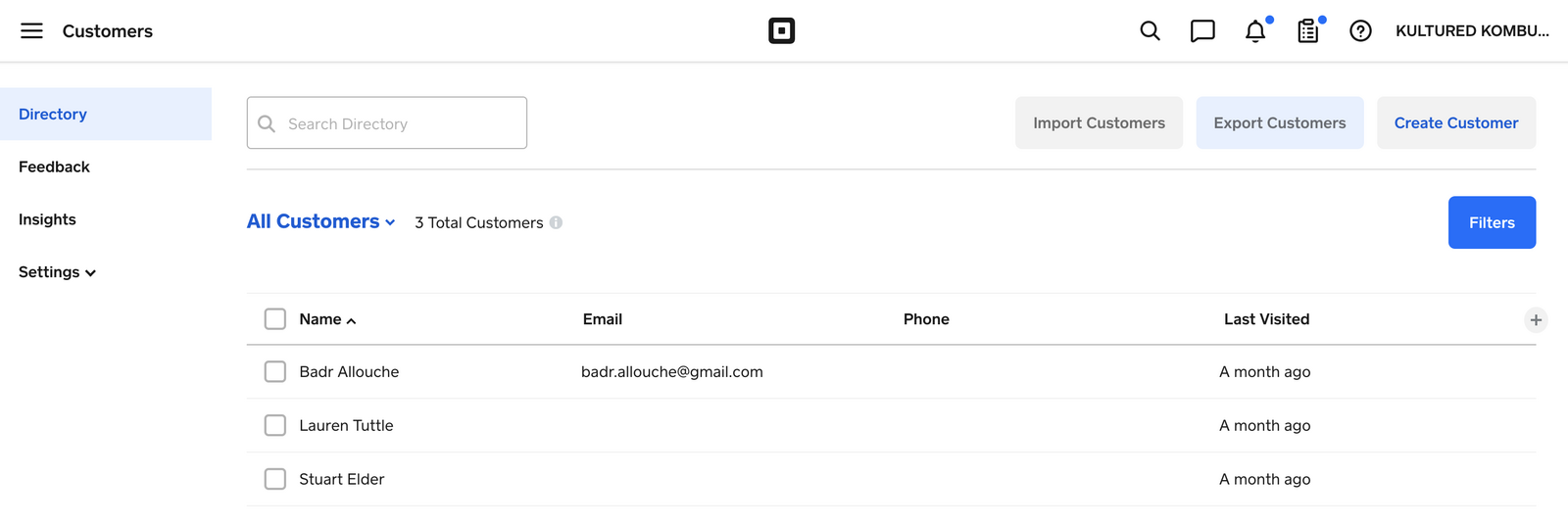
Select Export Customers
Click Export Customers from the menu. Square will ask whether you want to export all customers or only customers from specific groups. Choose All Customers for a complete export, or select specific groups if you only need a subset of your directory.

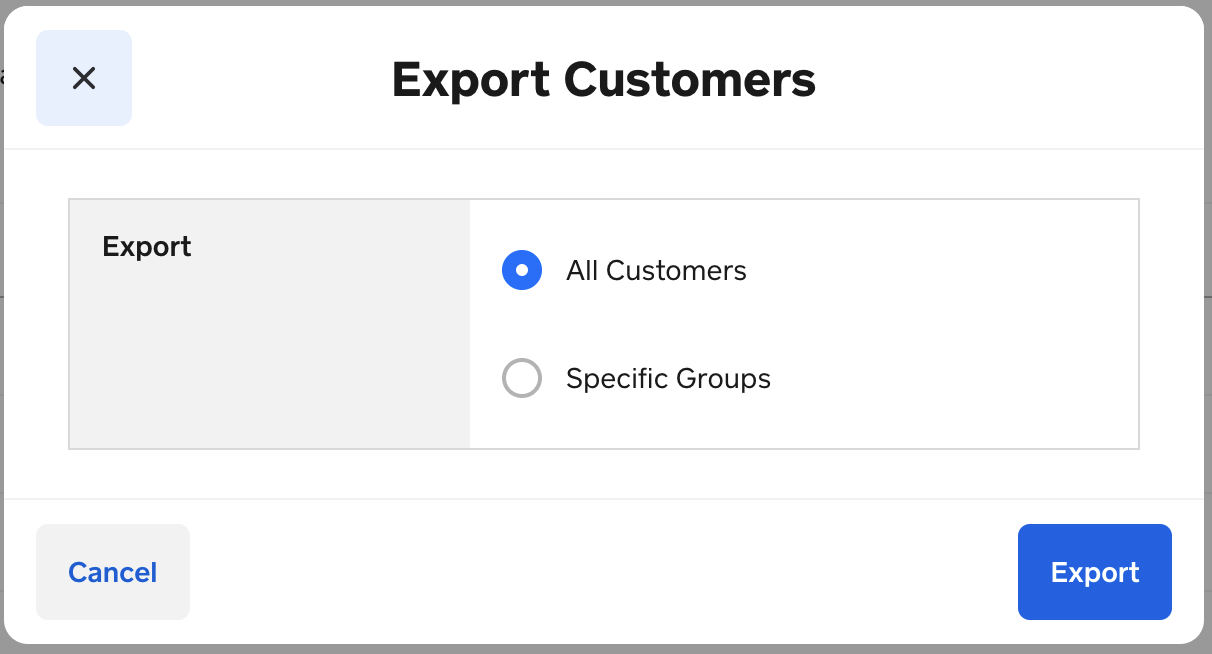
Click Export and wait for file preparation
Click the Export button to begin generating the CSV file. Square prepares the file in the background. For large customer lists, this may take a few moments. The file will be ready to download once processing is complete.
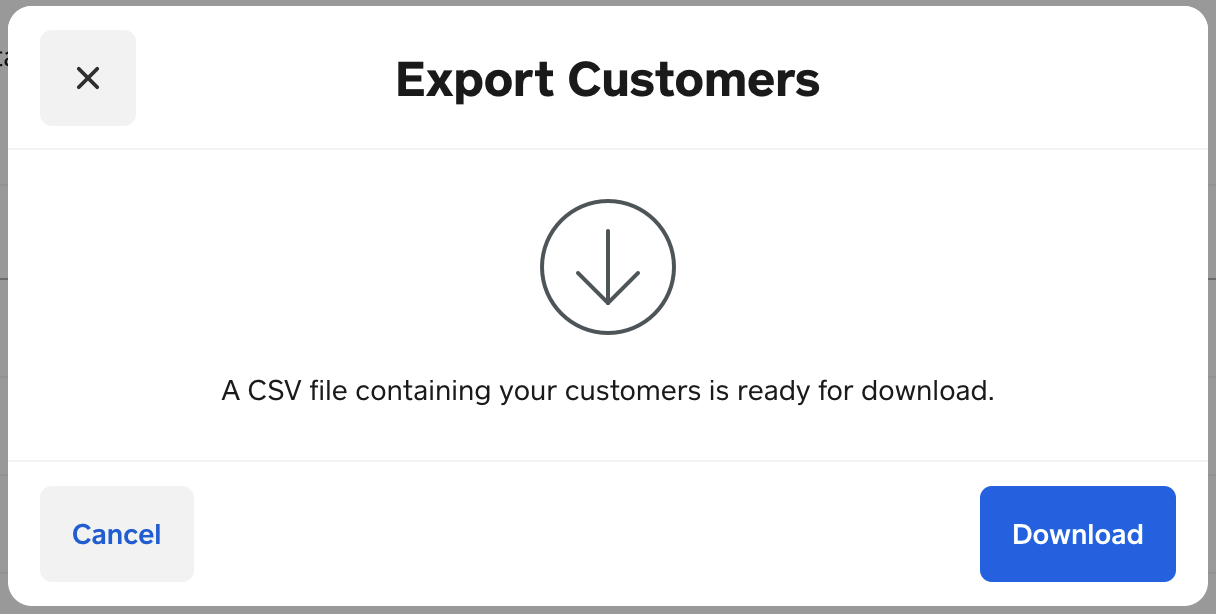
Download the CSV file
When the file is ready, click the Download button to save it to your computer. The CSV file contains one row per customer with their contact information, address, notes, group memberships, and purchase statistics.
Verify the customer data
Open the CSV in a spreadsheet application and review the data. Key columns include Customer ID, Given Name, Family Name, Email Address, Phone Number, address fields, and purchase statistics like Total Transactions and Total Spent. Confirm the row count matches your directory total.

Required Customers Fields
| Field | Type | Description | Example |
|---|---|---|---|
| Customer ID | Text | Square-generated unique ID | CUST123456789 |
Your Square export must include these fields for successful conversion.
