

How to Export Refunds from Shopify (2026 Guide)
Follow these steps to export your Shopify refunds as a CSV file. Once exported, you can use any of our converter tools to transform the data for your target system.
Export Steps
Log in to your Shopify admin
Go to your-store.myshopify.com/admin and sign in with your credentials. You need at least the Orders permission to access the export feature. Shopify does not have a dedicated refunds export, so you will export orders and then filter for refunded ones.

Navigate to the Orders page
Click Orders in the left-hand sidebar of your Shopify admin. This displays all orders in your store. Before exporting, you will apply filters to isolate refunded orders so the exported file is easier to work with.
Filter orders by Financial Status
Use the filter bar at the top of the orders list. Click on the Payment Status filter and select 'Refunded' to see only fully refunded orders. If you also need partially refunded orders, you may need to run a second export with the 'Partially refunded' filter, since Shopify's native filter only allows one payment status at a time.

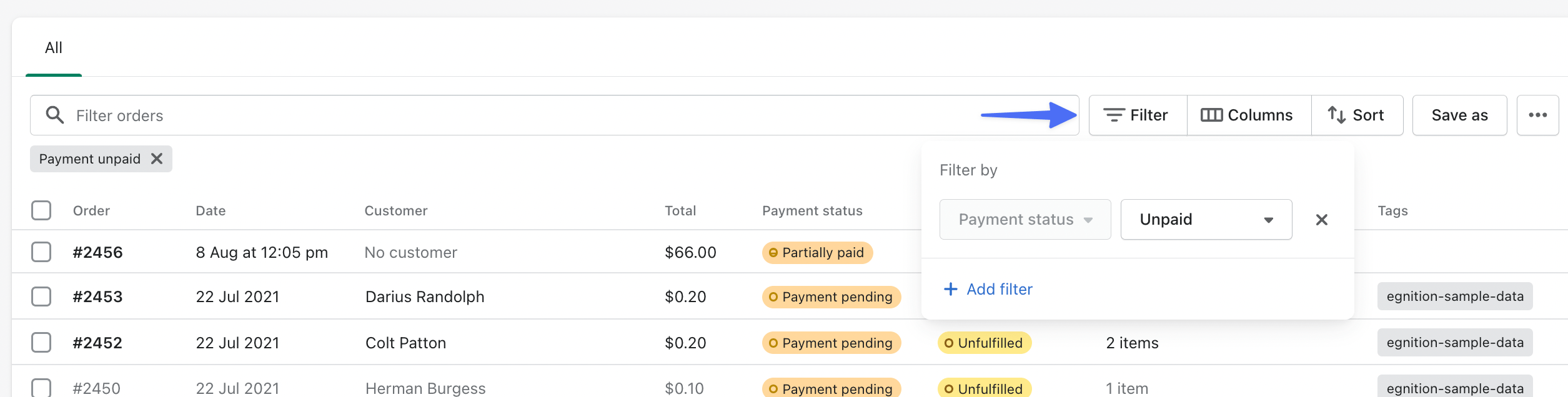
Click Export and select your scope
With the refund filter active, click the Export button in the upper-right corner. In the export dialog, choose the option that matches your filtered results, such as 'Orders matching your search' or 'All orders'. If you filtered first, select the matching search option to export only those filtered orders.
Select CSV format and export
Choose 'CSV for Excel, Numbers, or other spreadsheet programs' as the file format. Then click 'Export orders' to start the download. For small exports, the file downloads immediately. Larger exports are emailed to the store owner.
Open the CSV and locate refund columns
Open the exported CSV in your spreadsheet application. Look for the 'Refunded Amount' column, which shows the dollar amount refunded for each order. The 'Financial Status' column will read 'refunded' or 'partially_refunded' for the relevant rows. If you exported all orders, filter or sort by the Financial Status column to isolate refund records.
Note: Refund reason is not in the CSV
The native Shopify CSV export does not include a 'Refund Reason' column. To find refund reasons, click into individual orders in the Shopify admin where the reason is displayed in the refund details section. For bulk access to refund reasons and line-item breakdowns, use the free Shopify Admin API (refunds endpoint).
Required Refunds Fields
| Field | Type | Description | Example |
|---|---|---|---|
| Name | Text | Order name/number | #1001 |
| Created at | Date/Time | Order creation date/time (NOT refund date) | 2025-01-20T10:30:00-05:00 |
| Financial Status | Choice | Payment status - filter for 'refunded' or 'partially_refunded' | refunded |
| Refunded Amount | Currency | Amount refunded (native CSV column) | 149.99 |
Your Shopify export must include these fields for successful conversion.
