

How to Export Customer Export from QuickBooks Online (2026 Guide)
Follow these steps to export your QuickBooks Online customer export as a CSV file. Once exported, you can use any of our converter tools to transform the data for your target system.
Export Steps
Log in to QuickBooks Online
Open your web browser and navigate to QuickBooks Online at qbo.intuit.com. Sign in with your Intuit account credentials. You need at least the Customers view permission to access the customer list and export functionality.
Navigate to the Customers page
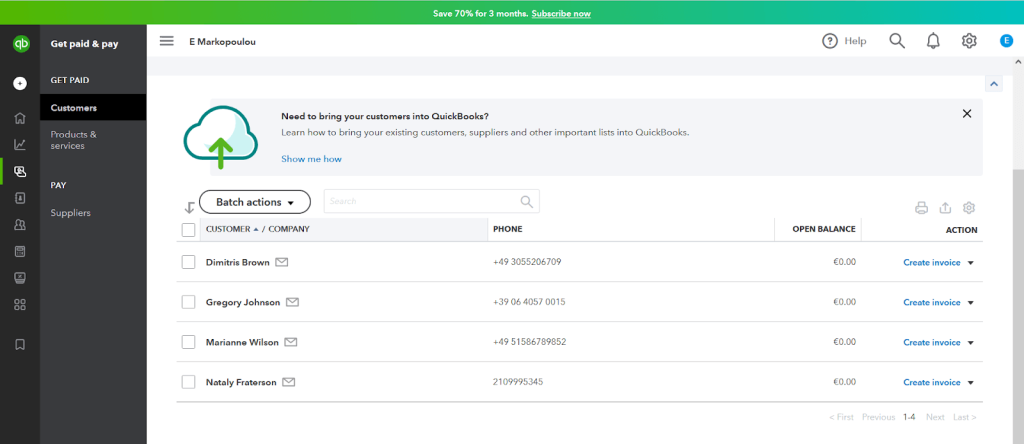
From the left-hand navigation menu, click on Sales and then select Customers. This opens a list of all your customers showing their names, phone numbers, email addresses, open balances, and other details. The list can be sorted by clicking any column header.
Click the Export icon
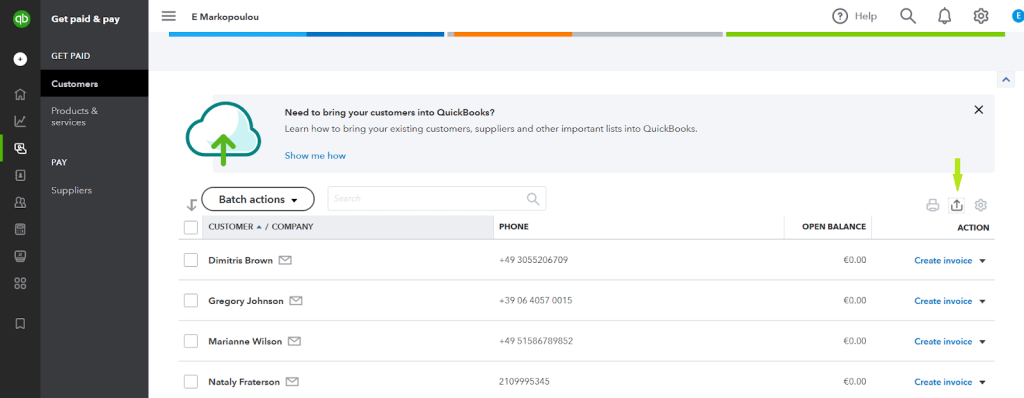
Look at the top-right area of the Customers page, near the Print icon. You will see an Export icon represented by a small box with an upward arrow. Click this icon and select Export to Excel from the dropdown. The file will begin downloading automatically.

Alternative: Run the Customer Contact List report
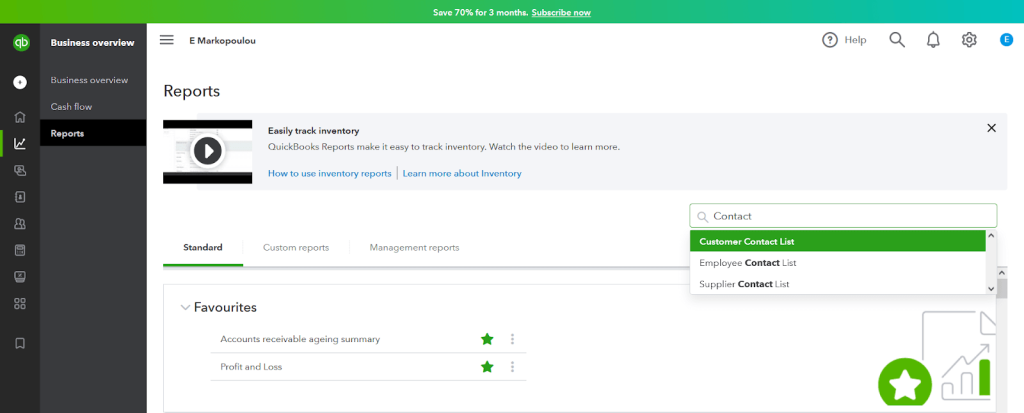
For a more detailed export with additional fields, go to Reports from the left navigation menu. In the search box at the top, type Customer Contact List and click on the matching report. This report includes all customer contact details in a customizable format.
Customize the report columns (optional)
Once the report opens, click the Customize button at the top to add or remove columns. You can include fields like billing address, shipping address, payment terms, tax resale number, and notes. Adjust the date range if needed and click Run Report to apply your changes.
Export the report to Excel
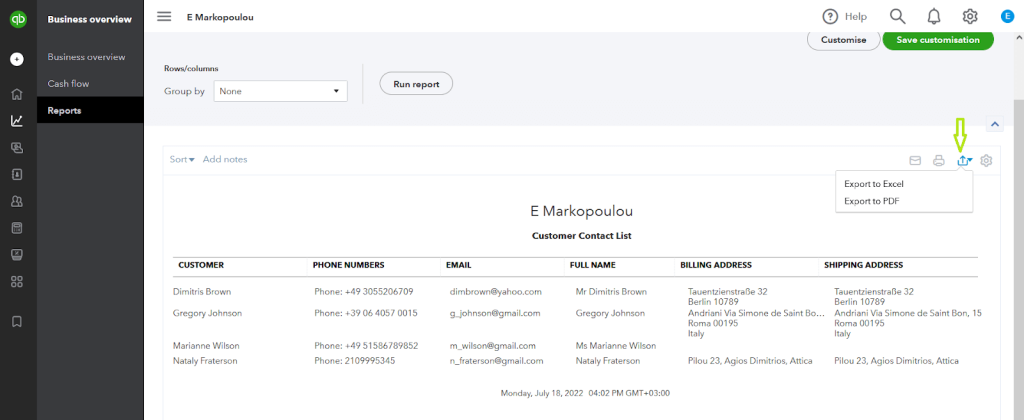
With your customized report displayed, click the Export icon in the upper-right corner of the report. Select Export to Excel from the dropdown options. The file downloads as an Excel workbook (.xlsx) to your default downloads folder.
Convert to CSV format if needed
Open the downloaded Excel file in Microsoft Excel, Google Sheets, or Apple Numbers. Go to File and then Save As (or Download as in Google Sheets) and select CSV (Comma Separated Values) as the file format. Save the file to a convenient location on your computer.

Review the exported data
Open the CSV file to verify that all expected customer records are present. Check that key fields like customer names, email addresses, and addresses exported correctly. The file is now ready to upload to our converter tool for migration to your target accounting platform.
Required Customer Export Fields
| Field | Type | Description | Example |
|---|---|---|---|
| Customer | Text | Customer display name (unique identifier) | John Smith |
Your QuickBooks Online export must include these fields for successful conversion.
