

How to Export Account Export from QuickBooks Online (2026 Guide)
Follow these steps to export your QuickBooks Online account export as a CSV file. Once exported, you can use any of our converter tools to transform the data for your target system.
Export Steps
Log in to QuickBooks Online
Open your browser and go to qbo.intuit.com. Sign in with your Intuit account. You need at least the Accounting or Bookkeeper role to access the Chart of Accounts and its export features.
Navigate to the Chart of Accounts
From the left-hand navigation menu, click on Accounting (or Bookkeeping in newer layouts) and then select Chart of Accounts. This displays your full list of accounts organized by type including assets, liabilities, equity, income, and expenses.
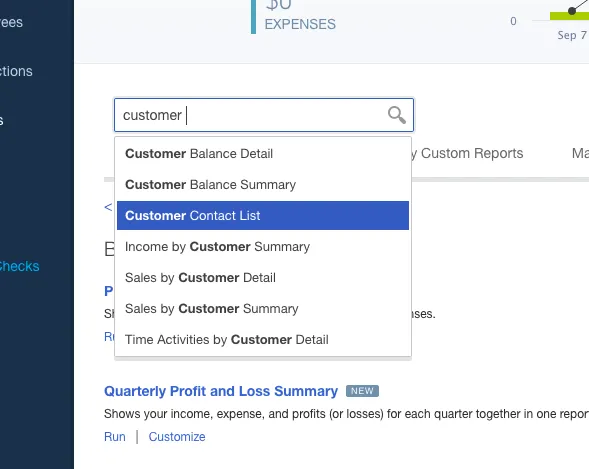
Click Run Report
In the upper-right corner of the Chart of Accounts page, click the Run Report button. This generates an Account List report that displays all your accounts in a format suitable for export. The report includes account names, types, detail types, and current balances.
Customize the report (optional)
Click the Customize button to modify which columns appear in the export. You can add or remove fields like account number, description, tax line mapping, parent account, and currency. If you have account numbers enabled in your company settings, they will appear as a column.

Export the report
Click the Export icon in the top-right corner of the report and select Export to Excel. Some QuickBooks Online versions may also offer an Export to CSV option directly. The file will download to your browser's default downloads folder.
Alternative: Use the Export Data tool
Click the Gear icon in the upper-right corner and select Export Data under the Tools section. Switch to the Lists tab and toggle on Chart of Accounts. Click Export to Excel. This method may include slightly different columns compared to the report export.
Convert to CSV and review
Open the downloaded file and save it as a CSV using File then Save As. Verify that account names, types, detail types, and balances all exported correctly. Pay attention to sub-accounts, which may show with their parent account name separated by a colon. The file is now ready for our converter tool.

Required Account Export Fields
| Field | Type | Description | Example |
|---|---|---|---|
| Account | Text | Account name | Sales of Product Income |
| Type | Text | Primary account type | Income |
Your QuickBooks Online export must include these fields for successful conversion.
