

How to Import Products to Magento (2026 Guide)
After converting your data with one of our tools, follow these steps to import the products into Magento.
Import Steps
Access the Magento import section
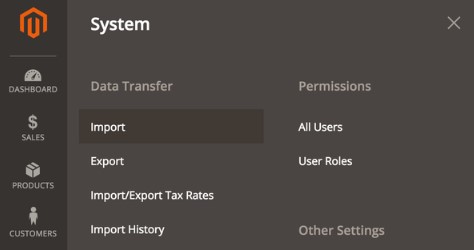
Log in to your Magento 2 Admin panel. Navigate to System in the left sidebar, then click Data Transfer, then Import. This opens the import configuration page where you will set up your product import.
Select entity type and download sample
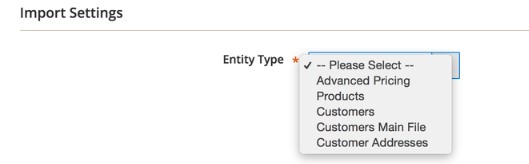
In the Entity Type dropdown, select Products. Click the Download Sample File link to get the official CSV template. This sample file shows you all available columns with example data and serves as the best reference for the expected format.

Prepare your product CSV file
Open the sample CSV in a spreadsheet program and populate it with your product data. Four fields are absolutely required: sku (unique identifier), attribute_set_code (usually 'Default'), product_type (simple, configurable, etc.), and product_websites (usually 'base'). Use UTF-8 encoding to avoid validation errors during import.

Upload product images (if applicable)
If your CSV references product images by file path, upload the image files to your Magento server at the path pub/media/import before running the import. Alternatively, use full publicly-accessible URLs in the base_image, small_image, and additional_images columns.
Configure import behavior
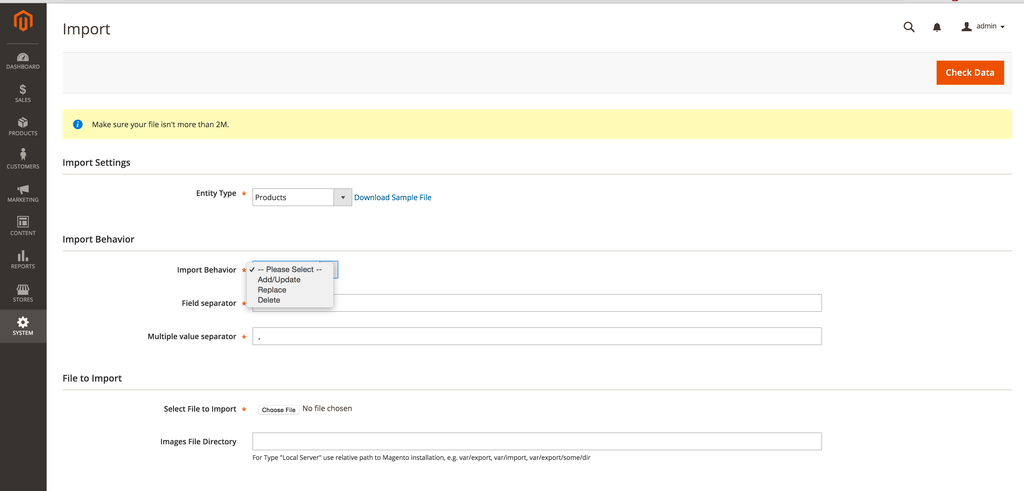
Back on the Import page, set the Import Behavior. Choose Add/Update to create new products and update existing ones that match by SKU. Choose Replace to fully overwrite matching products, or Delete to remove products with matching SKUs. Select your CSV file in the Select File to Import field.
Validate your data
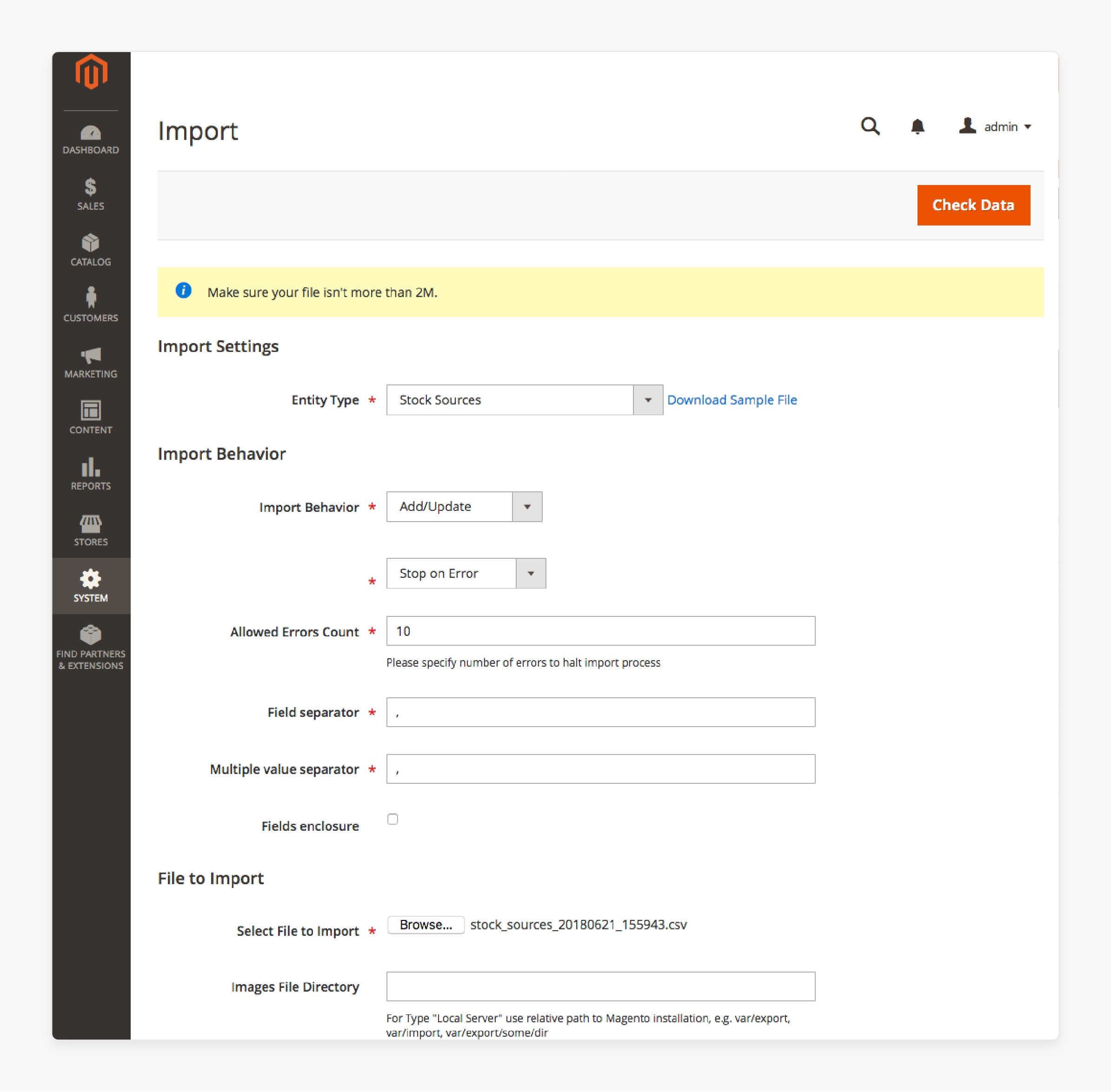
Click the Check Data button to run validation before executing the import. Magento will check all rows for formatting errors, missing required fields, invalid attribute values, and duplicate SKUs. Review the validation results carefully and fix any errors in your CSV before proceeding.
Execute the import
If validation passes with no errors, click the Import button to begin processing. Magento will create or update products based on your CSV data. For large files, the import may take several minutes. Do not navigate away from the page until the process completes.
Review import results
After the import finishes, Magento displays a summary with the number of products created, updated, and any errors encountered. Navigate to Catalog, then Products to verify the imported items. You can also check System, then Data Transfer, then Import History for a complete audit trail of all import operations.
Required Magento Fields
| Field | Type | Description | Example |
|---|---|---|---|
| sku | Text | Stock keeping unit (unique, no special characters) | PROD-001 |
| attribute_set_code | Text | Attribute set code (must exist in Magento) | Default |
| product_type | Choice | Product type | simple |
| product_websites | Text | Website codes (comma-separated for multiple) | base |
| name | Text | Product name | Blue Cotton Shirt |
| price | Currency | Regular price (without currency symbol) | 29.99 |
Magento requires these fields for successful import.

