

How to Export Products from Magento (2026 Guide)
Follow these steps to export your Magento products as a CSV file. Once exported, you can use any of our converter tools to transform the data for your target system.
Export Steps
Log in to the Magento Admin Panel
Navigate to your Magento 2 admin URL and sign in with administrator credentials. You need admin-level access to use the System > Data Transfer export functionality.
Navigate to the Data Transfer Export section
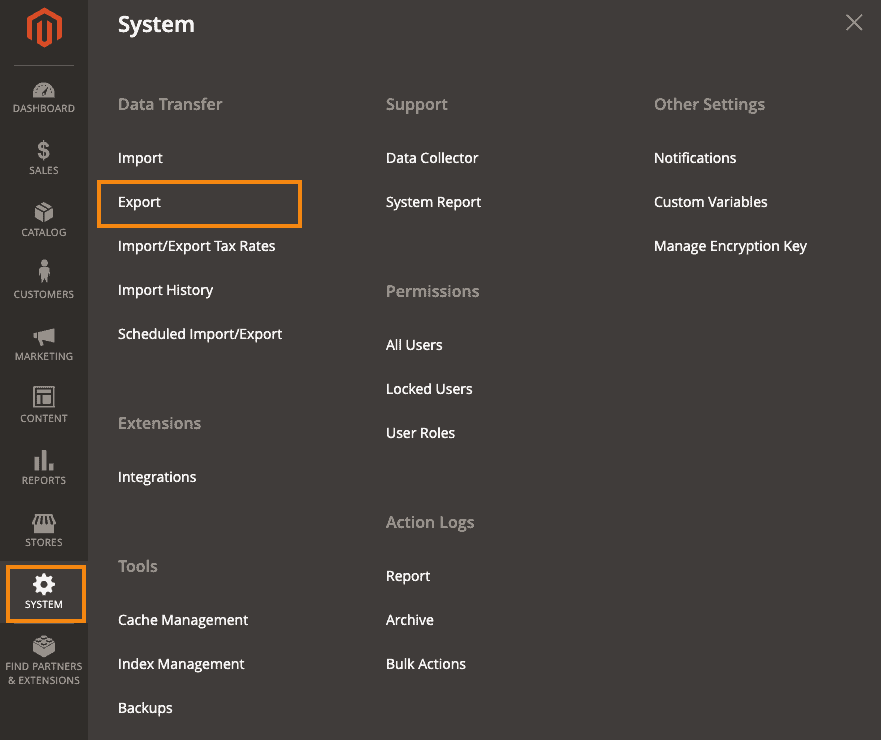
In the left sidebar, click on System to expand the menu, then click on Data Transfer, and finally click Export. This opens the export configuration page where you can specify what entity type to export and how to format the output.
Select Products as the entity type
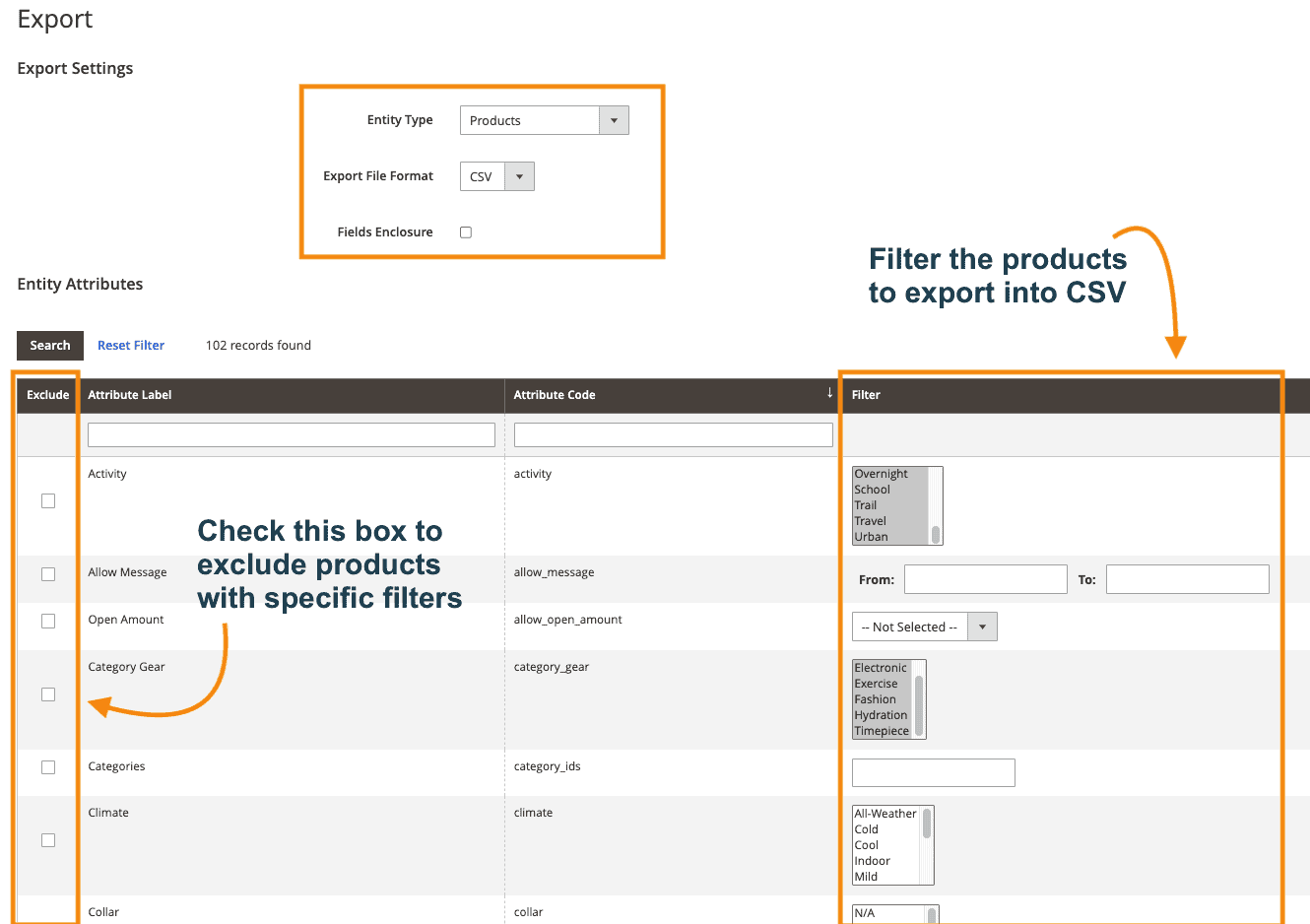
In the Entity Type dropdown, select Products. This tells Magento to export product catalog data. The page will update to show product-specific filter and attribute options below the main export settings.
Choose CSV as the export file format
In the Export File Format dropdown, select CSV. Optionally tick the Fields Enclosure checkbox to wrap values containing special characters in double quotes, which helps prevent data corruption when opening the file in spreadsheet applications.

Apply attribute filters if needed
In the Entity Attributes section below, you can apply filters to export only specific products. Filter by SKU range, product type, attribute set, visibility, or any custom attribute. Leave all filters empty to export your entire product catalog.

Click Continue to start the export
Click the Continue button at the bottom of the page to begin the export process. Magento schedules the export through a cron job. The exported file will be saved to the var/export directory on your Magento server.
Download the exported file
Once the export is complete, you will see a download link or notification. Click it to download the CSV file to your computer. If you do not see the link, check the var/export directory on your server via FTP or SSH for the generated file.
Verify the exported product data
Open the CSV in Google Sheets or a text editor to verify the data. Check that required fields like sku, name, price, attribute_set_code, and product_type are present and correctly populated. Configurable product variations appear in the configurable_variations column as pipe-separated SKU and attribute pairs.
Required Products Fields
| Field | Type | Description | Example |
|---|---|---|---|
| sku | Text | Stock keeping unit (unique, no special characters) | PROD-001 |
| attribute_set_code | Text | Attribute set code (must exist in Magento) | Default |
| product_type | Choice | Product type | simple |
| product_websites | Text | Website codes (comma-separated for multiple) | base |
| name | Text | Product name | Blue Cotton Shirt |
| price | Currency | Regular price (without currency symbol) | 29.99 |
Your Magento export must include these fields for successful conversion.
