

How to Export Orders from Magento (2026 Guide)
Follow these steps to export your Magento orders as a CSV file. Once exported, you can use any of our converter tools to transform the data for your target system.
Export Steps
Log in to the Magento Admin Panel
Open your browser and navigate to your Magento 2 admin URL, typically at yoursite.com/admin. Enter your administrator username and password. You need admin or sales manager permissions to access the order export functionality.
Navigate to the Orders grid
In the left sidebar menu, click on Sales to expand the submenu, then click on Orders. This opens the orders grid page showing all orders with columns for ID, Purchase Date, Bill-to Name, Ship-to Name, Grand Total, Status, and other configured fields.
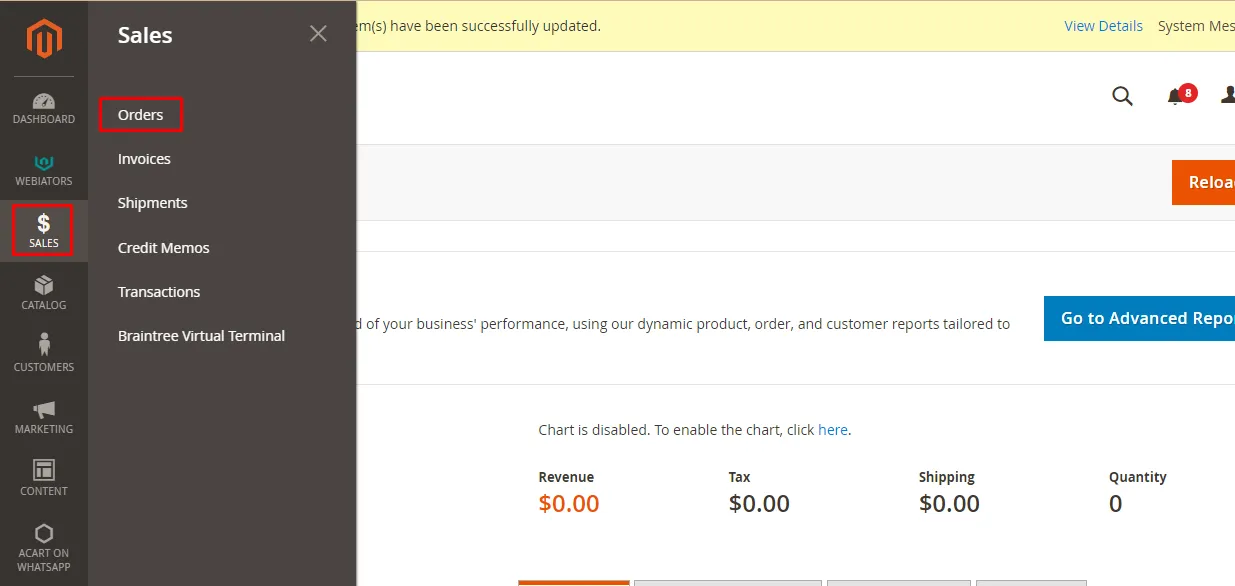
Filter orders as needed
Use the filter controls at the top of the orders grid to narrow down your export. You can filter by date range, order status, customer name, or grand total. Click Apply Filters to update the grid with only the orders matching your criteria.

Configure grid columns
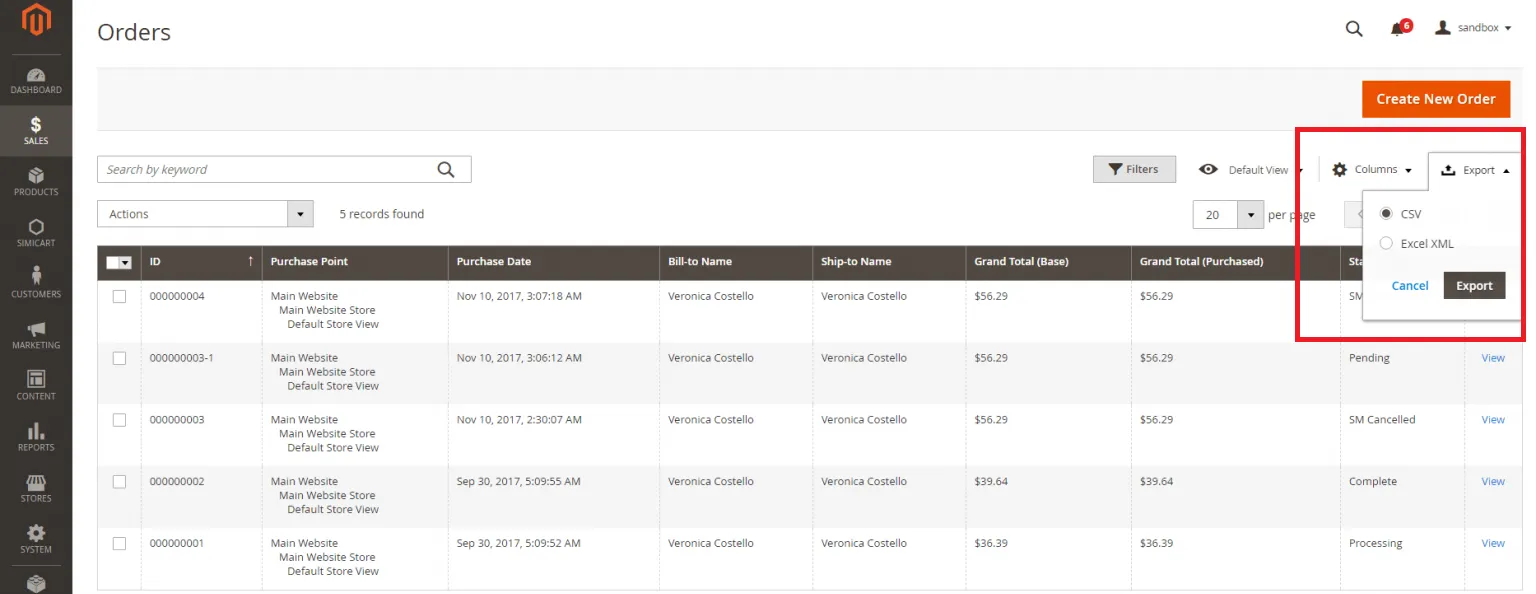
Click the Columns dropdown above the grid to select which columns appear in the export. Enable or disable columns such as Purchase Point, Bill-to Name, Ship-to Name, Grand Total, and Status. Only visible grid columns will be included in the exported file.
Export to CSV
Locate the Export dropdown at the top of the orders grid. Click the dropdown and select CSV as the export format. Then click the Export button next to it. Magento will generate the CSV file with all currently filtered and visible orders.
Download the CSV file
Your browser will automatically download the generated CSV file. The filename typically includes a timestamp to help you identify when the export was created. Save the file to a known location on your computer.

Verify the exported data
Open the CSV file in Google Sheets or a spreadsheet application to verify the data. Check that order IDs, dates, customer names, totals, and statuses are correct. Each order appears as a single row since this is a grid-level export without line item detail.
Required Orders Fields
| Field | Type | Description | Example |
|---|---|---|---|
| ID | Number | Order ID | 1001 |
| Purchase Date | Date/Time | Order creation date | 2025-01-15 14:30:00 |
| Bill-to Name | Text | Billing customer name | John Doe |
| Grand Total (Purchased) | Currency | Grand total in order currency | 149.99 |
| Status | Text | Order status | Complete |
Your Magento export must include these fields for successful conversion.
