

How to Export Settlements from Klarna (2026 Guide)
Follow these steps to export your Klarna settlements as a CSV file. Once exported, you can use any of our converter tools to transform the data for your target system.
Export Steps
Log in to the Klarna Merchant Portal
Open your browser and navigate to the Klarna Merchant Portal. Sign in with your merchant credentials and select the appropriate merchant account if you manage multiple accounts. The Merchant Portal is where you access settlement reports, payout history, and order management.
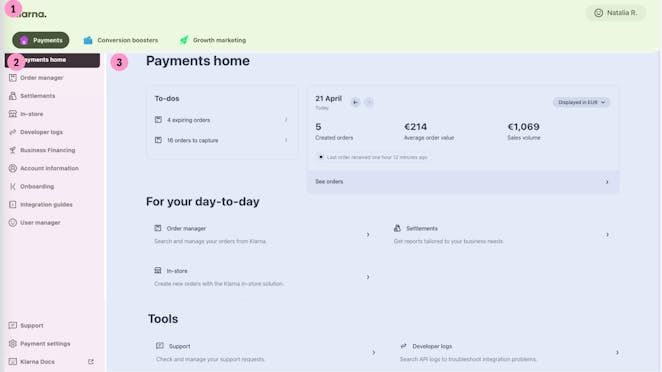
Navigate to the Settlements section
In the Merchant Portal, find and click on 'Settlements' in the navigation menu. This section shows your payout history and provides access to both individual payout reports and custom date-range exports.

Choose between payout reports and custom reports
Klarna offers two export options: individual payout reports (one file per settlement batch) and custom reports (transactions across a date range). For individual payouts, find the specific payout in the list and click 'CSV' to download. For custom date ranges, go to the Custom Reports section.

Set the date filter for custom reports
If using Custom Reports, adjust the 'Filter by date' field to select the start and end dates for the transactions you want. Under 'Event Date', choose the time range for your report. Click 'Generate' to create the report for the selected period.
Customize report columns (optional)
Klarna provides a Report Configurator in the Settlements App that allows you to add, remove, or reorder columns in the CSV and PDF reports. Use this to tailor the export to your accounting system's requirements, such as adding capture amounts, fee breakdowns, or tax fields.
Download the CSV file
Click the download button or 'CSV' link to save the settlement report to your computer. The export includes order_id, merchant_reference, capture_id, payment_reference, capture_date, payout_date, order_amount, capture_amount, fee_amount, net_settlement_amount, currency, and transaction_type.
Verify the settlement data
Open the CSV in a spreadsheet application. Verify that the net_settlement_amount equals the capture_amount minus the fee_amount for capture rows. Check that the payment_reference values match your bank deposits. Look for any refund or dispute rows that may reduce the payout total.

Required Settlements Fields
| Field | Type | Description | Example |
|---|---|---|---|
| order_id | Text | Klarna order reference | KL-12345-ABCDE |
| payout_date | Date | Date of payout to merchant | 2025-01-17 |
| net_settlement_amount | Currency | Net amount paid to merchant (after fees) | 145.50 |
Your Klarna export must include these fields for successful conversion.
