

How to Export Contacts Csv from Google Contacts (2026 Guide)
Follow these steps to export your Google Contacts contacts csv as a CSV file. Once exported, you can use any of our converter tools to transform the data for your target system.
Export Steps
Open Google Contacts
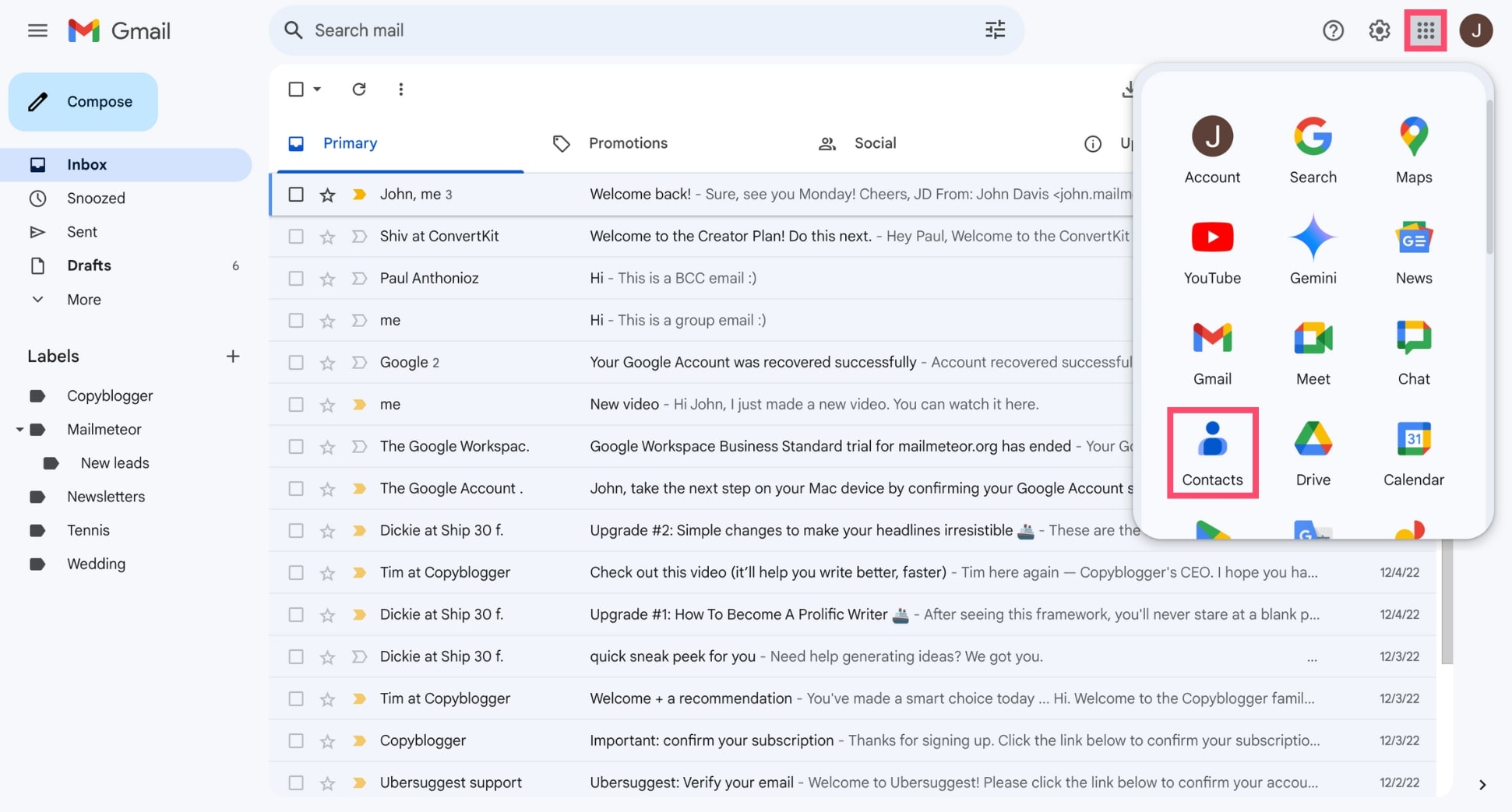
Go to contacts.google.com in your web browser and sign in with the Google account that contains the contacts you want to export. You can also access Google Contacts by clicking the Google Apps grid icon (nine dots) in the upper-right corner of any Google service and selecting 'Contacts'.
Select the contacts to export
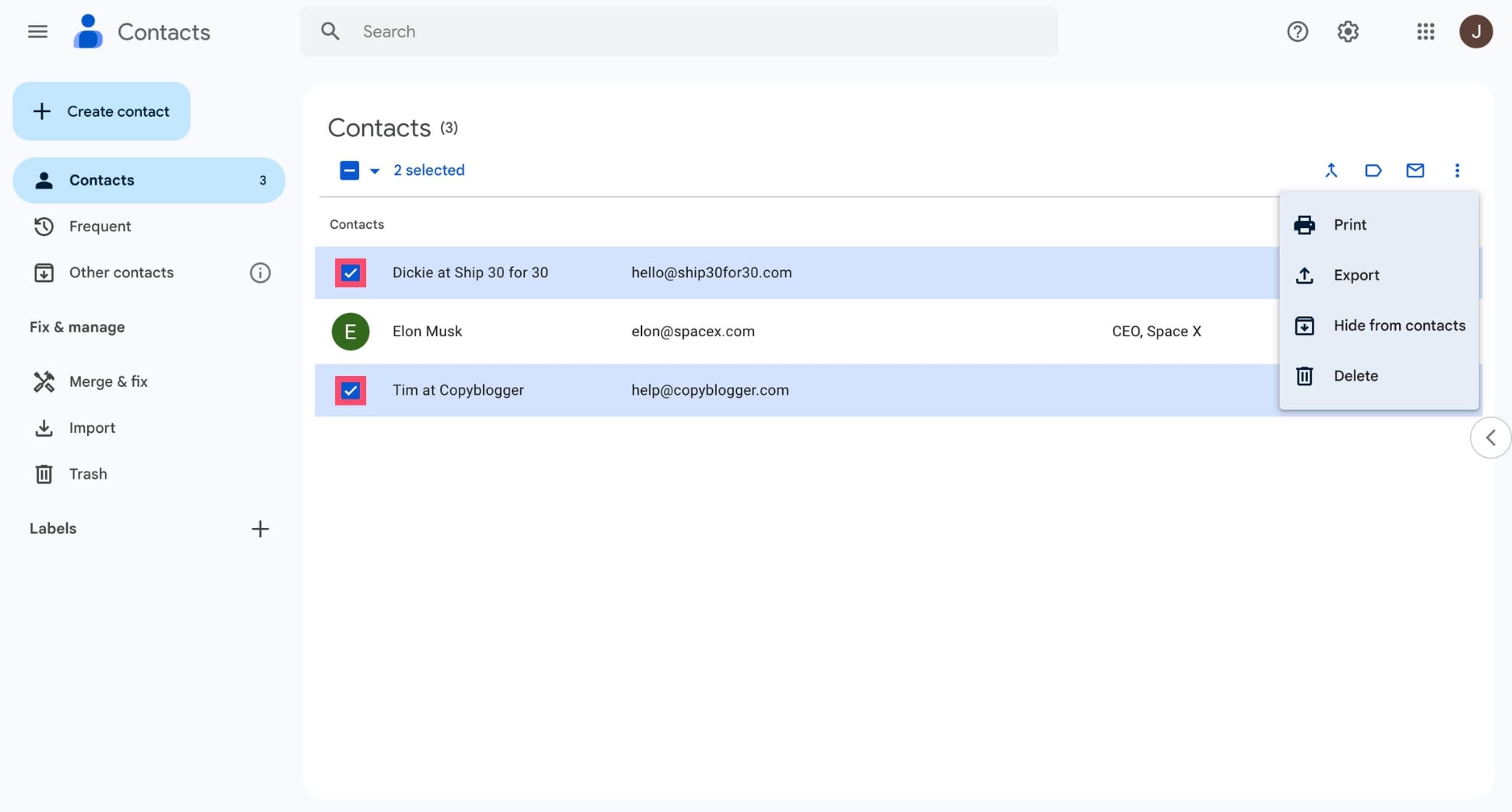
Decide whether you want to export all contacts or only a specific subset. To export all contacts, you can proceed directly to the export step. To export specific contacts, check the boxes next to each contact you want to include. You can also use the search bar to find contacts and select them individually.

Open the export dialog
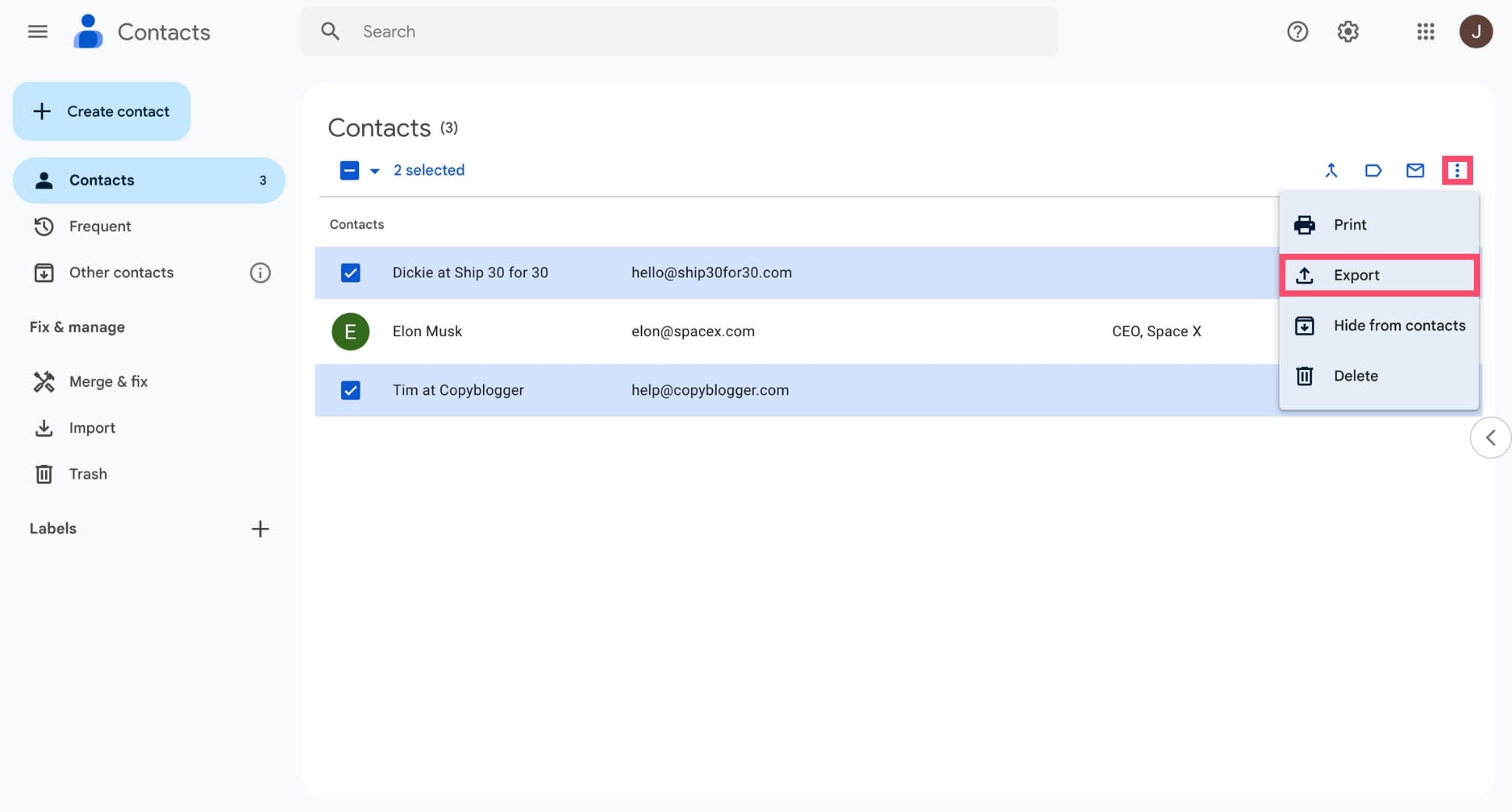
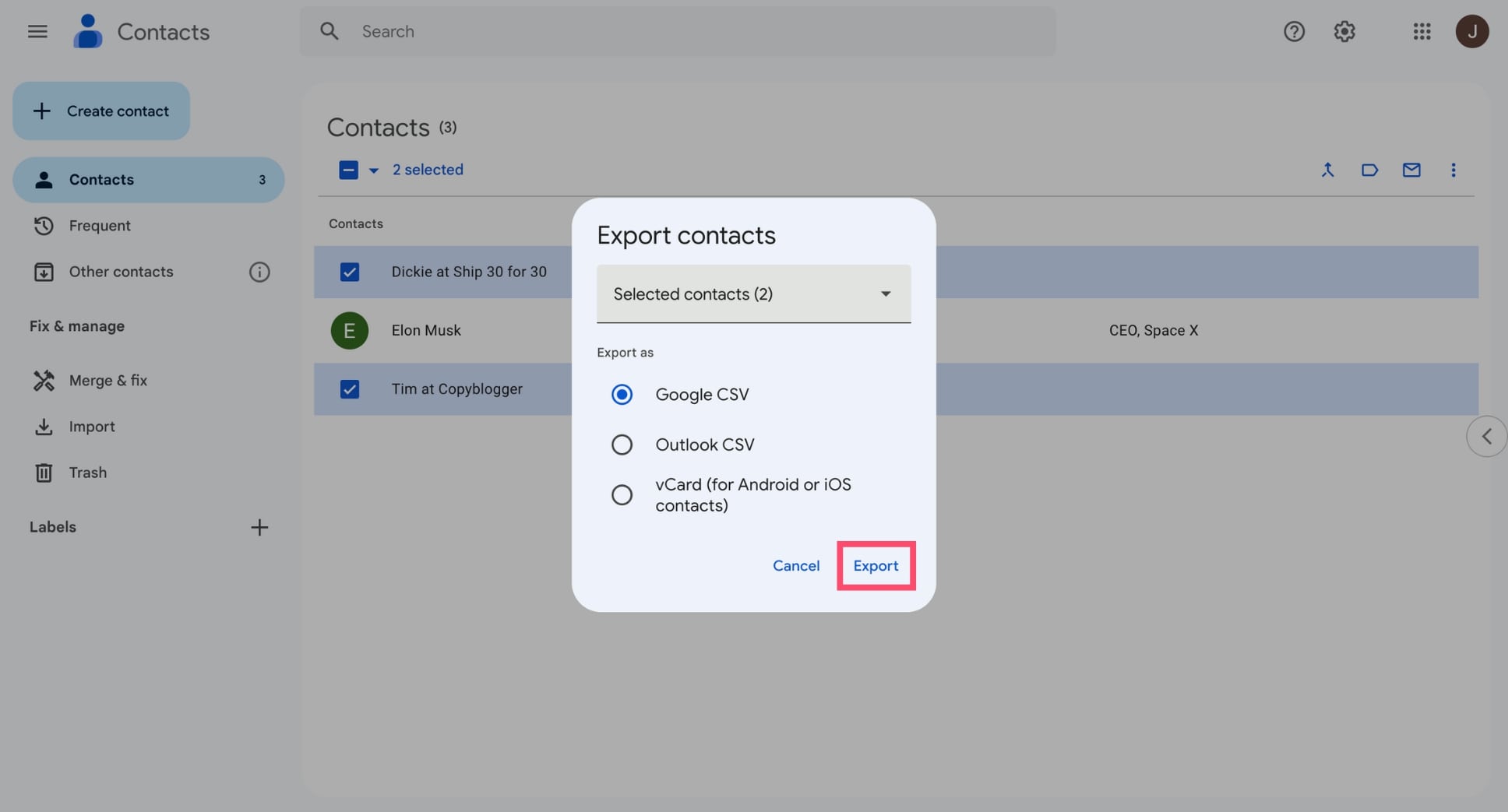
Click the 'Export' option in the left sidebar, or click the three-dot 'More actions' menu at the top of the contacts list and select 'Export'. A dialog box will appear asking you to choose which contacts to export and in what format.
Choose the Google CSV format
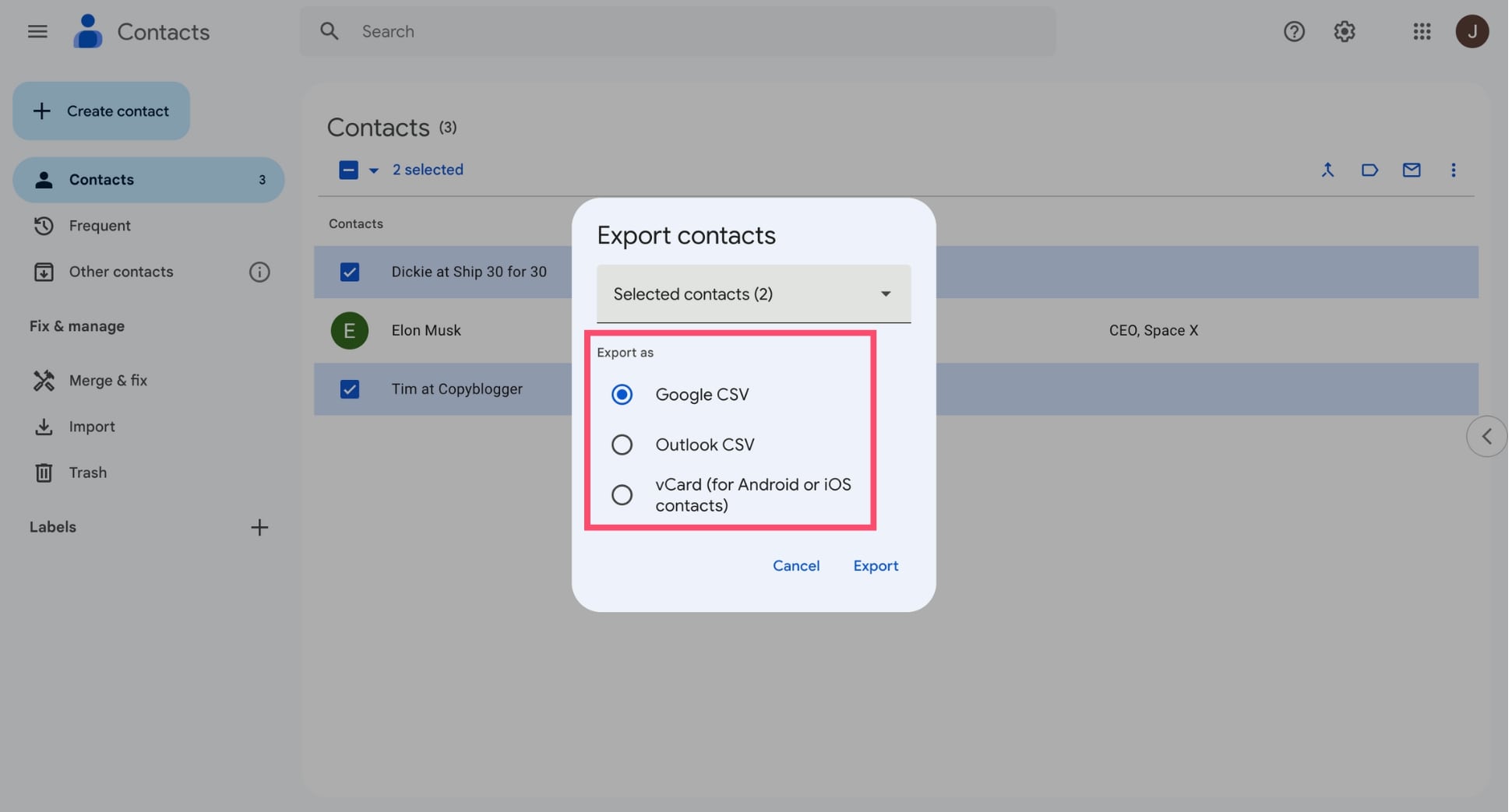
In the export dialog, you will see three format options: Google CSV, Outlook CSV, and vCard (for iOS Contacts). Select 'Google CSV' to export in Google's native CSV format. This format uses numbered multi-value fields like 'E-mail 1 - Value', 'Phone 1 - Value', and 'Organization 1 - Name' for structured data.
Download the CSV file
Click the 'Export' button to start the download. The file will be saved as 'contacts.csv' to your browser's default Downloads folder. The download should complete almost instantly, even for large contact lists with thousands of entries.
Verify the exported data
Open the downloaded CSV file in Google Sheets or Excel to review the contents. Google Contacts CSV exports include columns like 'Name', 'Given Name', 'Family Name', 'E-mail 1 - Value', 'Phone 1 - Value', 'Organization 1 - Name', and 'Group Membership'. Confirm that your contacts and their details appear correctly.

Required Contacts Csv Fields
| Field | Type | Description | Example |
|---|---|---|---|
| Given Name | Text | First name | John |
| Family Name | Text | Last name | Doe |
Your Google Contacts export must include these fields for successful conversion.
