

How to Export Payments Csv from Etsy Seller (2026 Guide)
Follow these steps to export your Etsy Seller payments csv as a CSV file. Once exported, you can use any of our converter tools to transform the data for your target system.
Export Steps
Sign in to Etsy and open Shop Manager
Go to Etsy.com and sign in with your seller account. Click the Shop Manager icon in the top-right corner to access your seller dashboard where you manage all aspects of your Etsy business.
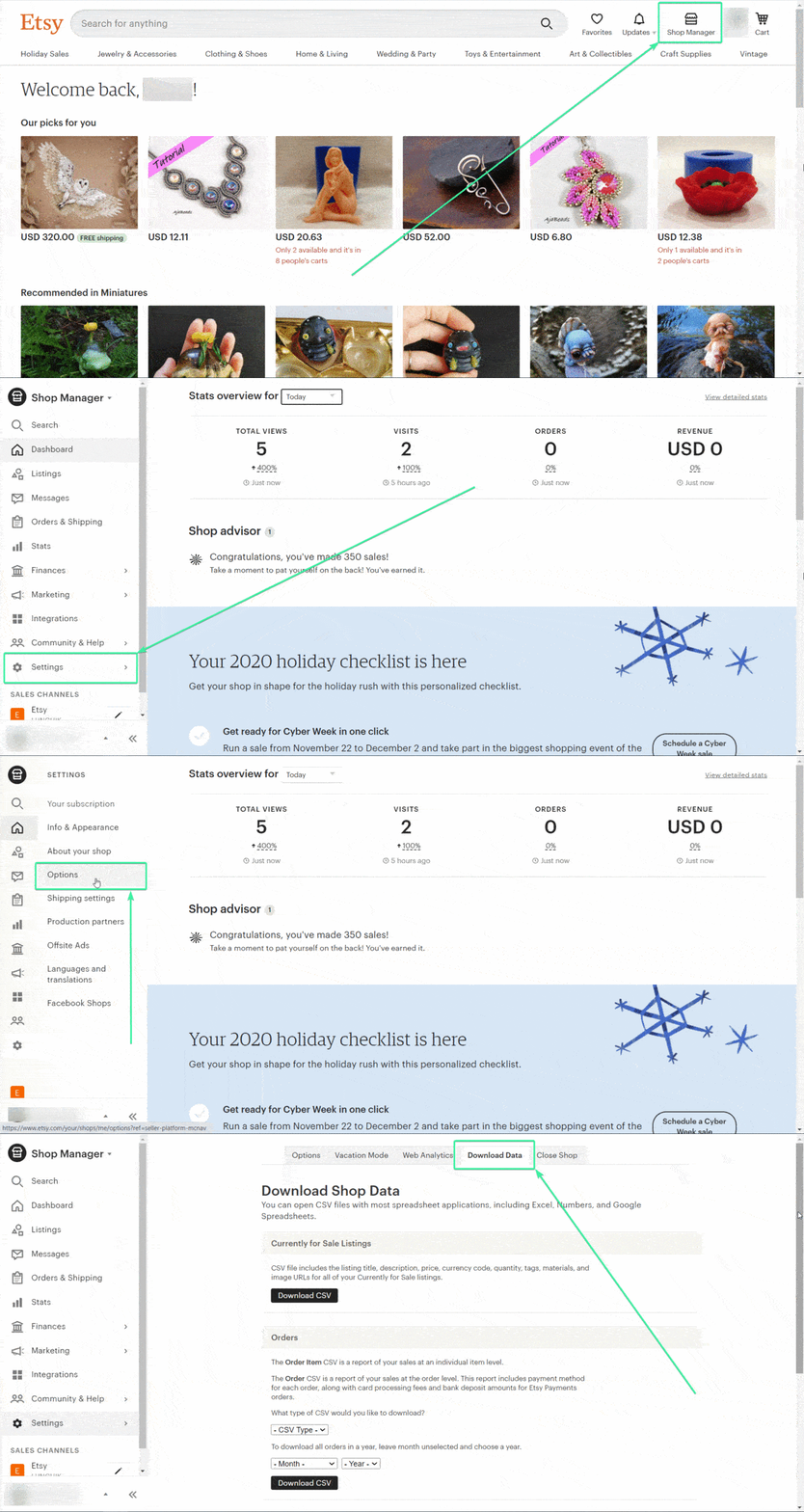
Navigate to Settings and Options
In the left-hand sidebar of Shop Manager, click Settings, then select the Options tab at the top of the page. The Options page contains various shop configuration tools including the Download Data section you need.
Open the Download Data tab
Click the Download Data tab on the Options page. Scroll down to the Orders section where you will find dropdown menus for choosing the report type, month, and year.
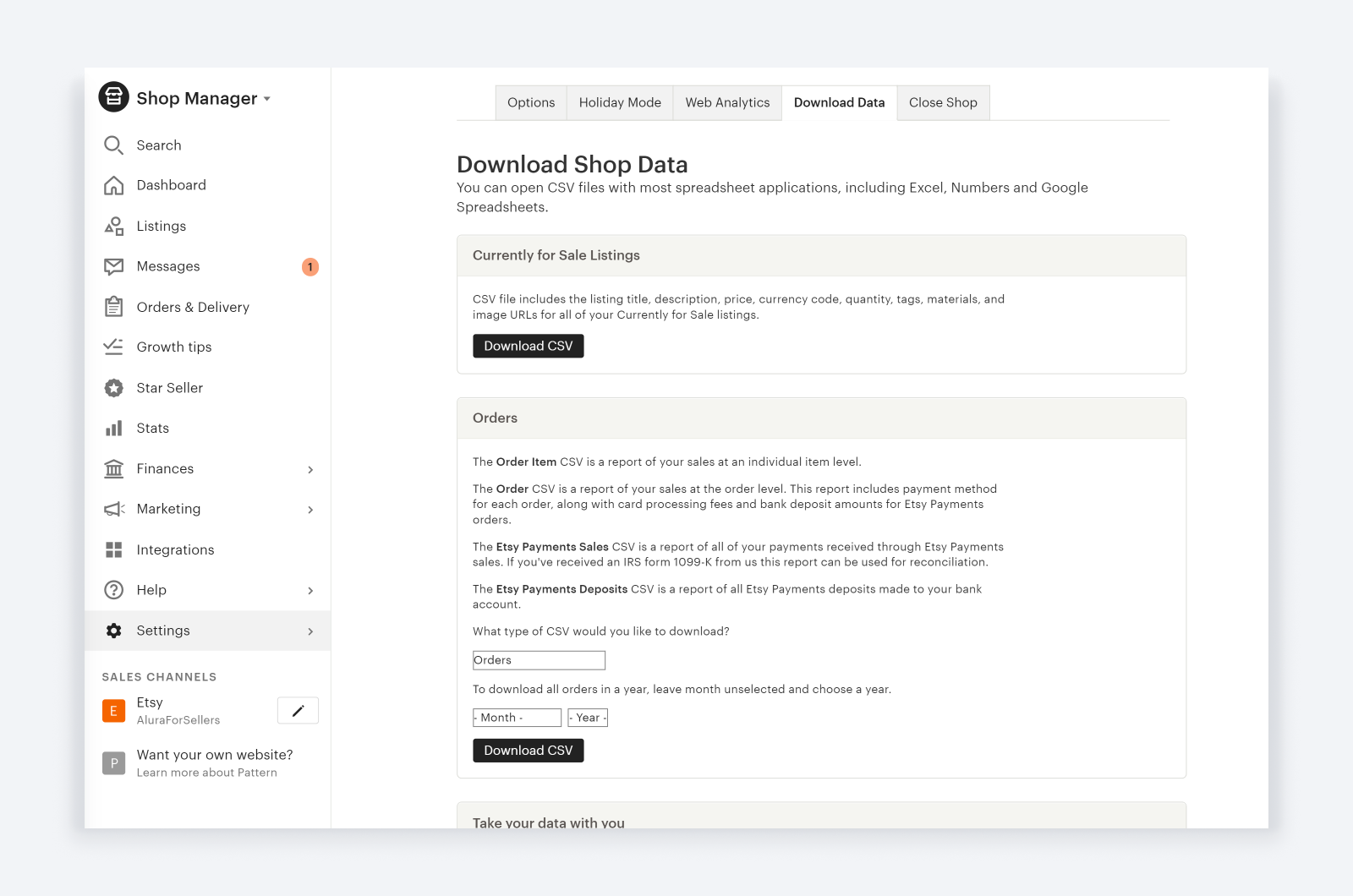
Select Etsy Payments Sales as the CSV type
In the CSV Type dropdown, select "Etsy Payments Sales". This report provides detailed payment data including gross amounts, itemized fees (listing, transaction, processing, offsite ads), net amounts, and payout information. It is the most comprehensive financial export available for 1099-K reconciliation.

Choose the date range
Use the Month and Year dropdown menus to select your desired period. For annual tax reporting, leave the Month dropdown blank and select the year to download all transactions for that year. For quarterly reviews, select a specific month.
Click Download CSV
Click the Download CSV button to generate and save the file to your computer. The file will include columns for Transaction Date, Order ID, Gross Amount, all fee breakdowns, Net Amount, and deposit information.
Verify the data for tax reconciliation
Open the CSV in a spreadsheet application and review the data. Sum the Gross Amount column and compare it against your 1099-K form from Etsy. Check that fee totals match your Etsy dashboard. The Buyer State and Ship State columns help verify state-level tax reporting accuracy.

Required Payments Csv Fields
| Field | Type | Description | Example |
|---|---|---|---|
| Transaction Date | Date/Time | Date of transaction | 2026-01-15 |
| Order ID | Text | Etsy order number | 3001234567 |
| Type | Text | Transaction type | Sale |
| Gross Amount | Currency | Gross transaction amount (reported on 1099-K) | 55.57 |
Your Etsy Seller export must include these fields for successful conversion.