

How to Export Orders from eBay Seller (2026 Guide)
Follow these steps to export your eBay Seller orders as a CSV file. Once exported, you can use any of our converter tools to transform the data for your target system.
Export Steps
Sign in to eBay and open Seller Hub
Go to ebay.com and sign in with your seller account credentials. Navigate to Seller Hub by clicking the My eBay dropdown and selecting Selling, or go directly to ebay.com/sh/overview.
Navigate to the Reports tab
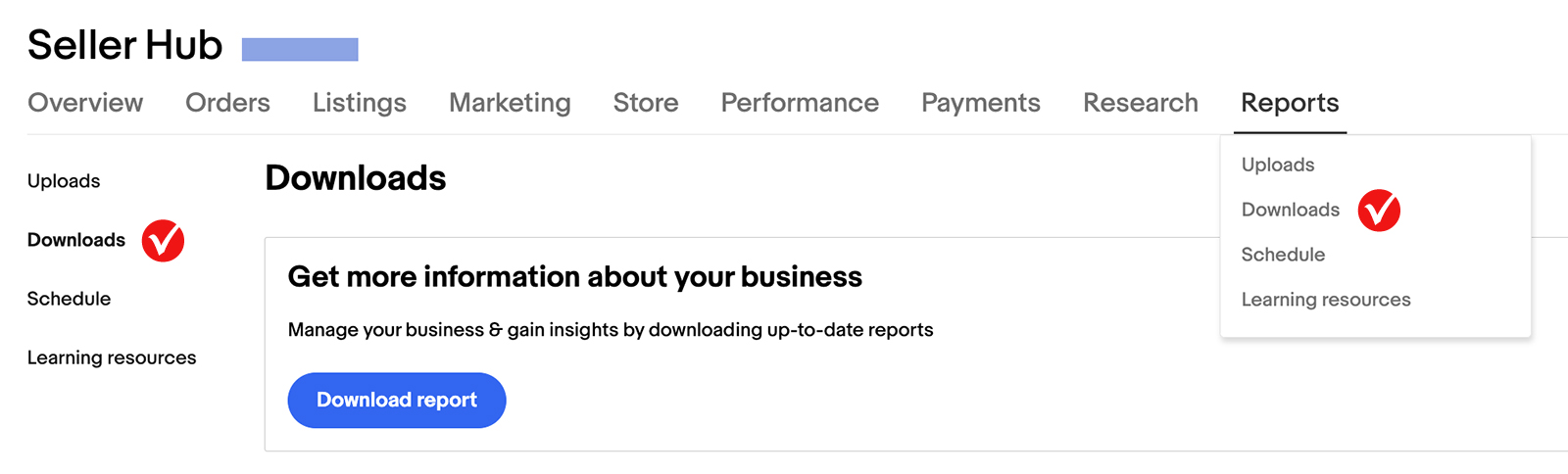
In Seller Hub, click the Reports tab at the top of the page. The Reports section provides tools for generating, scheduling, and downloading bulk reports for orders, listings, and other seller data.
Open the Downloads section
In the left-hand menu of the Reports tab, click Downloads (or the Schedule section if you want recurring reports). The Downloads page allows you to create one-time report downloads.
Create a new download for Orders
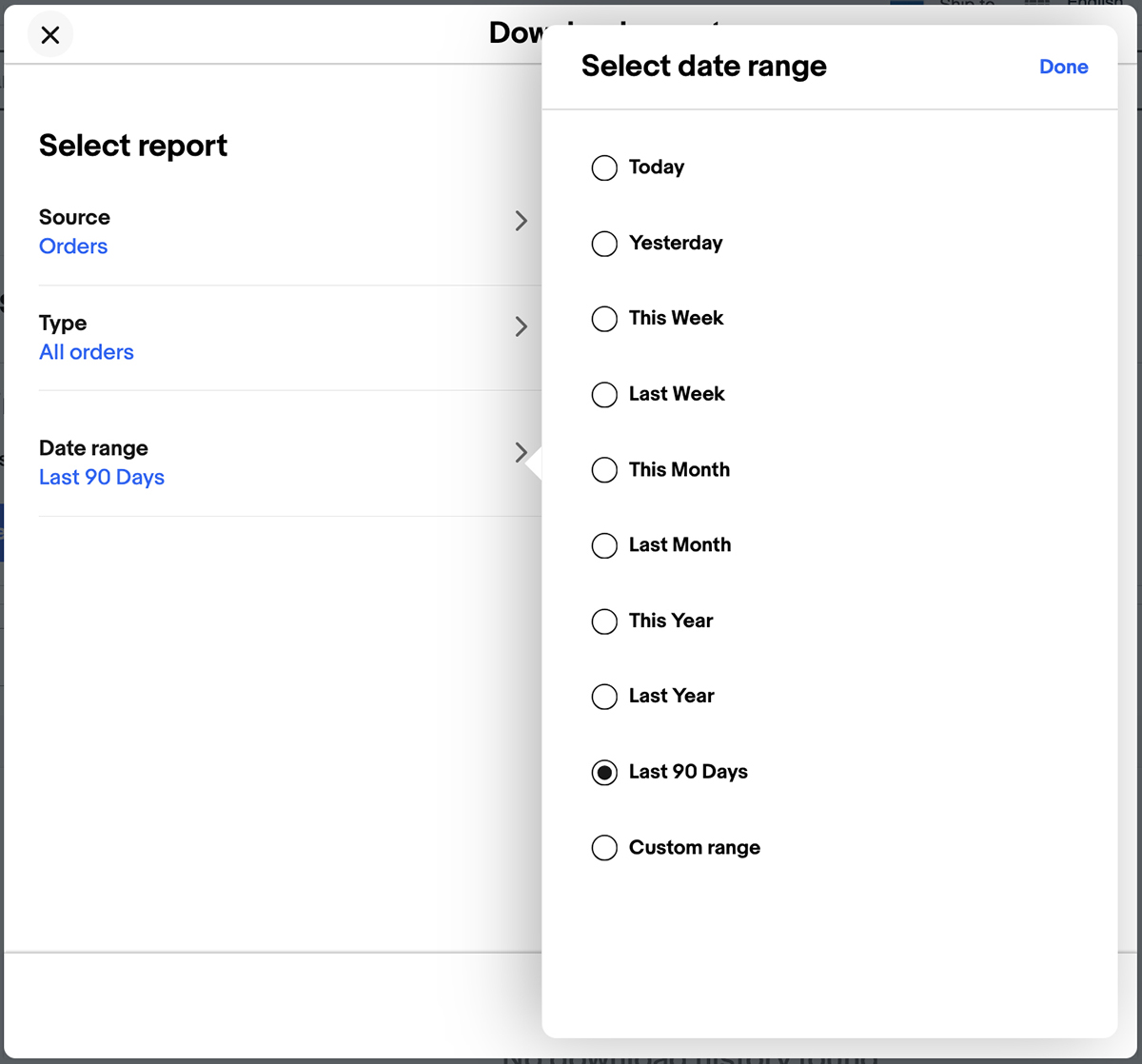
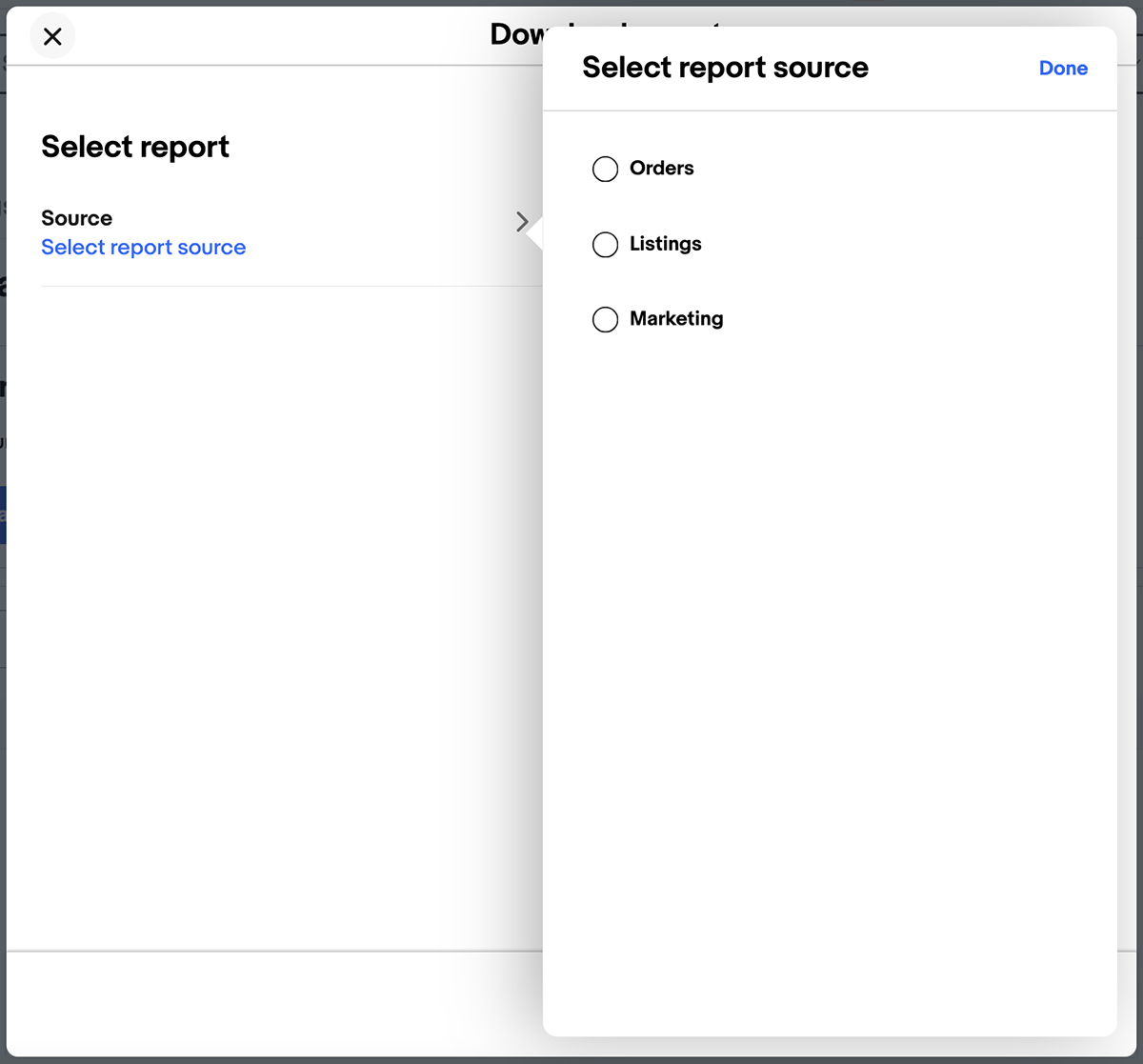
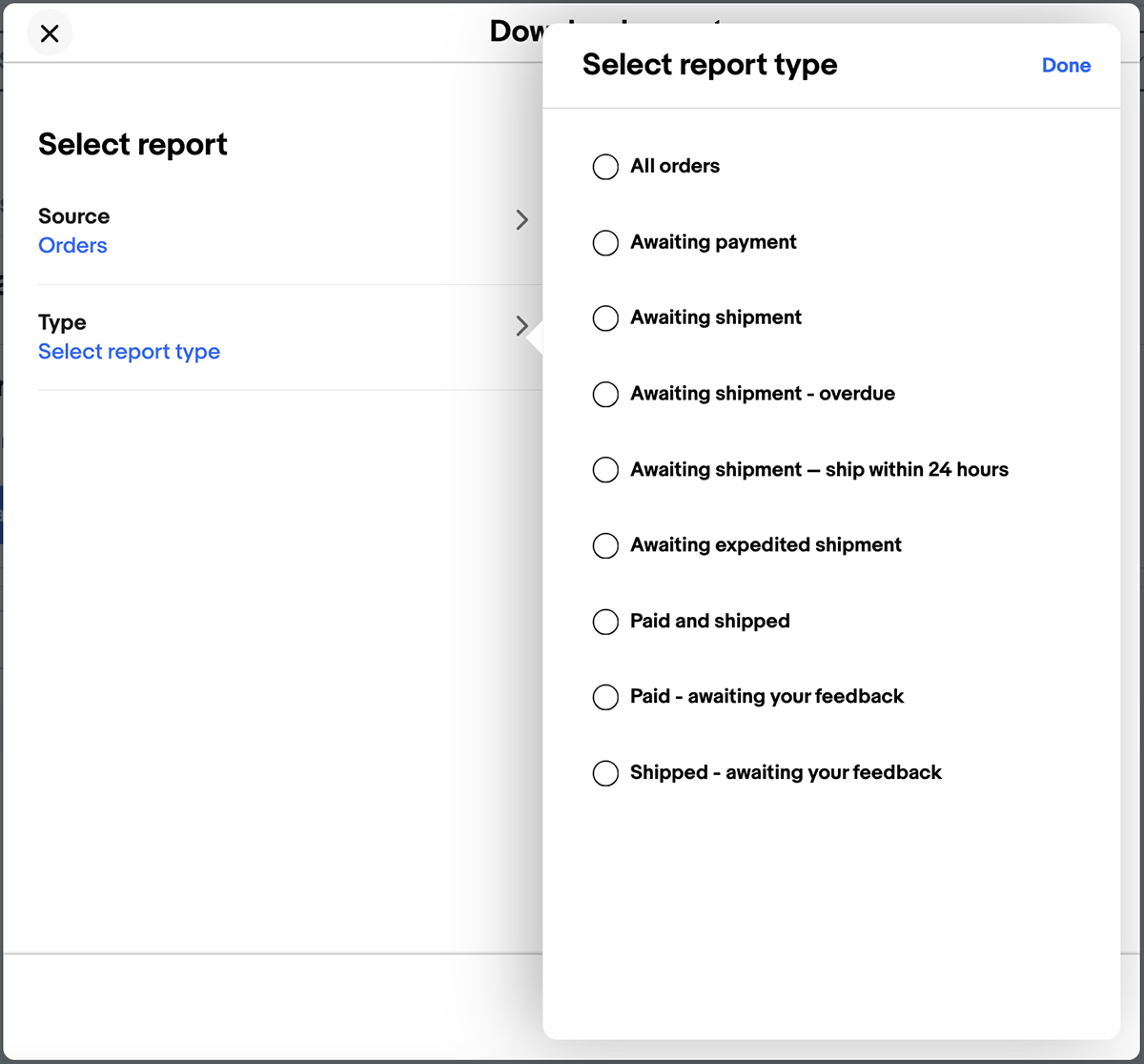
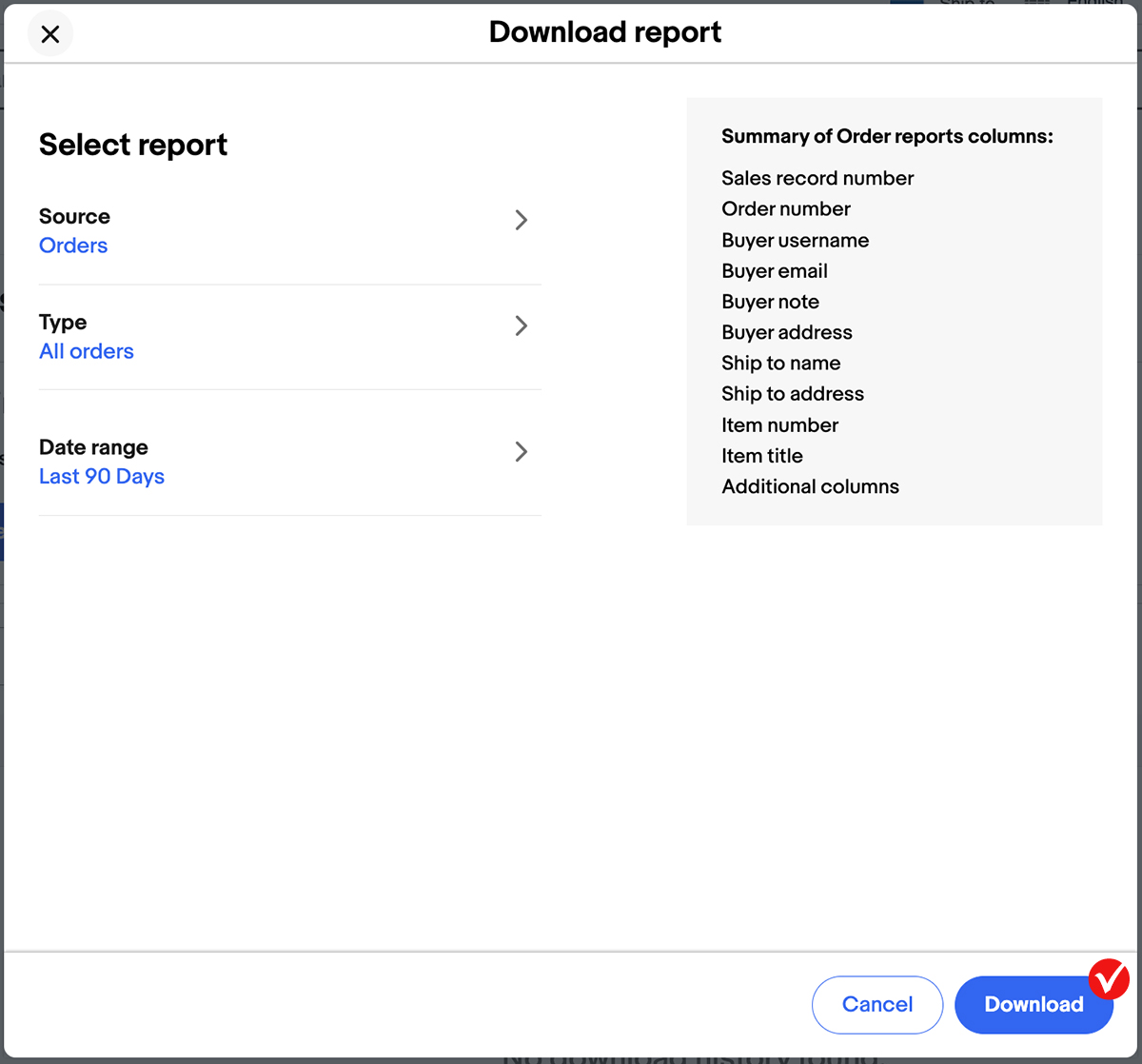
Click Download report or Create download. Select Orders as the report source. Choose the type of orders report you want, such as All orders, Awaiting Shipment, or Shipped. Set the date range for the orders you want to include.

Generate and download the report
Click Download or Generate to create the report. eBay will process the request and make the CSV available in the recent downloads list at the bottom of the page. Click Download next to the completed report to save it to your computer.
Review the orders data
Open the CSV in a spreadsheet application. Each row represents one item within an order, so multi-item orders will have multiple rows sharing the same Order number. Key columns include Order number, Sale date, Buyer name, Item title, Quantity, Sale price, Shipping and handling, and ship-to address fields.
Set up scheduled reports for recurring downloads
If you need orders data regularly, consider setting up a scheduled download. Go to the Schedule section in Seller Hub Reports, click Create download schedule, select Orders as the source, and choose a frequency (Hourly, Daily, Weekly, or Monthly). Scheduled reports are automatically generated and available for download without manual intervention.
Required Orders Fields
| Field | Type | Description | Example |
|---|---|---|---|
| Order number | Text | eBay order number | 11-12345-67890 |
| Sale date | Date/Time | Order date/time | Jan-15-2026 14:30:45 GMT |
| Item title | Text | Product name | Widget Pro - Black |
| Quantity | Number | Quantity sold | 2 |
| Sale price | Currency | Unit price | 50.00 |
| Total price | Currency | Order total | 110.00 |
Your eBay Seller export must include these fields for successful conversion.
