

How to Import Products to BigCommerce (2026 Guide)
After converting your data with one of our tools, follow these steps to import the products into BigCommerce.
Import Steps
Download the BigCommerce CSV template
Log in to your BigCommerce control panel and navigate to Products. Click the Import button to open the import wizard, then download the Bulk Edit CSV template. This template contains all the required column headers in the correct format. Open the template in Excel or Google Sheets to review the expected columns.

Prepare your product data
Fill in your product details in the CSV template. Every product row must include the mandatory fields: Item Type (set to 'Product'), Product Name, Product Code/SKU, Product Type ('P' for physical or 'D' for digital), and Price. For physical products, Product Weight is also required.

Add images and categories
Enter publicly accessible image URLs in the Product Image URL columns (up to 15 images per product). For categories, use semicolons to separate the hierarchy path. Make sure the categories already exist in your BigCommerce store, or create them before importing.
Upload your CSV file
In the BigCommerce control panel, go to Products and click Import. In the Import Products via CSV section, drag and drop your CSV file or click Browse to select it from your computer. Only CSV file format is accepted.
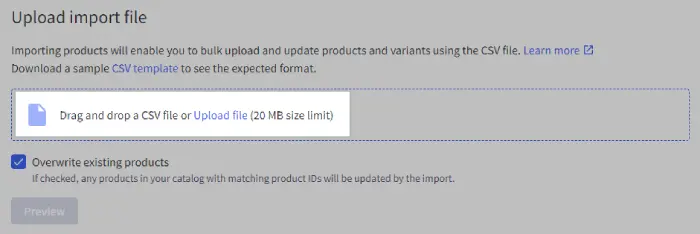
Configure import settings
If your file was created using the Bulk Edit template, select that option and BigCommerce will auto-configure the import details and skip the field matching step. Otherwise, choose the appropriate options for how your data should be handled: adding new products, updating existing products, or both.
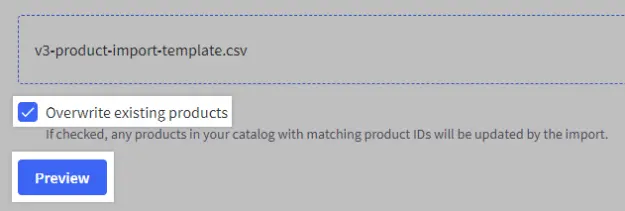
Map fields (if not using template)
If you did not use the Bulk Edit template, BigCommerce will display a field-mapping screen. Match each column in your CSV to the corresponding BigCommerce product field. Verify that critical fields like Product Name, SKU, and Price are mapped correctly before proceeding.
Start the import and review results
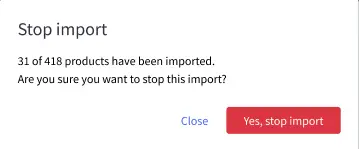
Click Import to begin processing your file. BigCommerce will add all products from the CSV to your store. When the import completes, a summary will appear showing successful imports and any errors. This summary stays available under Products > Import until you start a new import.
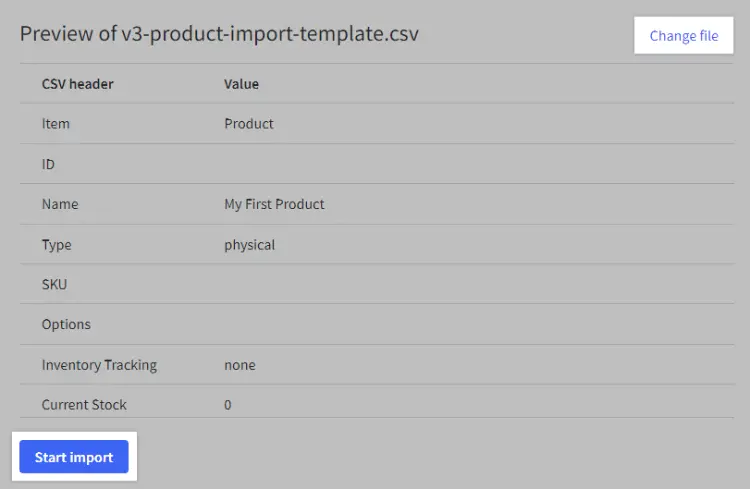
Verify imported products
Browse your product catalog in the BigCommerce control panel to confirm the imported products look correct. Check that prices, images, stock levels, and category assignments are accurate. Fix any issues either directly in the admin or by re-importing a corrected CSV.
Required BigCommerce Fields
| Field | Type | Description | Example |
|---|---|---|---|
| Item Type | Choice | Row type indicator | Product |
| Product Name | Text | Product title | Classic T-Shirt |
| Product Code/SKU | Text | Stock keeping unit | TSH-001 |
| Product Type | Choice | Physical or Digital | P |
| Price | Currency | Base price | 29.99 |
BigCommerce requires these fields for successful import.

