

How to Export Products from BigCommerce (2026 Guide)
Follow these steps to export your BigCommerce products as a CSV file. Once exported, you can use any of our converter tools to transform the data for your target system.
Export Steps
Log in to your BigCommerce admin panel
Navigate to your BigCommerce control panel at store-xxxx.mybigcommerce.com/manage and sign in with your credentials. You need Store Owner or Staff permissions with product management access.
Navigate to the Products section
In the left sidebar, click on Products to open the product catalog management page. This displays all your store products with their names, SKUs, prices, and stock levels.
Click the Export button
At the top of the products list, click the Export button. This opens the product export configuration page where you can choose a template and file format for your export.
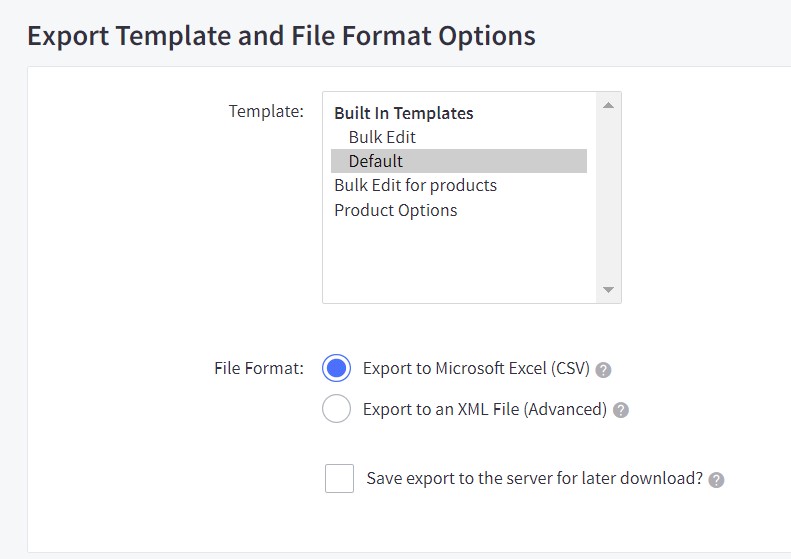
Select the Bulk Edit export template
Choose the Bulk Edit template from the dropdown. This built-in template includes the majority of exportable product fields and uses column headers that match BigCommerce import format. This makes it easy to edit and re-import the data without manual field mapping.

Choose CSV as the export format
Under File Format, ensure Export to Microsoft Excel (CSV) is selected. This is the default option and produces a standard comma-separated values file compatible with Excel, Google Sheets, and most data import tools.
Start and download the export
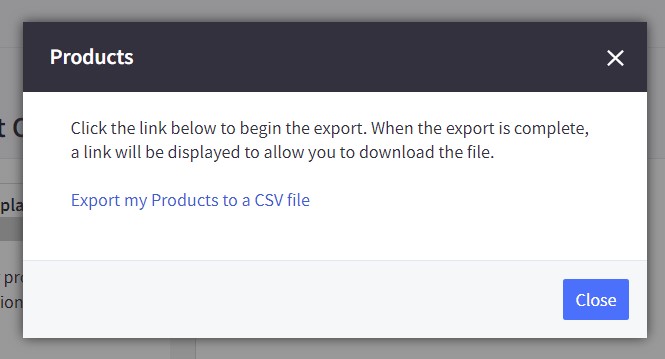
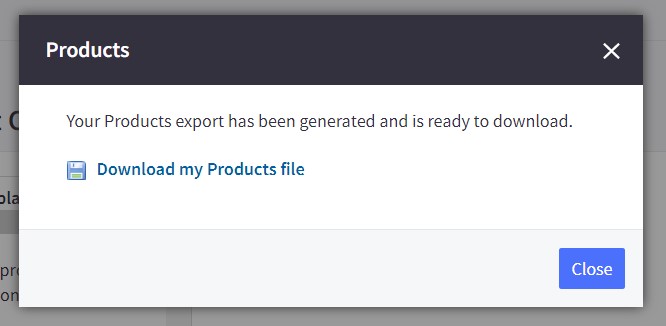
Click Continue to begin the export process. BigCommerce will generate the CSV file containing all your product data. Once processing is complete, click the Download button to save the file to your computer.

Verify the exported product data
Open the CSV file in Google Sheets or a spreadsheet application to confirm the data is complete. Check that product names, SKUs, prices, stock levels, and categories are present and accurate. Each product appears as one row, with up to 15 image URL columns for product photos.
Required Products Fields
| Field | Type | Description | Example |
|---|---|---|---|
| product_name | Text | Product name | Blue Widget |
| price | Currency | Regular price | 49.99 |
Your BigCommerce export must include these fields for successful conversion.
