

How to Import Books Bank Transaction to Zoho Books (2026 Guide)
After converting your data with one of our tools, follow these steps to import the books bank transaction into Zoho Books.
Import Steps
Navigate to the Banking module
Log in to Zoho Books and click Banking in the left sidebar. Select the bank account or credit card account you want to import transactions into. If the account does not exist yet, create it first under Banking > Add Bank or Credit Card.
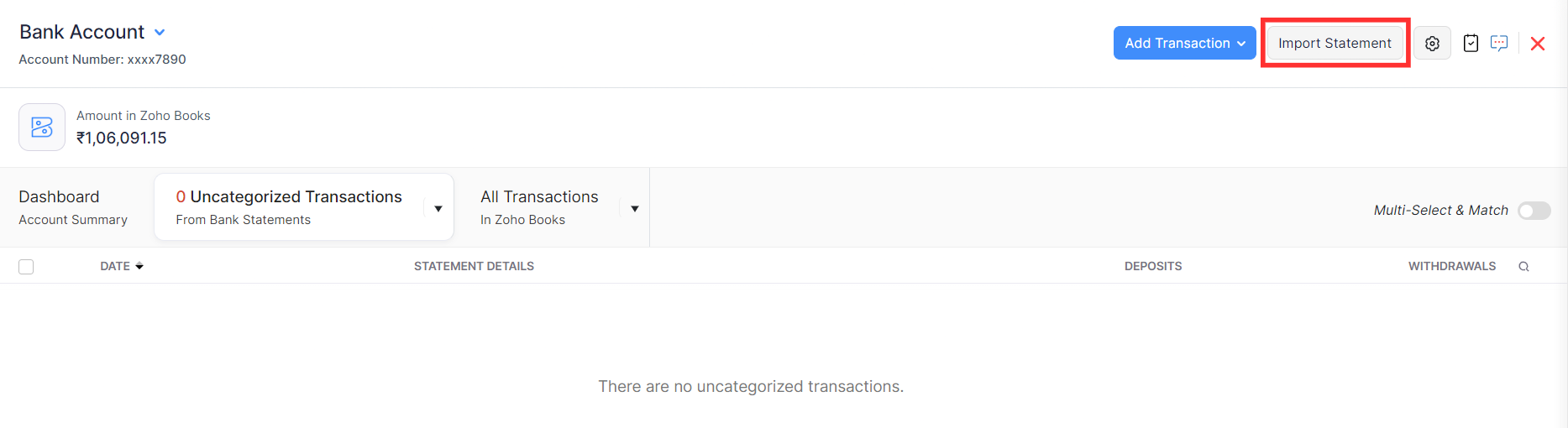
Open the Import Statement page
Click the Import Statement button in the top-right corner of the bank account page. This opens the statement import wizard where you can upload files in CSV, TSV, OFX, QIF, or CAMT.053 formats.
Upload your CSV bank statement file
Click Choose File and select your CSV file. The file must not exceed 10 MB. Zoho Books will detect the file format and redirect you to the Import Statements configuration page.

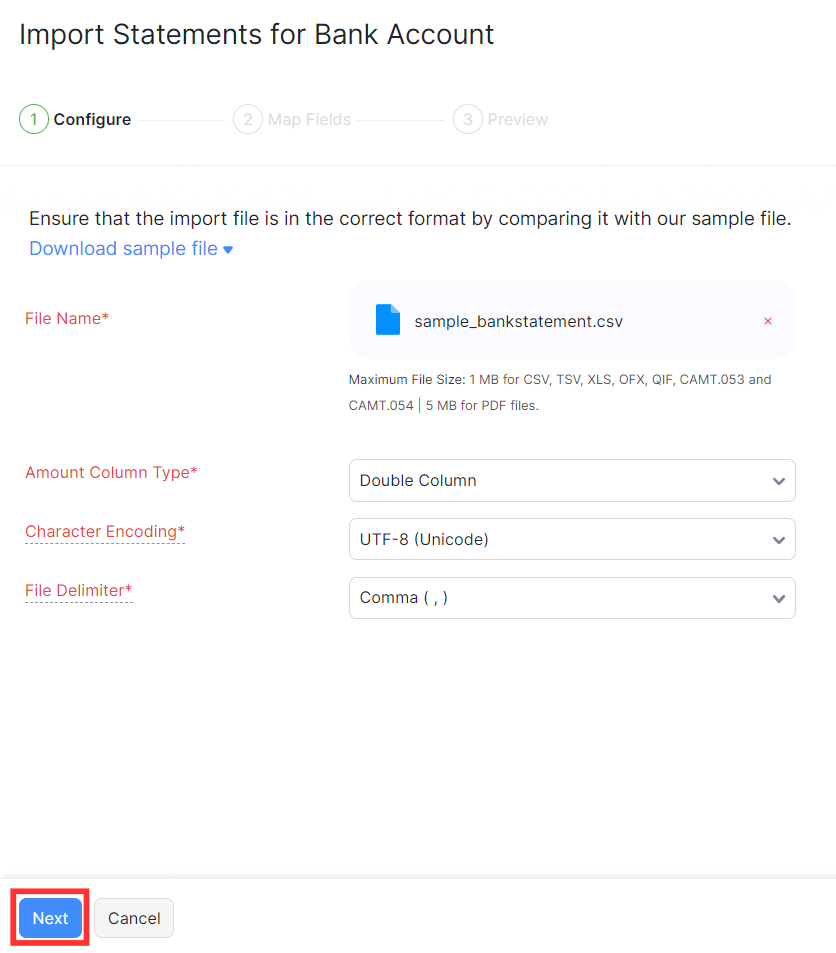
Select the amount column format
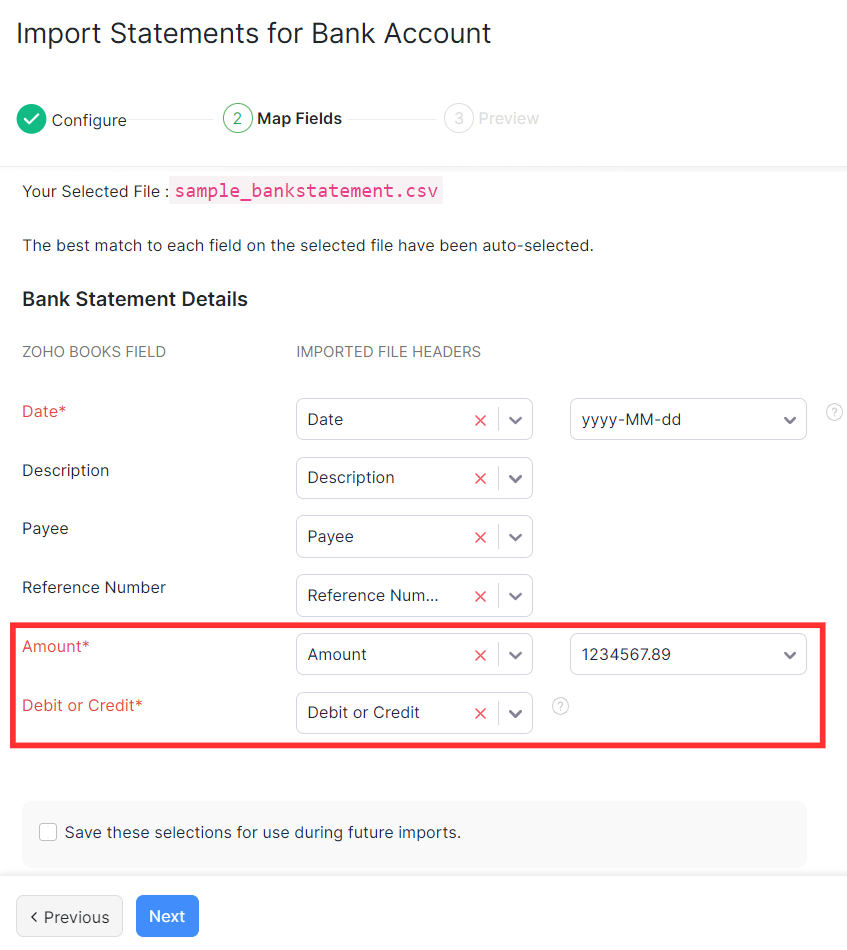
Zoho Books asks how transaction amounts are structured in your CSV. Choose Double Column if your file has separate Deposit and Withdrawal columns. Choose Single Column with Amount Type if you have one amount column plus a separate column indicating debit or credit. Choose Single Column with Negative Values if positive values represent deposits and negative values represent withdrawals.

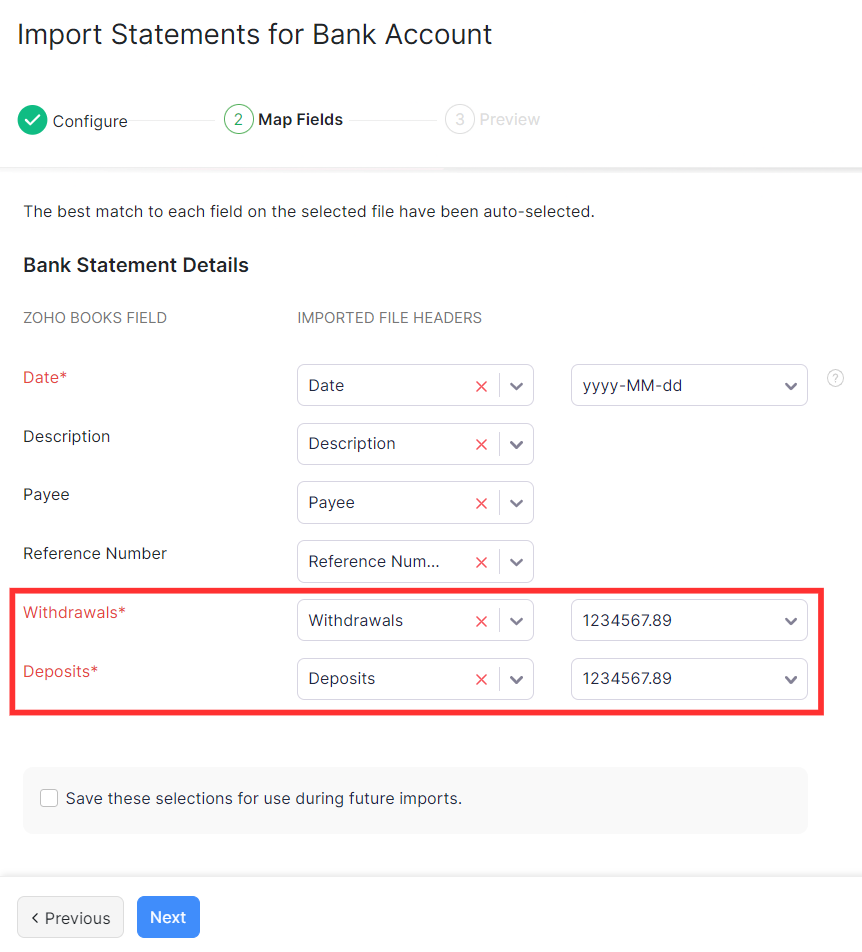
Map the date, description, and amount columns
Map your CSV columns to the Zoho Books fields: Date, Description, and Amount (or Deposit/Withdrawal if using double columns). Set the date format to match your CSV (e.g., DD/MM/YYYY). If your CSV has a Reference Number column, map it to the Reference field for easier reconciliation later.
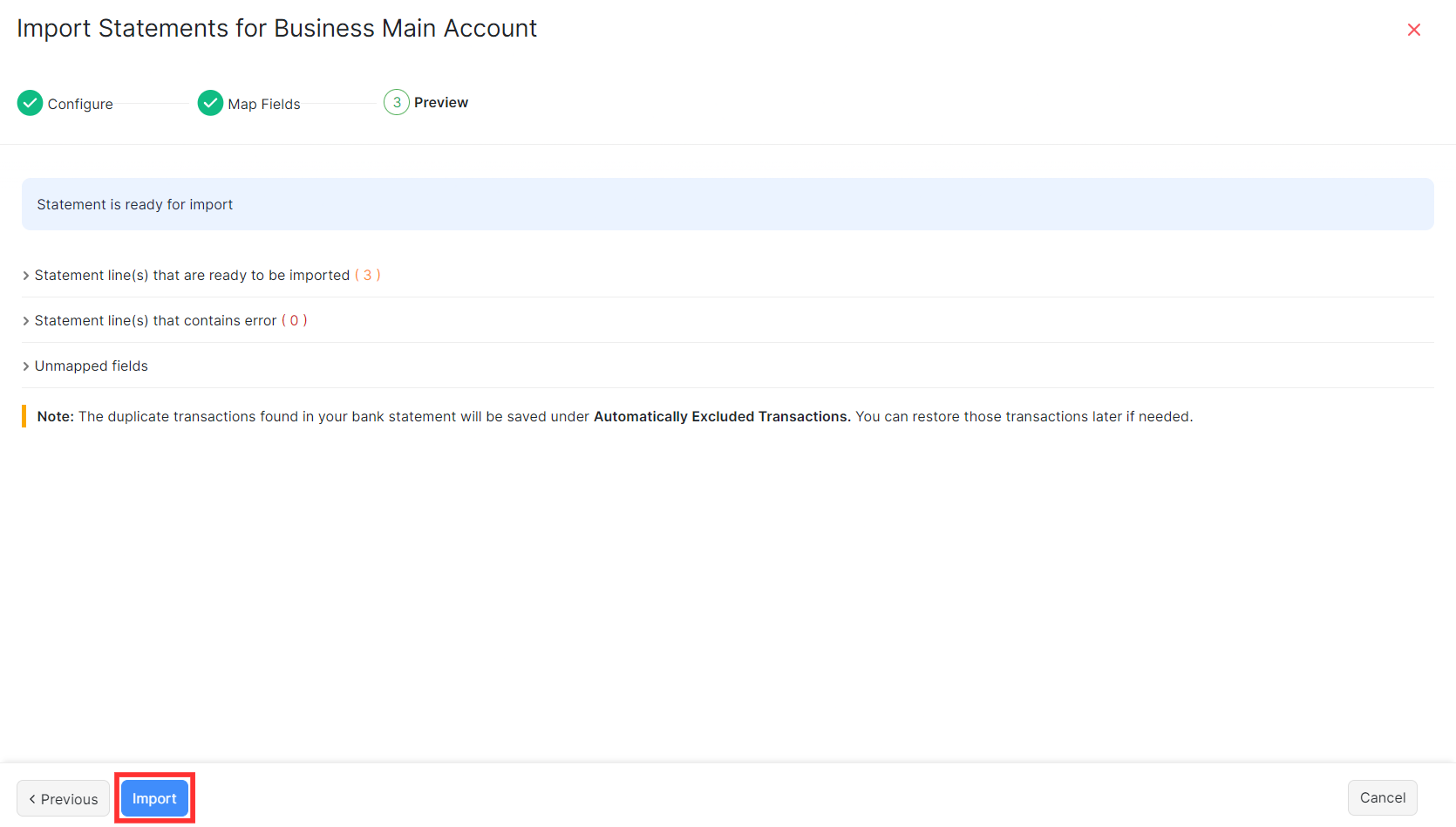
Preview and complete the import
Review the preview of your mapped transactions. Verify that dates parse correctly, amounts are positive for deposits and negative for withdrawals as expected, and descriptions are readable. Click Import to finalize. The transactions appear in the bank account's transaction feed.
Categorize and reconcile imported transactions
After import, the transactions appear as uncategorized in your bank feed. Assign each transaction to the correct account (e.g., revenue, expense, transfer). Use bank rules to auto-categorize recurring transactions. Match imported transactions against existing invoices or bills for reconciliation.
Required Zoho Books Fields
| Field | Type | Description | Example |
|---|---|---|---|
| Date | Date | Transaction date (DD/MM/YYYY) | 15/01/2025 |
| Amount | Currency | Transaction amount (positive=deposit, negative=withdrawal) | 1250.00 |
Zoho Books requires these fields for successful import.
