

How to Export Subscriptions from YouTube (2026 Guide)
Follow these steps to export your YouTube subscriptions as a CSV file. Once exported, you can use any of our converter tools to transform the data for your target system.
Export Steps
Go to Google Takeout
Open your web browser and navigate to takeout.google.com. Sign in with the Google account that is linked to the YouTube subscriptions you want to export. Google Takeout is the official tool for downloading data from any Google service, including YouTube.
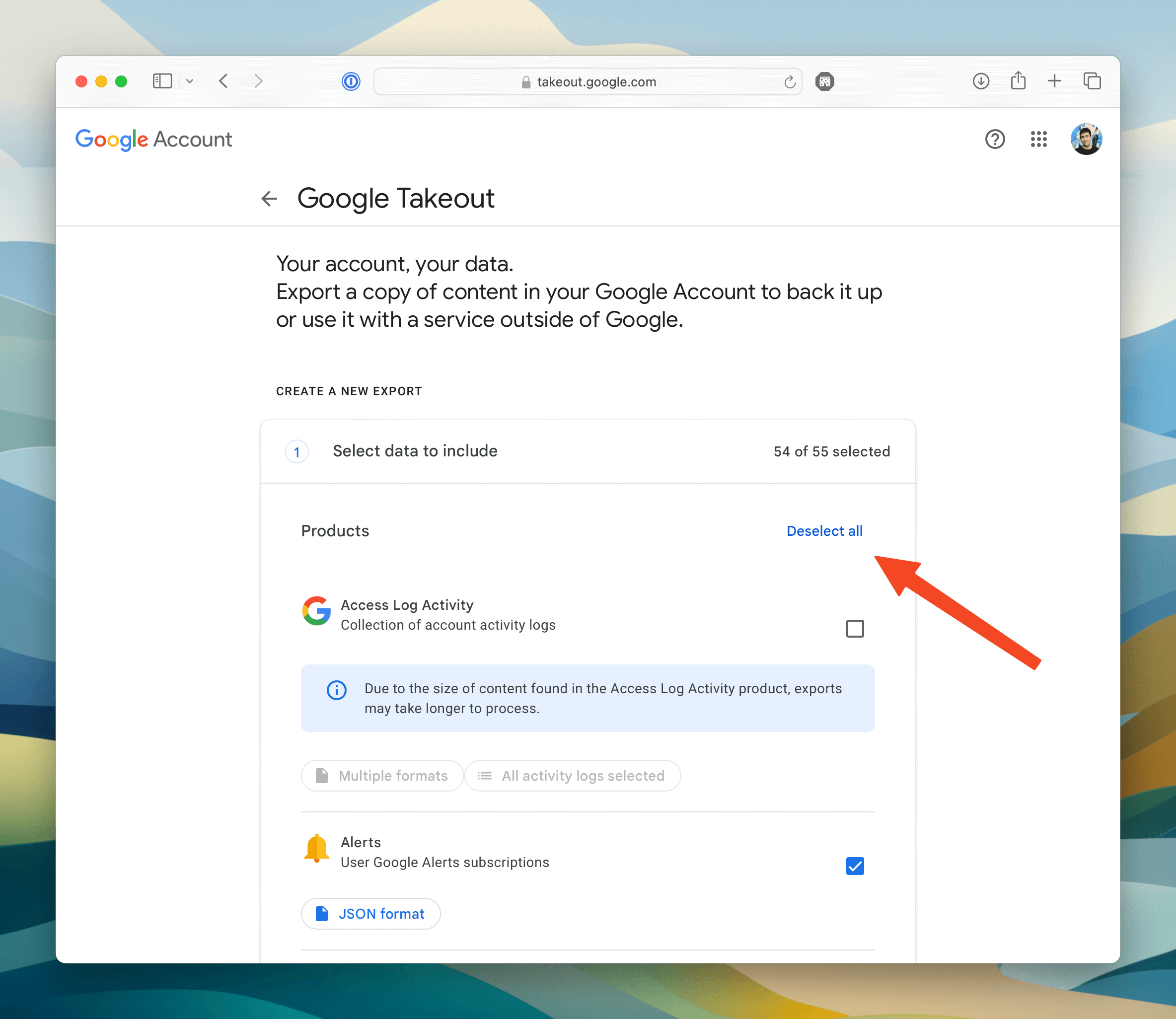
Deselect all data products
By default, Google Takeout selects all of your Google data for export. Since you only need YouTube subscriptions, click the 'Deselect all' button at the top of the product list. This ensures you do not download unnecessary data from other Google services like Drive, Gmail, or Photos.
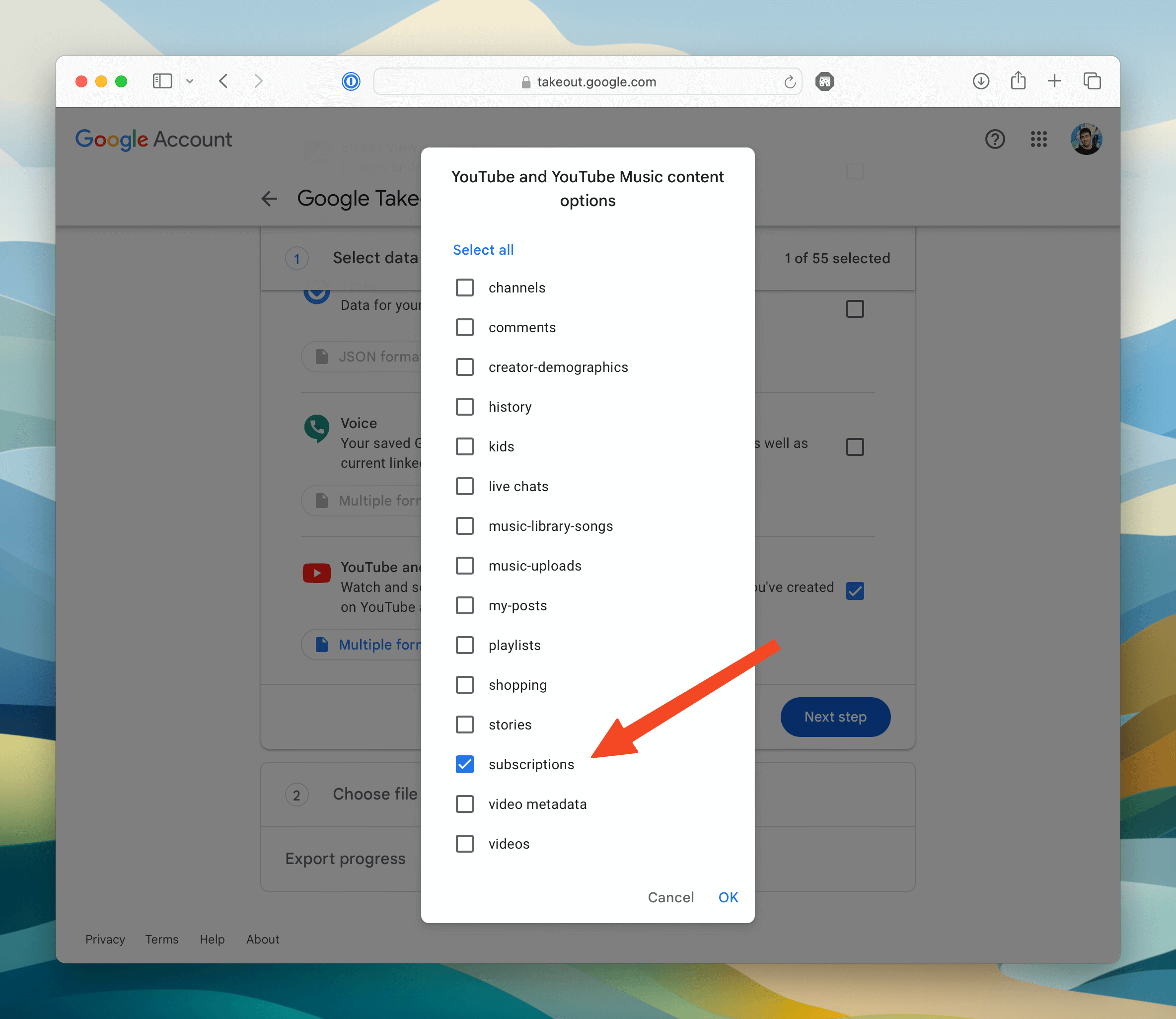
Select YouTube and YouTube Music
Scroll down the product list to find 'YouTube and YouTube Music' and check the box next to it. Then click 'All YouTube data included' to open the data selection panel. Uncheck everything and select only 'Subscriptions'. This narrows the export to just your subscription list, keeping the download small and fast.

Configure the export settings
Click 'Next step' to proceed to the delivery settings. Choose 'Export once' as the frequency (there is no need for scheduled exports). For the file type, 'ZIP' is the default and works well. The maximum file size setting does not matter for subscriptions since the file is very small.
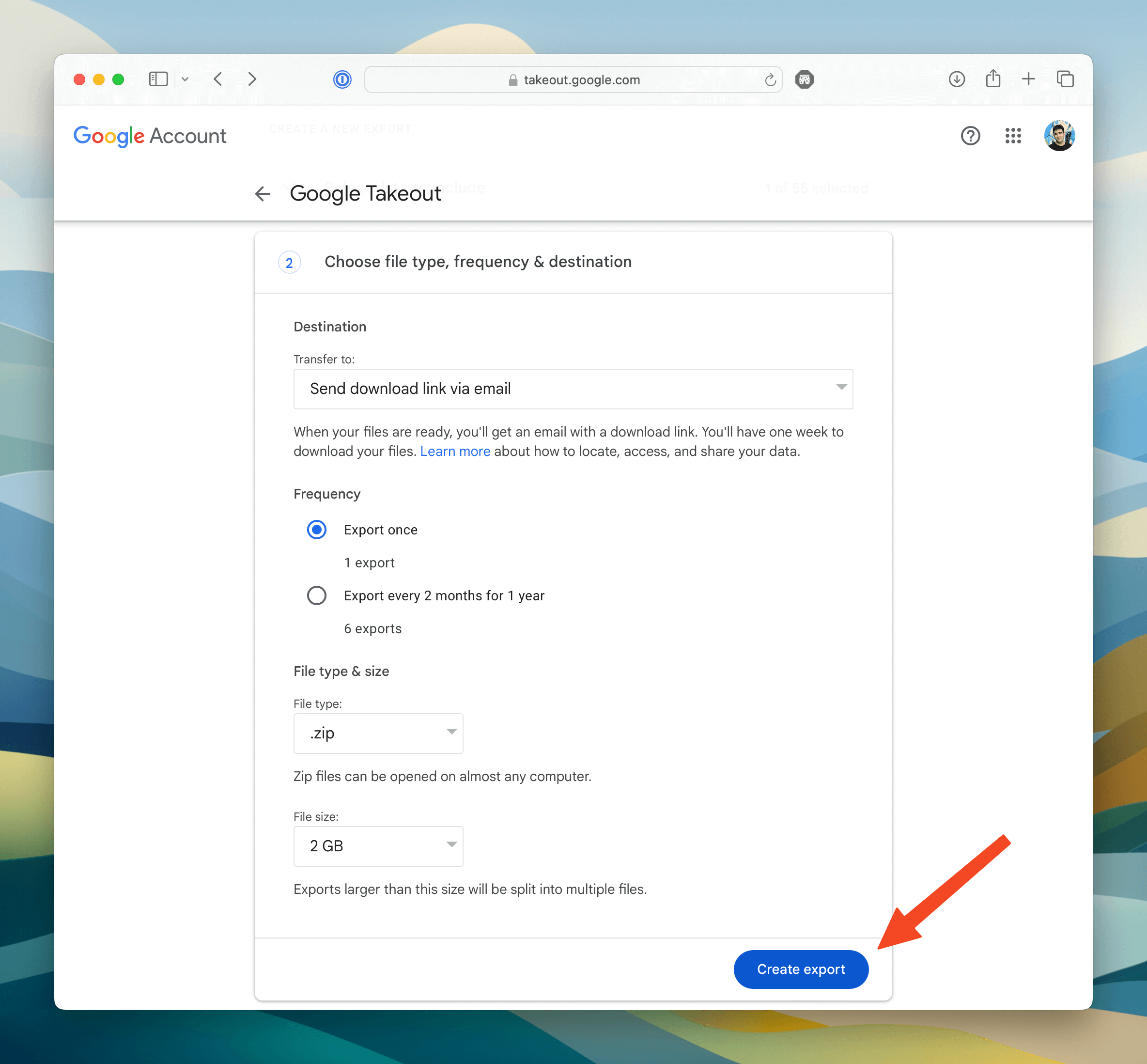
Create the export
Click 'Create export' to begin the process. Google will prepare your data, which typically takes a few seconds to a few minutes for subscriptions-only exports. You will see a progress indicator, and Google will also send you an email notification when the export is ready for download.
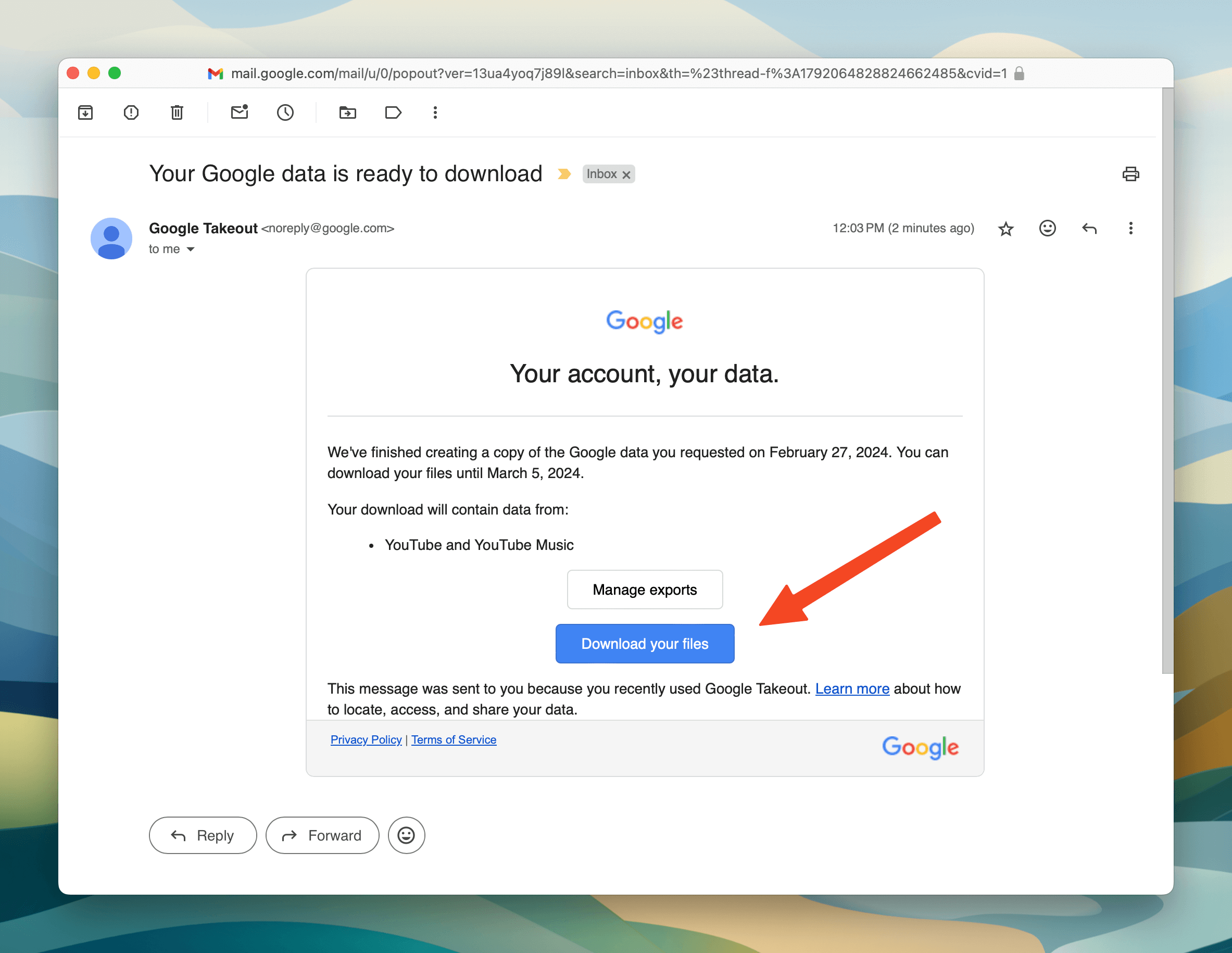
Download the export archive
Once the export is ready, click the 'Download' button on the Takeout page, or use the link in the email notification from Google. A ZIP file will download to your computer. The file is named something like 'takeout-YYYYMMDD.zip'.
Extract the subscriptions CSV
Unzip the downloaded archive. Navigate into the extracted folder structure: Takeout, then 'YouTube and YouTube Music', then 'subscriptions'. Inside you will find 'subscriptions.csv'. This is the file you need for the converter.
Review the CSV contents
Open subscriptions.csv in a spreadsheet application or text editor. The file contains three columns: 'Channel Id' (the unique YouTube channel identifier starting with 'UC'), 'Channel Url' (the full URL to the channel page), and 'Channel Title' (the display name of the channel). Each row represents one subscription.
Required Subscriptions Fields
| Field | Type | Description | Example |
|---|---|---|---|
| Channel Id | Text | YouTube channel ID (starts with UC) | UCXuqSBlHAE6Xw-yeJA0Tunw |
| Channel Url | Text | YouTube channel URL | http://www.youtube.com/channel/UCXuqSBlHAE6Xw-yeJA0Tunw |
| Channel Title | Text | Display name of the YouTube channel | Linus Tech Tips |
Your YouTube export must include these fields for successful conversion.
