

How to Export Customers from WooCommerce (2026 Guide)
Follow these steps to export your WooCommerce customers as a CSV file. Once exported, you can use any of our converter tools to transform the data for your target system.
Export Steps
Log in to your WordPress admin dashboard
Navigate to yoursite.com/wp-admin and sign in with administrator credentials. Customer export requires admin-level access since it involves sensitive personal data including email addresses and order history.
Navigate to the Users page
In the WordPress admin sidebar, click on Users and then All Users. This shows all registered WordPress users including WooCommerce customers. You can filter the list by role to show only Customer accounts.

Install an export plugin if needed
WordPress does not include a built-in user CSV export feature. Install a customer export plugin such as WooCommerce Customer/Order CSV Export or Export Users to CSV from the Plugins menu. Navigate to Plugins > Add New, search for a customer export plugin, and click Install then Activate.

Access the customer export tool
After activating the export plugin, navigate to the export section. This is typically found under WooCommerce > Export or Users > Export Users depending on the plugin. Some plugins add their export option directly to the Users page as a bulk action.
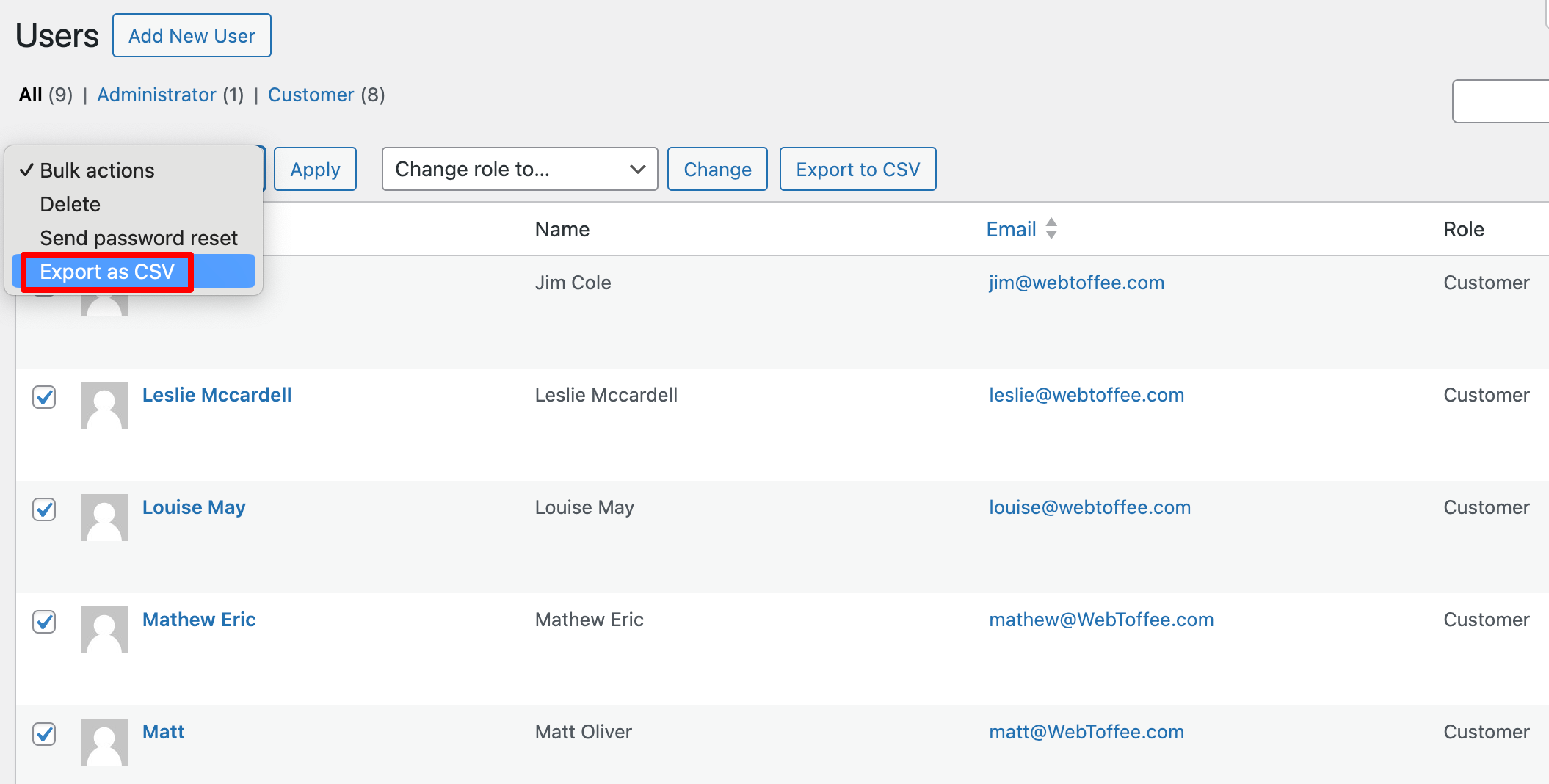
Configure export fields and filters
Select which customer fields to include in the export such as name, email, company, address, phone, total spent, and order count. You can often filter by customer role, date registered, or total order value. Include all fields if you need a complete customer data backup.
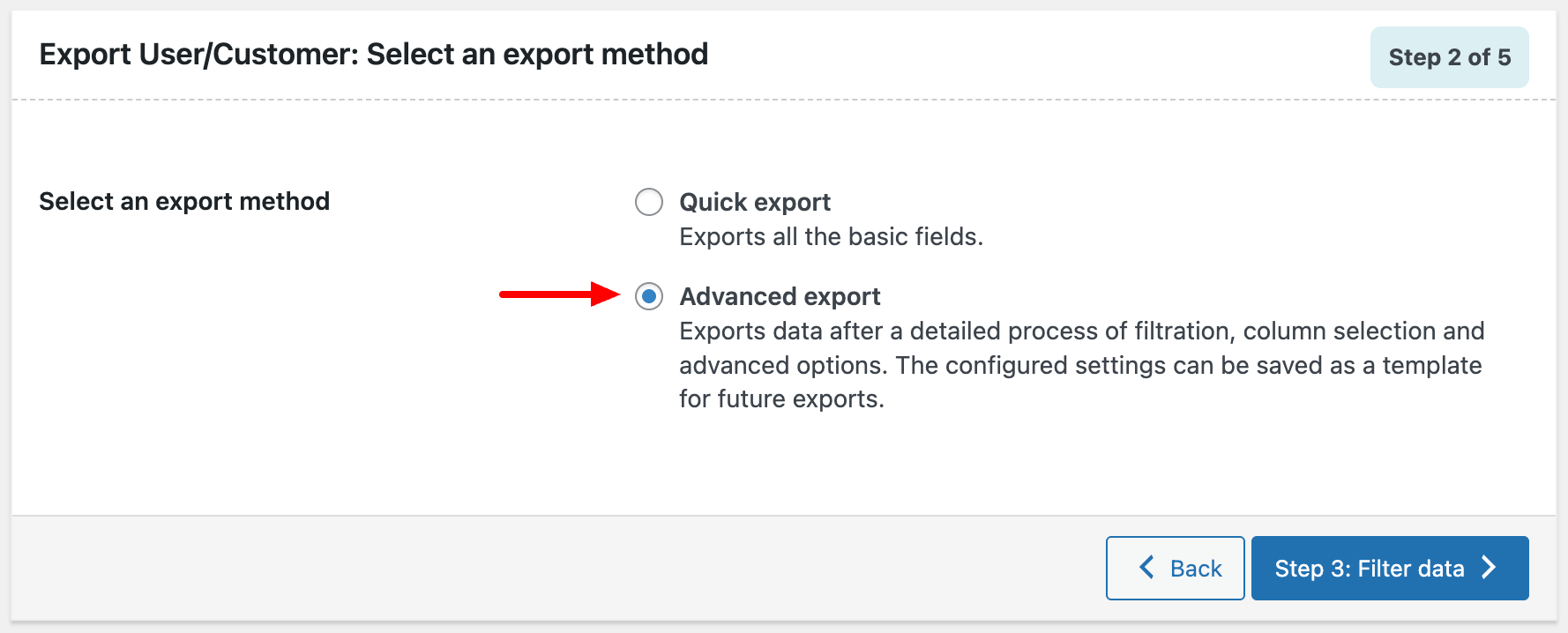
Export and download the CSV file
Click the Export button to generate the customer CSV file. The download will begin automatically once the file is ready. For stores with thousands of customers, the process may take a moment. Each customer will appear as one row in the resulting file.
Review the exported customer data
Open the CSV in Google Sheets or a spreadsheet application and verify the data looks correct. Check that email addresses, names, and addresses are properly formatted. Ensure the total spent and order count columns contain numeric values without currency symbols if you plan to use this data for accounting purposes.
Required Customers Fields
| Field | Type | Description | Example |
|---|---|---|---|
| customer_id | Number | WordPress user ID | 42 |
| first_name | Text | Customer first name | John |
| last_name | Text | Customer last name | Doe |
| Text | Customer email address (unique) | john@example.com |
Your WooCommerce export must include these fields for successful conversion.
