

How to Import Products to Wix (2026 Guide)
After converting your data with one of our tools, follow these steps to import the products into Wix.
Import Steps
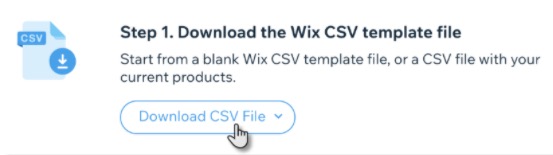
Download the Wix CSV template
Before creating your own file, download the official Wix CSV template. The template comes with three sample products (two with variants) that demonstrate the correct multi-row format. Review the sample data to understand how Product and Variant rows work together using the handleId column.

Prepare your product data
Delete the sample product rows from the template, then enter your own product data. For each product, create one row with fieldType set to PRODUCT containing the product name, description, and base price. For products with variants, add additional rows with fieldType set to VARIANT using the same handleId.

Add images and options
Enter publicly accessible image URLs in the productImageUrl column. For variant options like Size and Color, use the productOptionName and productOptionDescription columns. On the PRODUCT row, list all possible values separated by semicolons. On each VARIANT row, specify the single value for that variant.
Save as CSV format
Save your completed spreadsheet as a CSV file. Make sure all mandatory fields (handleId, fieldType, name, price) are filled in for every row. If you are unsure about non-mandatory fields, leave them blank and edit the products later in the Wix dashboard.
Open the Wix import tool
Go to the Store Products tab in your Wix site dashboard. Click the More Actions button, then select Import from the dropdown menu. A dialog will appear where you can upload your CSV file.
Upload and review your file
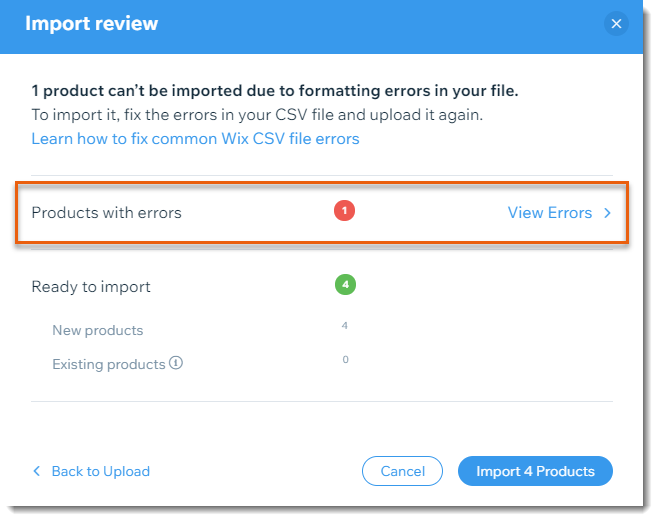
Click Upload CSV File and select your prepared file. Wix will parse the file and display an import review with any error messages. Products with errors are flagged individually so you can see exactly which rows have issues.

Fix errors or proceed with import
If all products pass validation, click Import Products to complete the process. If some products have errors, you can either fix them in your CSV and upload a corrected file, or proceed with the import knowing that only error-free products will be imported.
Verify your imported products
After the import finishes, browse your Store Products list in the Wix dashboard to verify that all products, variants, prices, and images imported correctly. Make any final adjustments directly in the Wix product editor if needed.
Required Wix Fields
| Field | Type | Description | Example |
|---|---|---|---|
| handleId | Text | Unique product identifier linking Product and Variant rows | blue-cotton-tshirt |
| fieldType | Choice | Row type indicator | PRODUCT |
| name | Text | Product name (on Product rows only) | Blue Cotton T-Shirt |
| price | Currency | Product or variant price | 29.99 |
Wix requires these fields for successful import.

