

How to Import Bank Transaction to Wave (2026 Guide)
After converting your data with one of our tools, follow these steps to import the bank transaction into Wave.
Import Steps
Navigate to the Upload Transactions page
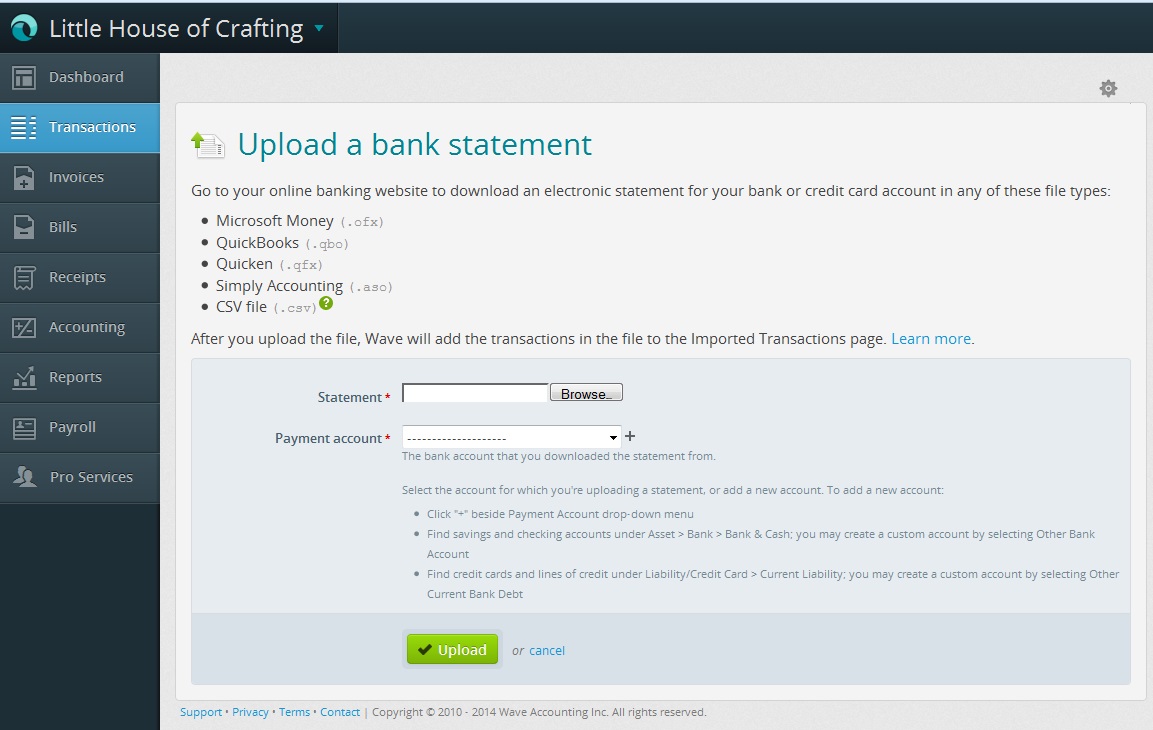
Log in to your Wave account. In the left-side menu, click Accounting and then Transactions. Click the More button in the top-right corner and select Upload Transactions from the dropdown. This opens the statement upload wizard.
Select your CSV file and payment account
Click Choose File and select the CSV bank statement you downloaded or generated. In the Payment Account dropdown, select the bank or credit card account where these transactions should be recorded. The account must already exist in Wave and its currency must match the CSV data.

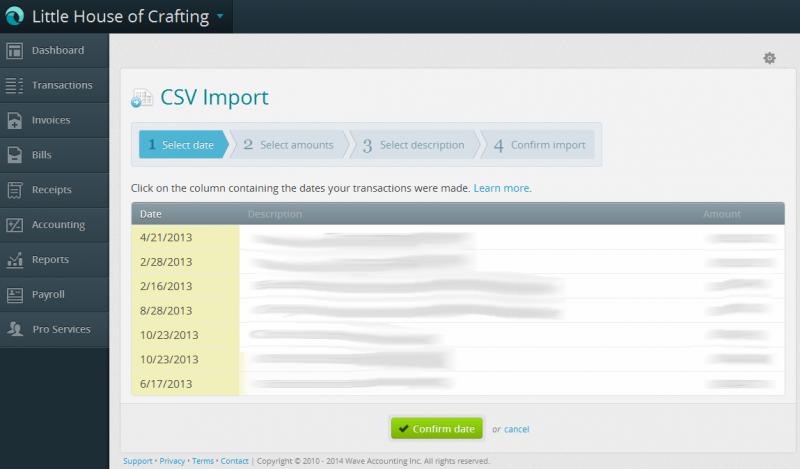
Confirm the date column
On the Select Date page, Wave displays the columns from your CSV. Click on the column that contains the transaction date. For bank statements, select the transaction date (the date you made the purchase). For credit card statements, select the posting date (when the bank processed the charge). Click Confirm Date to proceed.

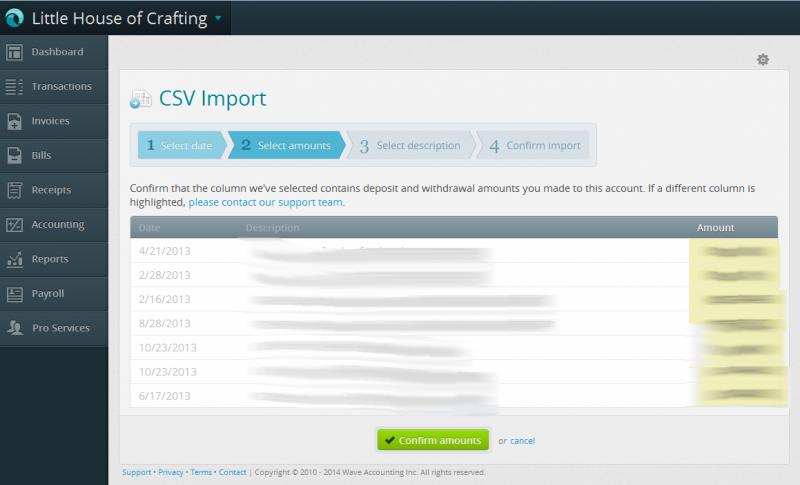
Select the amount column
On the Select Amounts page, click on the column that contains the transaction amounts. If your CSV has a single amount column, select it and Wave will interpret positive values as deposits and negative values as withdrawals. If your CSV has separate deposit and withdrawal columns, Wave will ask you to identify each one. Click Confirm Amounts to continue.
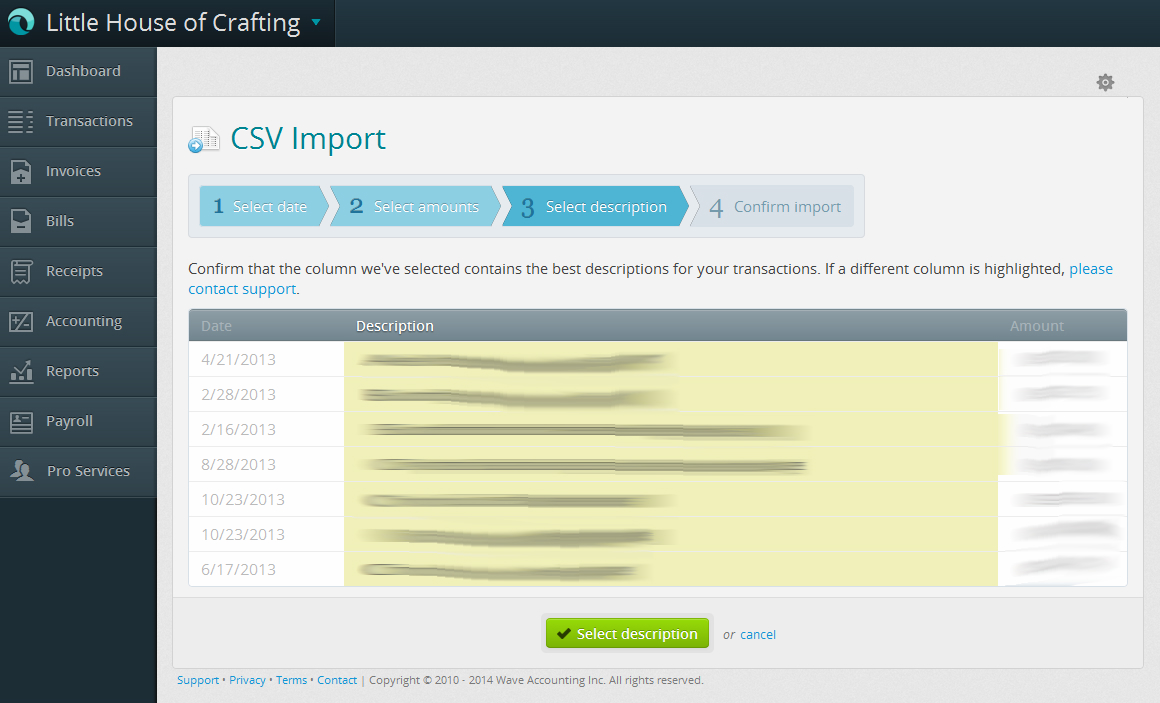
Choose the description column
On the Select Description page, click the column that contains the best description for your transactions (payee names, memo text, or reference numbers). This description will appear on each transaction in Wave and helps you identify and categorize entries later. Click Select Description to proceed.
Review and upload your statement
Wave shows a final preview of how your transactions will be imported. Verify that dates, amounts, and descriptions look correct across several rows. If everything is accurate, click Upload My Statement to complete the import. Wave processes the file and adds the transactions to your selected account.
Categorize imported transactions
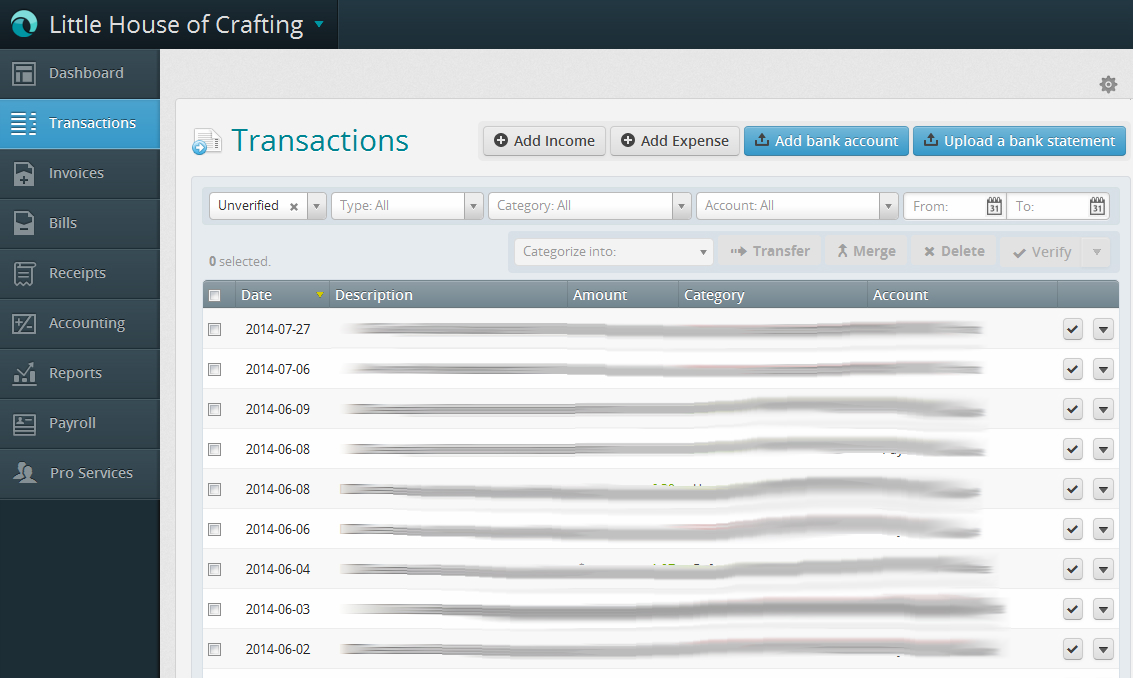
After the upload, your transactions appear in the Transactions list as uncategorized entries. Click each transaction to assign it to an income or expense category. Wave remembers your categorization choices and will suggest the same category for similar future transactions, speeding up subsequent imports.
Required Wave Fields
| Field | Type | Description | Example |
|---|---|---|---|
| Date | Date | Transaction date (MM/DD/YYYY with leading zeros) | 01/15/2025 |
| Description | Text | Transaction description (payee, memo, reference) | PayPal Payment from John Smith |
| Amount | Currency | Transaction amount (positive for deposits/income, negative for withdrawals/expenses) | 97.10 |
Wave requires these fields for successful import.

