

How to Export Products from Volusion (2026 Guide)
Follow these steps to export your Volusion products as a CSV file. Once exported, you can use any of our converter tools to transform the data for your target system.
Export Steps
Log in to the Volusion admin panel
Open your browser and navigate to your Volusion store admin panel. Enter your administrator credentials to access the dashboard. You need admin-level permissions to use the import/export functionality.
Navigate to Import/Export
In the admin panel, click on Inventory in the main navigation menu, then click Import/Export. This opens the data management page where you can import and export various types of store data including products, customers, and orders.
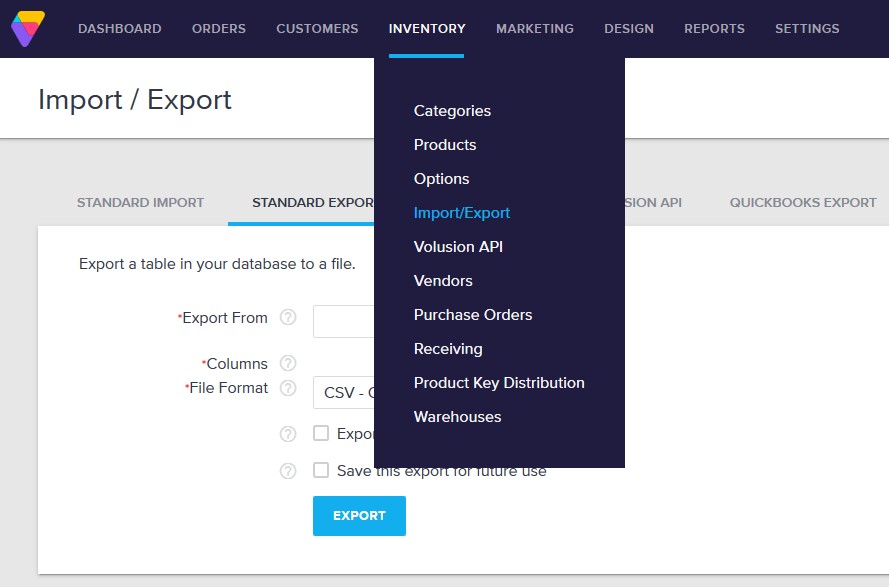
Select the Standard Export tab
On the Import/Export page, click the Standard Export tab. This shows the export options for different data types. Under the Export From section, select Products as the data type you want to export.
Configure export columns
In the Columns section, click Check All to include every available product field in the export, or selectively check only the fields you need such as ProductCode, ProductName, ProductPrice, StockStatus, and CategoryIDs. Including all columns gives you a complete product backup.

Select CSV as the file format
In the File Format section, select CSV - Comma Delimited Text File. This produces a standard CSV file that can be opened in Excel, Google Sheets, or any text editor. CSV is the most compatible format for data processing and accounting imports.
Export and download the file
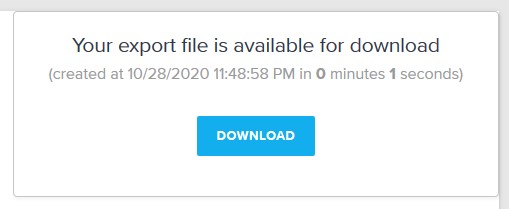
Click the Export button to generate the CSV file. A popup will appear indicating the export is ready. Click the Download button to save the CSV to your computer. On the newer VOLT platform, the CSV may be emailed to your admin email address instead.

Verify the exported product data
Open the downloaded CSV in Google Sheets or a spreadsheet application. Check that ProductCode (SKU), ProductName, ProductPrice, and StockStatus columns are populated correctly. Boolean fields like HideProduct and FreeShippingItem use Y/N values, while CategoryIDs are comma-separated numeric identifiers.
Required Products Fields
| Field | Type | Description | Example |
|---|---|---|---|
| ProductCode | Text | Unique product identifier (max 30 chars) | PROD-123 |
| ProductName | Text | Product title/name | Blue Cotton T-Shirt |
| ProductPrice | Currency | Base product price | 29.99 |
Your Volusion export must include these fields for successful conversion.
