

How to Import Products to Squarespace (2026 Guide)
After converting your data with one of our tools, follow these steps to import the products into Squarespace.
Import Steps
Download the Squarespace CSV template
Log in to your Squarespace site and navigate to Commerce, then Products. Click the Import button and download the CSV template from the pop-up dialog. You must use this exact template file because Squarespace requires all columns to be present even if they are empty.

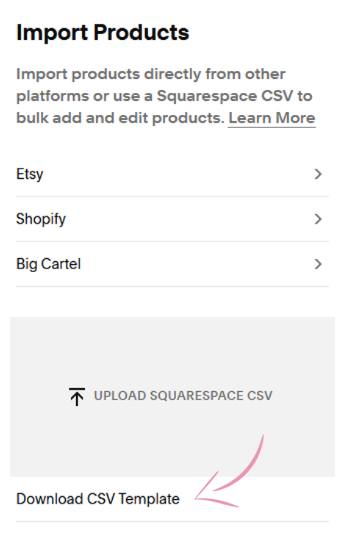
Fill in your product details
Open the downloaded CSV template in Excel or Google Sheets. Enter your product names, SKUs, descriptions, prices, and other details. For products with variants, create multiple rows with the same Product Name but different Option Value columns. Each variant row should have its own SKU, price, and stock quantity.

Add product images
Enter publicly accessible image URLs in the Product Image columns (up to 5 images per product). The first image becomes the featured product image. All image URLs must start with https:// and point to files that are accessible without authentication.
Save and validate your CSV
Save the file as a CSV. Double-check that required fields (Product Name, SKU, and Price) are filled in for every row. Verify that Option Name and Option Value columns are consistent across variants of the same product.
Upload your CSV to Squarespace
Navigate back to Commerce, then Products, then Import in your Squarespace admin. Click Upload Squarespace CSV and select your file. Squarespace will parse the file and check for any formatting errors.
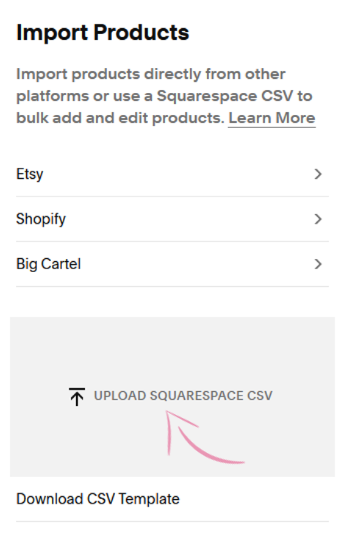
Review errors and import
If Squarespace finds any errors, they will be displayed after the upload. Fix any issues in your CSV before proceeding, as it is much easier to correct the file than to clean up a messy import afterwards. When everything looks correct, click Import to start the process.
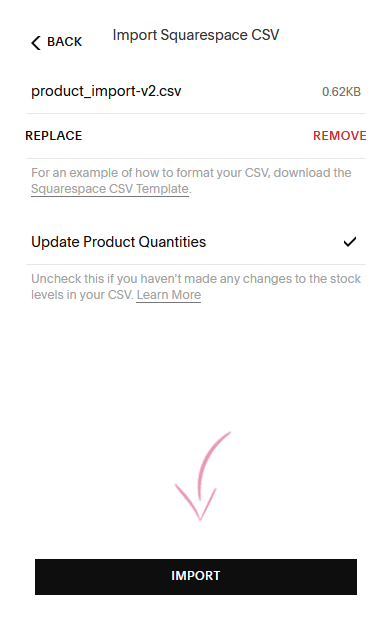
Verify your imported products
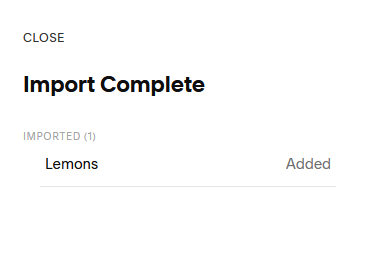
Once the import finishes, browse your Products section in the Squarespace admin to verify that all items imported correctly. Check product details, variant options, images, and pricing. Note that this is a one-time import and any future changes to your CSV will not automatically sync with your store.
Required Squarespace Fields
| Field | Type | Description | Example |
|---|---|---|---|
| Product Name | Text | Product name | Blue Cotton T-Shirt |
| SKU | Text | Stock keeping unit | SHIRT-BLU-M |
| Price | Currency | Regular price | 29.99 |
Squarespace requires these fields for successful import.

