

How to Export Products from Squarespace (2026 Guide)
Follow these steps to export your Squarespace products as a CSV file. Once exported, you can use any of our converter tools to transform the data for your target system.
Export Steps
Log in to your Squarespace account
Navigate to squarespace.com and click Log In. Enter your email and password to access your Squarespace account. Select the site you want to export products from if you manage multiple sites.
Navigate to the Products section
In your site's admin panel, go to the Home Menu and click on Selling (or Commerce depending on your plan). Then click on Products to open the product management page where all your physical and service products are listed.
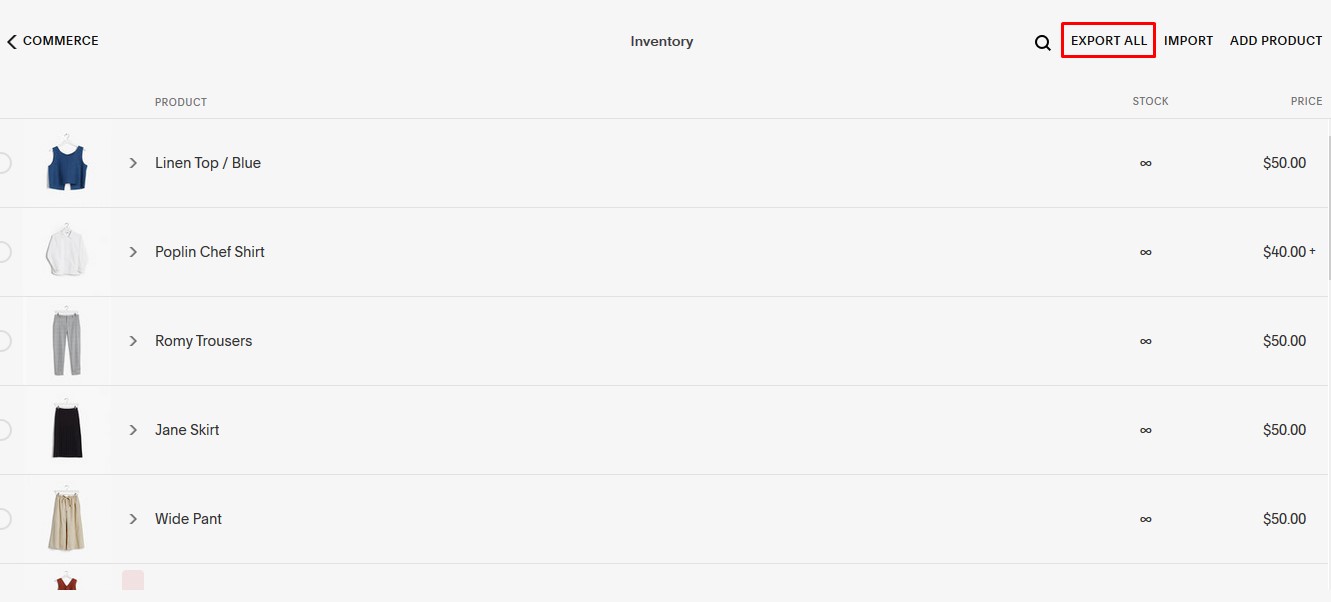
Click Export All
In the top-right corner of the Products page, click the Export All button. Squarespace will immediately begin generating a CSV file containing all your product data including names, prices, variants, images, and inventory levels.

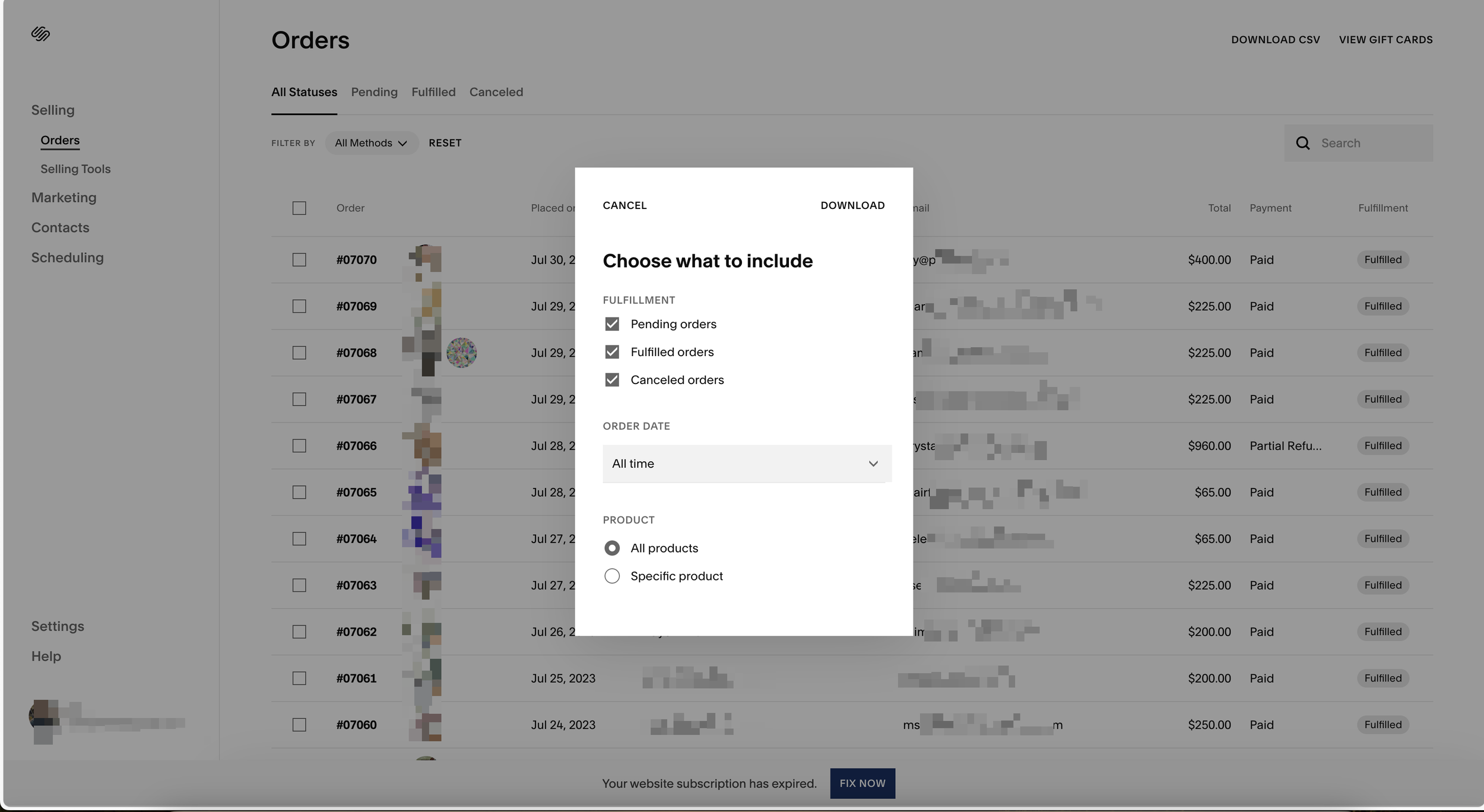
Wait for the CSV to download
Squarespace will generate the CSV file and your browser will automatically download it. The file includes all product variants as separate rows, with up to three option dimensions per product (such as size, color, and material). Up to five product image URLs are included.

Open and review the CSV file
Open the downloaded CSV in Google Sheets or a spreadsheet application. Each row represents either a product or a product variant. Check that Product Name, Price, SKU, Stock, and Categories columns contain the expected data. Variant rows share the same Product Name but have different Option Value columns.
Understand the CSV structure
Squarespace uses semicolons to separate multiple categories within the Categories column. Each product variant is a separate row with its own Variant ID, while sharing the parent Product ID. The Product Page column contains the URL slug used on your store's website.
Save or convert the file for your needs
Save a copy of the original exported file as a backup before making any changes. If you need to import this data into accounting software, verify that price values do not include currency symbols and that the On Sale flag correctly indicates which products have active sale prices.
Required Products Fields
| Field | Type | Description | Example |
|---|---|---|---|
| Product Name | Text | Product title/name | Classic Cotton T-Shirt |
| Product Page | Text | URL slug for product page | classic-cotton-tshirt |
| Price | Currency | Regular price | 29.99 |
Your Squarespace export must include these fields for successful conversion.
