

How to Export Products from Shift4Shop (2026 Guide)
Follow these steps to export your Shift4Shop products as a CSV file. Once exported, you can use any of our converter tools to transform the data for your target system.
Export Steps
Log in to the Shift4Shop Online Store Manager
Open your browser and navigate to your Shift4Shop admin panel. Enter your administrator credentials to access the Online Store Manager dashboard. You need admin permissions to access the product export/import functionality.
Navigate to the Product List
In the admin panel, click on Products in the main navigation and then click Product List. This opens the product management page where all your store products are displayed with their names, SKUs, prices, and stock levels.
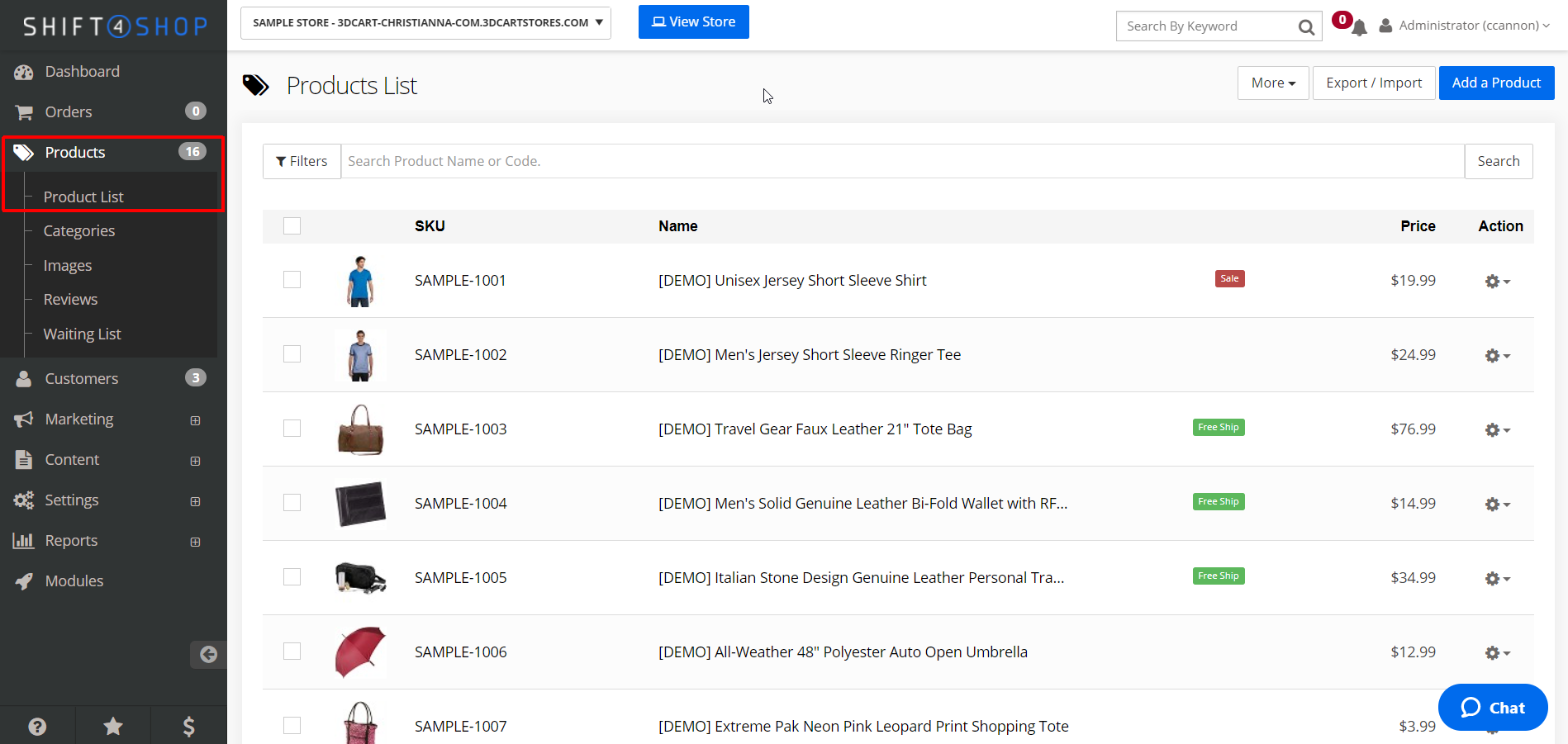
Open the Export/Import page
At the top-right of the Product List page, locate and click the Export/Import button. This takes you to the product data import and export page where you can configure your CSV export settings.
Select the export data set
On the Export/Import page, click the export function (marked with a + icon or Export Data label). Shift4Shop provides two pre-built export sets: DEFAULT (includes only the most important columns for a smaller file) and a full export option. Choose the full export to get all product fields, or DEFAULT for a compact file with essential data only.

Configure export columns
Review the columns that will be included in your export. The export includes fields such as id (SKU), name, price, cost, stock, weight, categories, descriptions, images, and Google Shopping attributes. You can customize which fields to include if your Shift4Shop version supports column selection.
Generate and download the CSV
Click the Export button to generate the CSV file. Your browser will download the file once it is ready. The file contains one row per product with all selected fields as columns. Product options and variants are exported separately and not included in this main product export.

Verify the exported product data
Open the downloaded CSV in Google Sheets or a spreadsheet application. Check that product SKUs (id column), names, prices, stock quantities, and categories are present and correct. Categories use a forward slash for hierarchy paths like Clothing/T-Shirts.
Required Products Fields
| Field | Type | Description | Example |
|---|---|---|---|
| id | Text | Product SKU (unique identifier) | SHIRT-BLU-M |
| name | Text | Product name | Blue Cotton T-Shirt |
| price | Currency | Product price | 29.99 |
Your Shift4Shop export must include these fields for successful conversion.
