

How to Export Products from PrestaShop (2026 Guide)
Follow these steps to export your PrestaShop products as a CSV file. Once exported, you can use any of our converter tools to transform the data for your target system.
Export Steps
Log in to the PrestaShop Back Office
Open your browser and navigate to your PrestaShop admin URL, typically at yoursite.com/admin or a custom admin path. Enter your administrator email and password to access the Back Office dashboard.
Navigate to the Products page
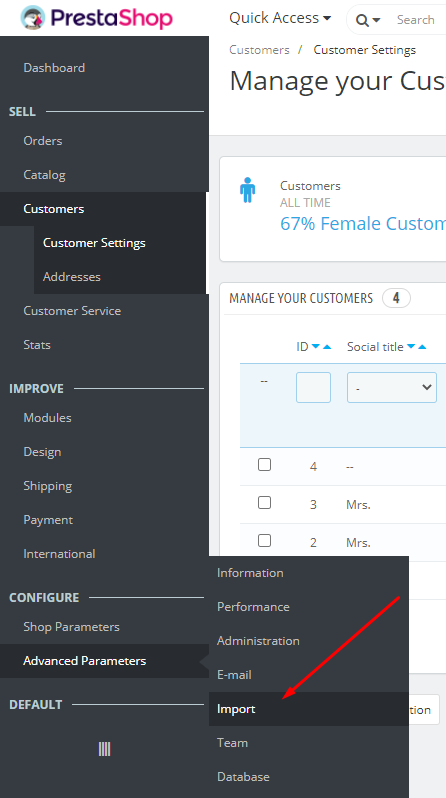
In the left sidebar menu, click on Catalog to expand the submenu, then click on Products. This opens the product listing page showing all your store products with their ID, image, name, reference, category, price, quantity, and status.
Locate the Export button
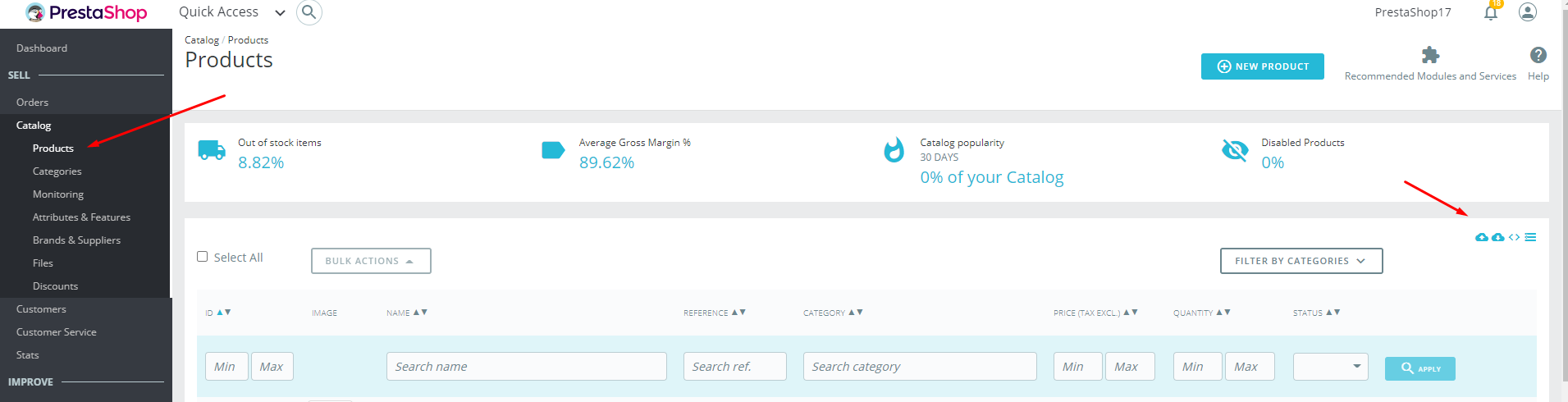
At the top-right of the product list page, look for the Export button (sometimes shown as a gear icon or an Exporter button depending on your PrestaShop version). In PrestaShop 1.7 and later, this is typically a clearly labeled Export button in the top toolbar area.
Configure export options
Depending on your PrestaShop version, you may see options to filter which products to export. You can limit the export to products in a specific category or matching certain criteria. In some versions, the export begins immediately with all products when you click the button.

Generate and download the CSV
Click the Export button to generate the CSV file. PrestaShop will create the file and prompt your browser to download it automatically. The export includes all product fields such as ID, Name, Reference (SKU), Price, Quantity, Categories, Descriptions, and Images.

Review the exported product data
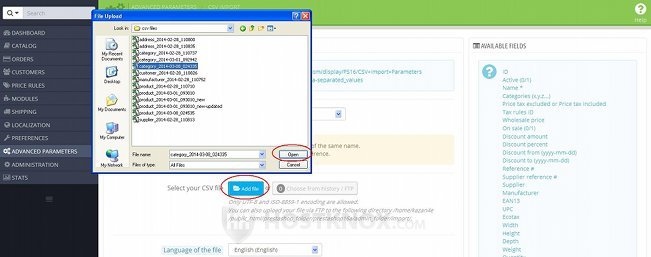
Open the downloaded CSV in Google Sheets or a spreadsheet application. Verify that product names, references, prices, quantities, and categories are correctly populated. Category paths use a hierarchical format like Home > Clothing > T-Shirts.
Handle special column formats
PrestaShop uses specific formatting conventions in its CSV export. Boolean fields use 0 and 1 values. Category and tag fields use comma or semicolon separation depending on the version. The Feature column uses a structured format of Name:Value:Position:Customized. Familiarize yourself with these formats before processing the data.
Required Products Fields
| Field | Type | Description | Example |
|---|---|---|---|
| Name | Text | Product name | Blue Cotton T-Shirt |
| Price tax excluded | Currency | Product price without tax | 29.99 |
Your PrestaShop export must include these fields for successful conversion.
