

How to Import Products to OpenCart (2026 Guide)
After converting your data with one of our tools, follow these steps to import the products into OpenCart.
Import Steps
Install a CSV import extension if needed
Some OpenCart versions include a built-in Export/Import Tool under System > Maintenance that supports product import in spreadsheet format. If your version does not have this, search the OpenCart Marketplace for a free product import extension and install it via Extensions, then Installer in your admin panel.

Prepare your CSV file
Create a CSV file with your product data. Required fields include model (the product SKU, which must be unique), name, and price. Include additional columns for description, quantity, weight, categories, and images as needed. Save the file in CSV format with UTF-8 encoding.

Configure import delimiters
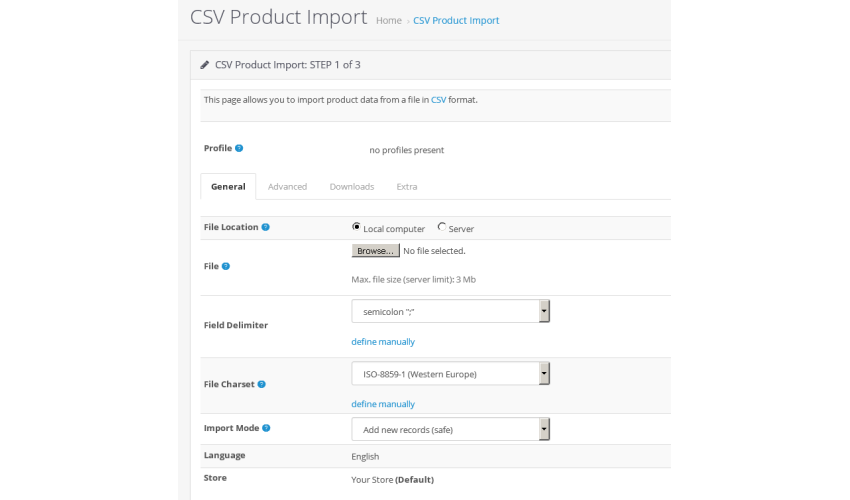
In the import extension settings, configure the delimiter character that separates values in your CSV file. The most common delimiter is a comma, but some files use semicolons or tabs. Make sure this setting matches your file's actual format to prevent data from being parsed incorrectly.
Upload your CSV file
Navigate to the import extension in your OpenCart admin (typically found under Extensions or in a dedicated Import/Export menu). Select your CSV file for upload. Some extensions also support XLS, XLSX, and XML formats.
Map CSV columns to OpenCart fields
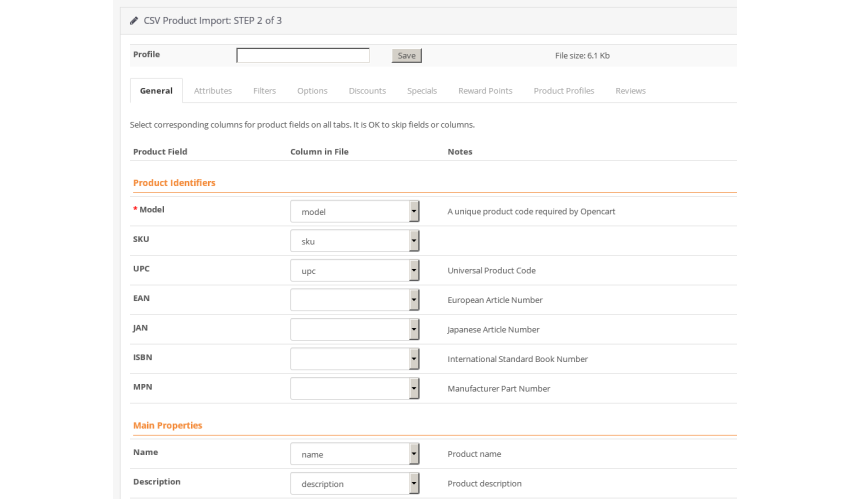
The import extension will display a field-mapping screen where you link each CSV column to the corresponding OpenCart database field. Map essential fields like product name, model, price, and quantity. Set any unmapped columns to be skipped during import.
Run the import
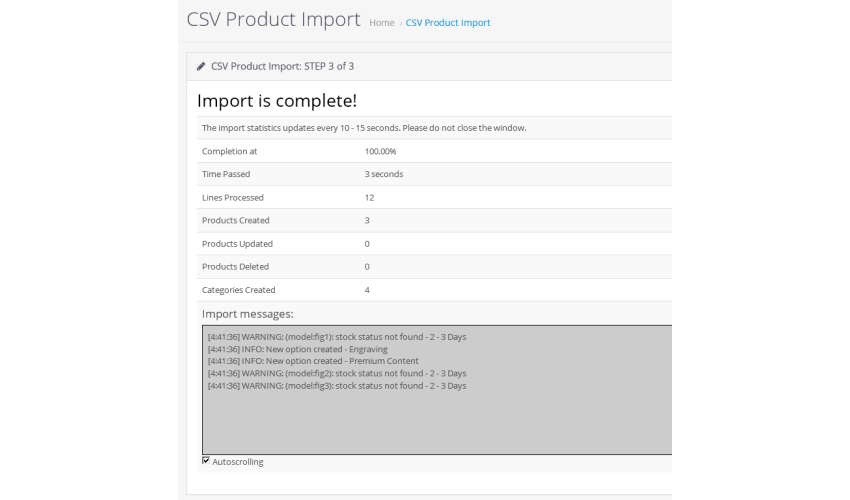
Click Import to begin processing your CSV file. The extension will create products in your OpenCart store based on the mapped data. Wait for the import process to complete without navigating away from the page.
Verify imported products
Go to Catalog, then Products in your OpenCart admin panel to review the imported products. Check that product names, prices, images, categories, and stock levels are correct. Verify the storefront to confirm products display properly to customers.
Required OpenCart Fields
| Field | Type | Description | Example |
|---|---|---|---|
| model | Text | Product model/SKU (must be unique) | WIDGET-001 |
| name | Text | Product name | Blue Widget |
| price | Currency | Regular price | 49.99 |
OpenCart requires these fields for successful import.

