

How to Export Products from OpenCart (2026 Guide)
Follow these steps to export your OpenCart products as a CSV file. Once exported, you can use any of our converter tools to transform the data for your target system.
Export Steps
Log in to the OpenCart admin panel
Navigate to your OpenCart admin URL and sign in with administrator credentials. You need admin access to manage the product catalog and export data.
Navigate to Catalog > Products
In the left sidebar, click on Catalog and then Products. This opens the product list page showing all your store products with their names, model numbers, prices, quantities, and status.
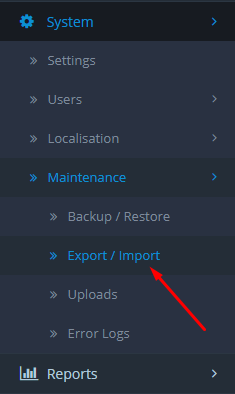
Check for a built-in export or install a free extension
Some OpenCart versions include a built-in Export/Import Tool under System > Maintenance that supports product export in spreadsheet format. Check if an Export button is visible at the top of the products page. If not, search the OpenCart Marketplace for a free product export extension.

Configure export settings
If using an export extension, navigate to its settings page to configure which product fields to include. Select fields such as product ID, name, model/SKU, description, price, quantity, weight, categories, images, and status. Choose comma as the field delimiter for standard CSV format.
Select products and export
To export all products, ensure no filters are applied and click the Export button. To export specific products, use the filter options to narrow by category, status, or price range, then select the filtered products and click Export. Enter a filename for your export file when prompted.
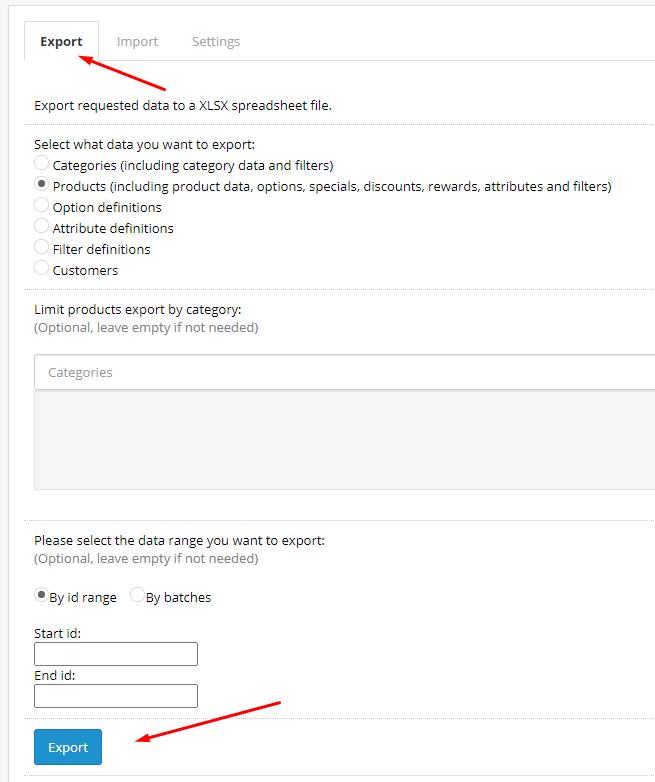
Download and save the CSV file
Click the Export or Download button to save the CSV to your computer. The file will contain one row per product with all the fields you selected during configuration. Products with multiple categories may have category paths separated by the greater-than symbol.
Verify the exported product data
Open the CSV in Google Sheets or a spreadsheet application. Check that product IDs, names, model/SKU codes, prices, and stock quantities are correct. Verify that image paths or URLs are properly formatted if you plan to use them in another system.
Required Products Fields
| Field | Type | Description | Example |
|---|---|---|---|
| product_id | Number | Product ID | 101 |
| name | Text | Product name | Blue Widget |
| model | Text | Product model/SKU | WIDGET-BLUE-001 |
| price | Currency | Regular price | 49.99 |
Your OpenCart export must include these fields for successful conversion.
