

How to Export Orders from OpenCart (2026 Guide)
Follow these steps to export your OpenCart orders as a CSV file. Once exported, you can use any of our converter tools to transform the data for your target system.
Export Steps
Log in to the OpenCart admin panel
Open your browser and navigate to your OpenCart admin URL, typically at yoursite.com/admin. Enter your administrator username and password. You need admin-level access to manage orders and export data.
Install an order export extension
OpenCart does not include a built-in order CSV export feature. Navigate to Extensions > Installer or the OpenCart Marketplace to find and install a free order export extension. Search for 'order export CSV' in the marketplace and filter by free extensions. Upload the extension file and click Install.

Configure the export extension
After installation, navigate to the extension settings page, usually found under Extensions > Modules or a dedicated menu item. Configure which fields to include in the export such as Order Info, Customer Info, Shipping Info, Billing Info, and Product Details. Select CSV as the output format.
Navigate to Sales > Orders
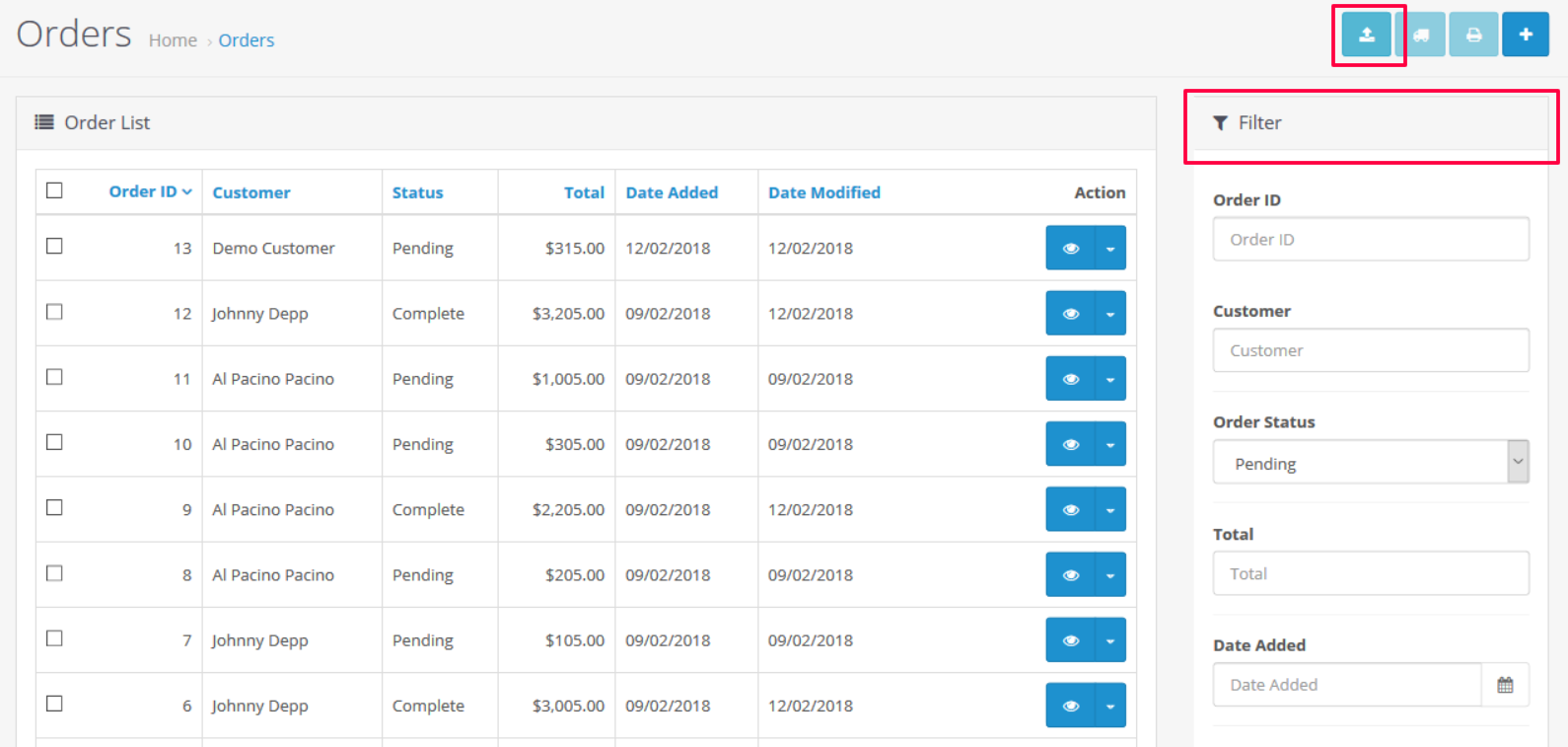
In the left sidebar, click on Sales and then Orders to open the orders management page. This displays all orders with their ID, customer name, status, total, and date. Use the filter options to narrow down orders by status, date range, or customer.

Select orders and start the export
Check the boxes next to the orders you want to export, or use the Select All checkbox to include all filtered orders. Then click the Export button provided by your installed extension. Choose CSV as the export format if prompted.
Download the CSV file
The extension will generate the CSV file and prompt your browser to download it. Save the file to a known location on your computer. The file will contain one row per line item, with order header information repeated for each product within an order.
Verify the exported order data
Open the CSV in Google Sheets or a spreadsheet application to verify the data. Check that order IDs, dates, customer details, product names, quantities, prices, and tax amounts are present and correct. Ensure line item totals add up to the order totals.
Required Orders Fields
| Field | Type | Description | Example |
|---|---|---|---|
| order_id | Number | Unique order identifier | 1001 |
| date_added | Date/Time | Order creation date | 2025-01-15 14:30:00 |
| order_status | Text | Order status | Complete |
| firstname | Text | Customer first name | John |
| lastname | Text | Customer last name | Doe |
| Text | Customer email | john@example.com | |
| total | Currency | Order grand total | 149.99 |
| product_name | Text | Product name | Blue Widget |
| quantity | Number | Quantity ordered | 2 |
| price | Currency | Unit price | 50.00 |
Your OpenCart export must include these fields for successful conversion.
