

How to Import Export to Contacts (2026 Guide)
After converting your data with one of our tools, follow these steps to import the export into Contacts.
Import Steps
Locate your downloaded VCF file
Find the .vcf (vCard) file in your downloads folder. This is a universal contact format supported by virtually all contact management applications including Google Contacts, Apple Contacts, Microsoft Outlook, and smartphone address books on both iOS and Android.
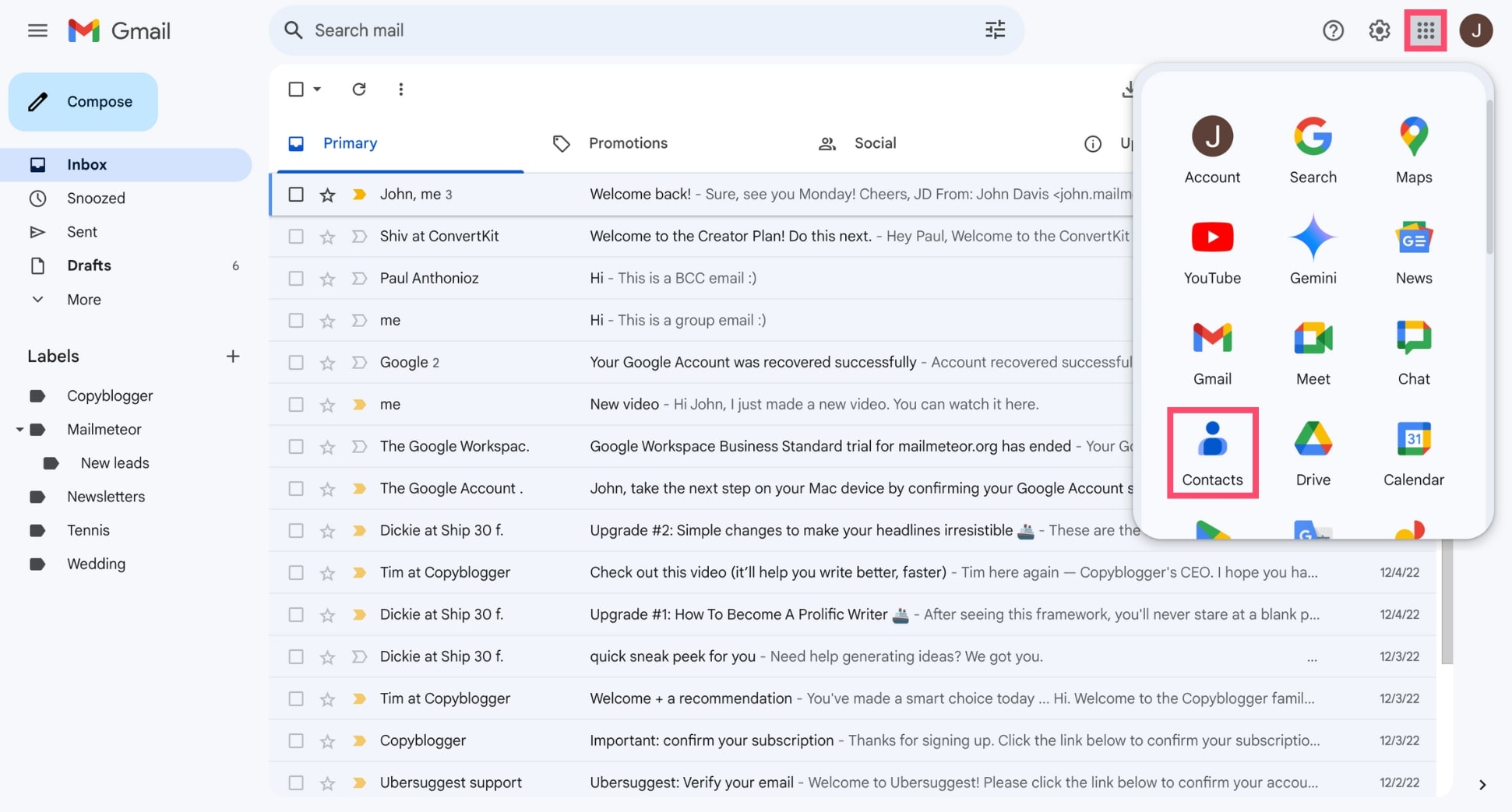
Import to Google Contacts
Open contacts.google.com in your browser and sign in. Click Import in the left sidebar menu. In the dialog that appears, click Select file, choose your .vcf file, and click Import. Google will add all contacts from the file to your Google Contacts.

Import to Apple Contacts (macOS / iOS)
On macOS, double-click the .vcf file to open it in the Contacts app, then click Import. Alternatively, open Contacts, go to File, then Import, and select the .vcf file. On iOS, open the .vcf file from the Files app or an email attachment and tap Add All Contacts.
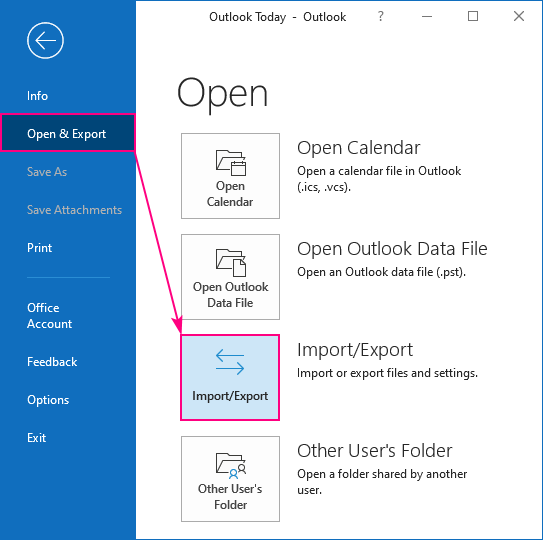
Import to Microsoft Outlook
Open Outlook and go to the People or Contacts section. Click File, then Open & Export, then Import/Export. Select Import a VCARD file (.vcf) and click Next. Browse to your .vcf file and select it. Outlook will add the contacts to your address book.
Import to Android phone
Open the Contacts app on your Android phone. Tap the menu icon, then Settings, then Import. Choose Import from file and select your .vcf file. Pick the account where you want to save the contacts (Google, phone, or SIM). The contacts will be added to your phone's address book.
Verify imported contacts
After importing, browse through your contacts list to verify that names, phone numbers, email addresses, and other details imported correctly. If a contact's details appear in the Notes section instead of the proper fields, the vCard may need to be re-exported with UTF-8 encoding.
Required Contacts Fields
| Field | Type | Description | Example |
|---|---|---|---|
| Full Name | Text | Formatted full name | John Doe |
Contacts requires these fields for successful import.

