

How to Export Contacts from Contacts (2026 Guide)
Follow these steps to export your Contacts contacts as a CSV file. Once exported, you can use any of our converter tools to transform the data for your target system.
Export Steps
Export from Google Contacts as vCard
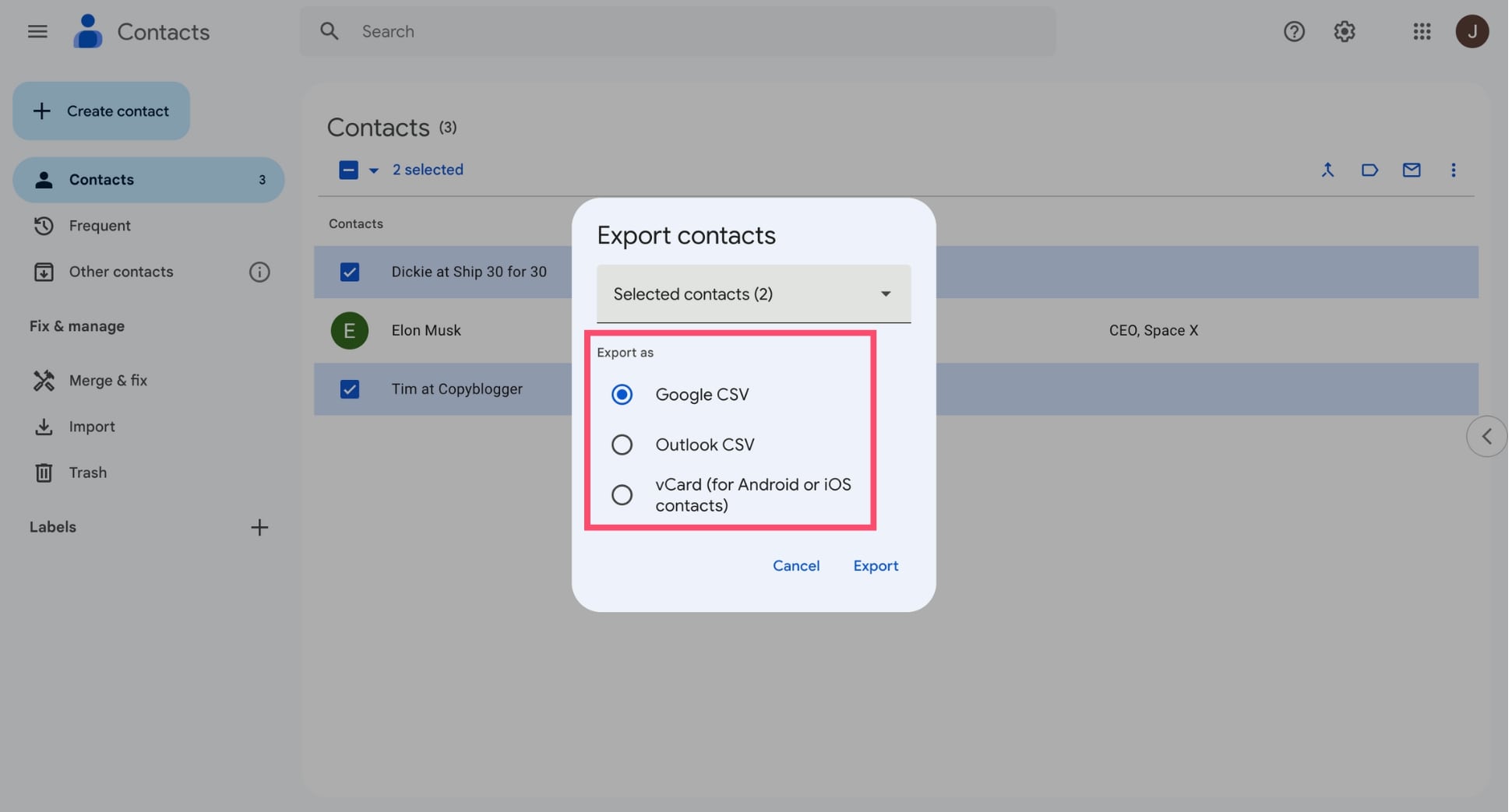
Go to contacts.google.com and sign in. Select the contacts you want to export or choose all contacts. Click the three-dot 'More actions' menu or the 'Export' option in the sidebar. In the export dialog, select 'vCard (for iOS Contacts)' and click 'Export'. A .vcf file will download containing all selected contacts.

Export from iPhone or iPad
On your iPhone or iPad, open the Contacts app. Go to the 'Lists' view by tapping the back arrow until you see your contact lists. Long-press on 'All Contacts' (or a specific group) and select 'Export' from the menu that appears. Choose which fields to include and share or save the resulting .vcf file.

Export from Android
Open the Contacts app on your Android device. Tap the menu icon (three horizontal lines or three dots) and look for 'Settings' or 'Manage contacts'. Select 'Export' or 'Import/Export', then choose to export as a .vcf file. Select the contacts to include and choose where to save the file, such as internal storage or a cloud drive.
Export from iCloud.com (web method)
Go to icloud.com and sign in with your Apple ID. Click on 'Contacts' to open your contact list. Select the contacts you want to export, or press Ctrl+A (Cmd+A on Mac) to select all. Click the gear icon in the lower-left corner and choose 'Export vCard'. A .vcf file will download to your computer.
Export from Outlook as vCard
In Outlook desktop, open the People (Contacts) section. Select the contact you want to export and click 'Forward Contact' in the ribbon, then choose 'As a Business Card (vCard)'. This attaches the contact as a .vcf file. For bulk export, it is more efficient to export as CSV first and then convert to vCard using a tool.
Verify the vCard file
Open the downloaded .vcf file in a text editor to confirm it contains valid vCard data. Each contact begins with 'BEGIN:VCARD' and ends with 'END:VCARD'. Inside each block, you will see properties like FN (full name), N (structured name), EMAIL, TEL, ORG, and ADR. Multiple contacts can be stored in a single .vcf file.
Check vCard version compatibility
The file should specify its version near the top of each contact block (e.g., 'VERSION:3.0' or 'VERSION:4.0'). Version 3.0 is the most widely compatible format, supported by iOS, Android, Google, and most email clients. Version 2.1 is a legacy format that some older devices still use. The converter handles all common vCard versions.
Required Contacts Fields
| Field | Type | Description | Example |
|---|---|---|---|
| FN | Text | Full formatted name (vCard FN property) | John Doe |
Your Contacts export must include these fields for successful conversion.
