

How to Export Events from Calendar (2026 Guide)
Follow these steps to export your Calendar events as a CSV file. Once exported, you can use any of our converter tools to transform the data for your target system.
Export Steps
Open Google Calendar settings (Google Calendar method)
Go to calendar.google.com on your computer and sign in with your Google account. Click the gear icon in the top-right corner and select 'Settings'. This will open the full settings panel where you can access import and export options.

Export all calendars at once
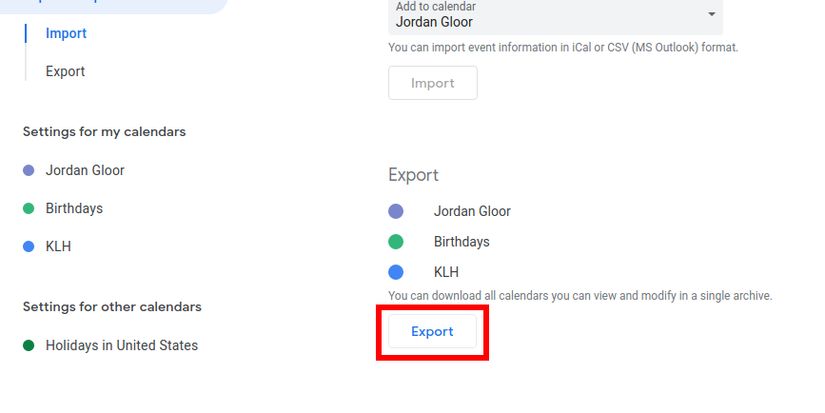
In the Settings sidebar on the left, click 'Import & export'. Under the 'Export' section, click the 'Export' button. Google Calendar will download a .zip file containing separate .ics files for each of your calendars. Extract the .zip file to access the individual .ics files inside.
Export a single calendar
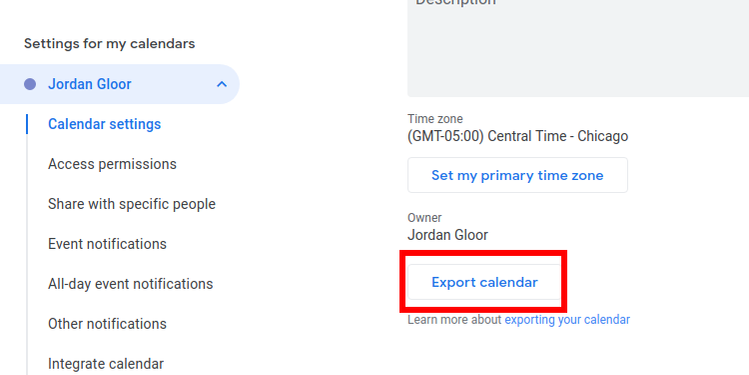
To export just one calendar, go back to the main Google Calendar view. In the left sidebar under 'My calendars', hover over the calendar name you want to export and click the three-dot menu icon. Select 'Settings and sharing'. Scroll down to find 'Export calendar' and click it. A single .ics file will download for that specific calendar.
Export from Apple Calendar (alternative method)
Open the Calendar app on your Mac. In the left sidebar, right-click (or Control-click) on the calendar you want to export and select 'Export'. Choose a save location and click 'Export'. Apple Calendar saves the file in .ics format. For iPhone or iPad, you will need to sync your calendars to a Mac or use iCloud.com to export.
Export from Outlook (alternative method)
In Outlook desktop, go to File, then 'Open & Export', and click 'Import/Export'. Select 'Export to a file', then choose 'iCalendar format (.ics)'. Select the calendar folder you want to export and choose a save location. In Outlook on the web, go to the Calendar view, click the gear icon, and look for 'Shared calendars' where you can publish and download an ICS link.
Verify the ICS file contents
Open the downloaded .ics file in a text editor to confirm it contains valid iCalendar data. The file should start with 'BEGIN:VCALENDAR' and contain one or more 'BEGIN:VEVENT' blocks. Each event block includes SUMMARY (title), DTSTART (start date/time), DTEND (end date/time), and optionally LOCATION, DESCRIPTION, and RRULE (for recurring events).
Prepare the file for conversion
The .ics file is now ready to upload to the converter. If you exported a .zip file from Google Calendar, make sure to extract it first and select the individual .ics file for the calendar you want to convert. Each .ics file can contain multiple events, and the converter will process all of them into separate rows.

Required Events Fields
| Field | Type | Description | Example |
|---|---|---|---|
| SUMMARY | Text | Event title (SUMMARY property) | Team Meeting |
| DTSTART | Date/Time | Event start date/time | 20250115T090000 |
Your Calendar export must include these fields for successful conversion.
