

How to Export Disputes from Braintree (2026 Guide)
Follow these steps to export your Braintree disputes as a CSV file. Once exported, you can use any of our converter tools to transform the data for your target system.
Export Steps
Log in to the Braintree Control Panel
Open your browser and sign in to the Braintree Control Panel at braintreegateway.com using your merchant account credentials. You need the 'View Disputes' permission to access dispute reports.
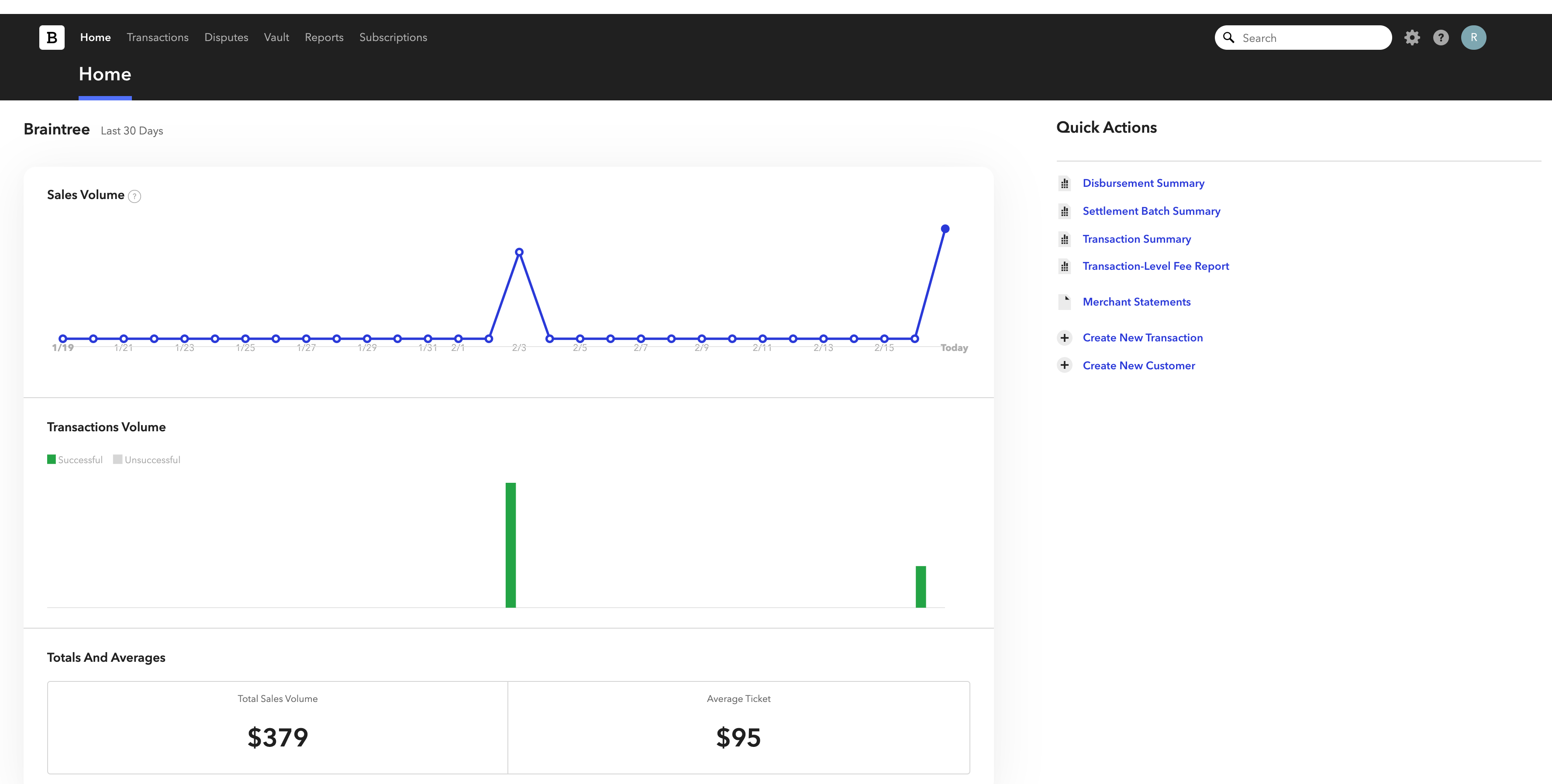
Navigate to the Disputes section
In the left-hand navigation column of the Control Panel, click on 'Disputes'. This opens the dispute management area where you can view, respond to, and export dispute and chargeback records.
Set the report timeframe
Click the green report button at the top of the Disputes page. Enter your desired start and end dates to define the period for the dispute report. You can also filter by dispute status (open, won, lost) or reason code to narrow the results.
Generate the Disputes Summary report
Click 'Run Report' to generate the disputes summary. Braintree will compile all disputes matching your criteria, including chargebacks, retrievals, and pre-arbitration cases. Review the results on screen to confirm the data looks correct.

Download the report
Once the report is generated, click the download or export button to save the data as a CSV file. The export includes Dispute ID, Transaction ID, Amount Disputed, Amount Won, Currency, Received Date, Reply By Date, Status, Reason, Kind, and Case Number.
Review the dispute data
Open the exported CSV in a spreadsheet and verify that all expected disputes are listed. Cross-reference the Transaction ID column with your transaction records to match disputes to their original payments. Check the Status and Amount Won columns to track resolution outcomes.

Required Disputes Fields
| Field | Type | Description | Example |
|---|---|---|---|
| Dispute ID | Text | Dispute identifier | disp_001 |
| Transaction ID | Text | Original transaction | tx_abc123def456 |
| Amount Disputed | Currency | Disputed amount | 125.00 |
| Received Date | Date | Date received | 2025-01-15 |
Your Braintree export must include these fields for successful conversion.