

How to Export Orders from BigCommerce (2026 Guide)
Follow these steps to export your BigCommerce orders as a CSV file. Once exported, you can use any of our converter tools to transform the data for your target system.
Export Steps
Log in to your BigCommerce admin panel
Open your browser and navigate to your BigCommerce store admin at store-xxxx.mybigcommerce.com/manage. Enter your email and password to access the control panel. You need Store Owner or Staff permissions with order access to export orders.
Navigate to the Orders page
In the left sidebar menu, click on Orders to open the orders management page. This displays all orders with their status, customer information, and totals. You can use the search and filter options to narrow down the orders before exporting.
Open the Export Orders page
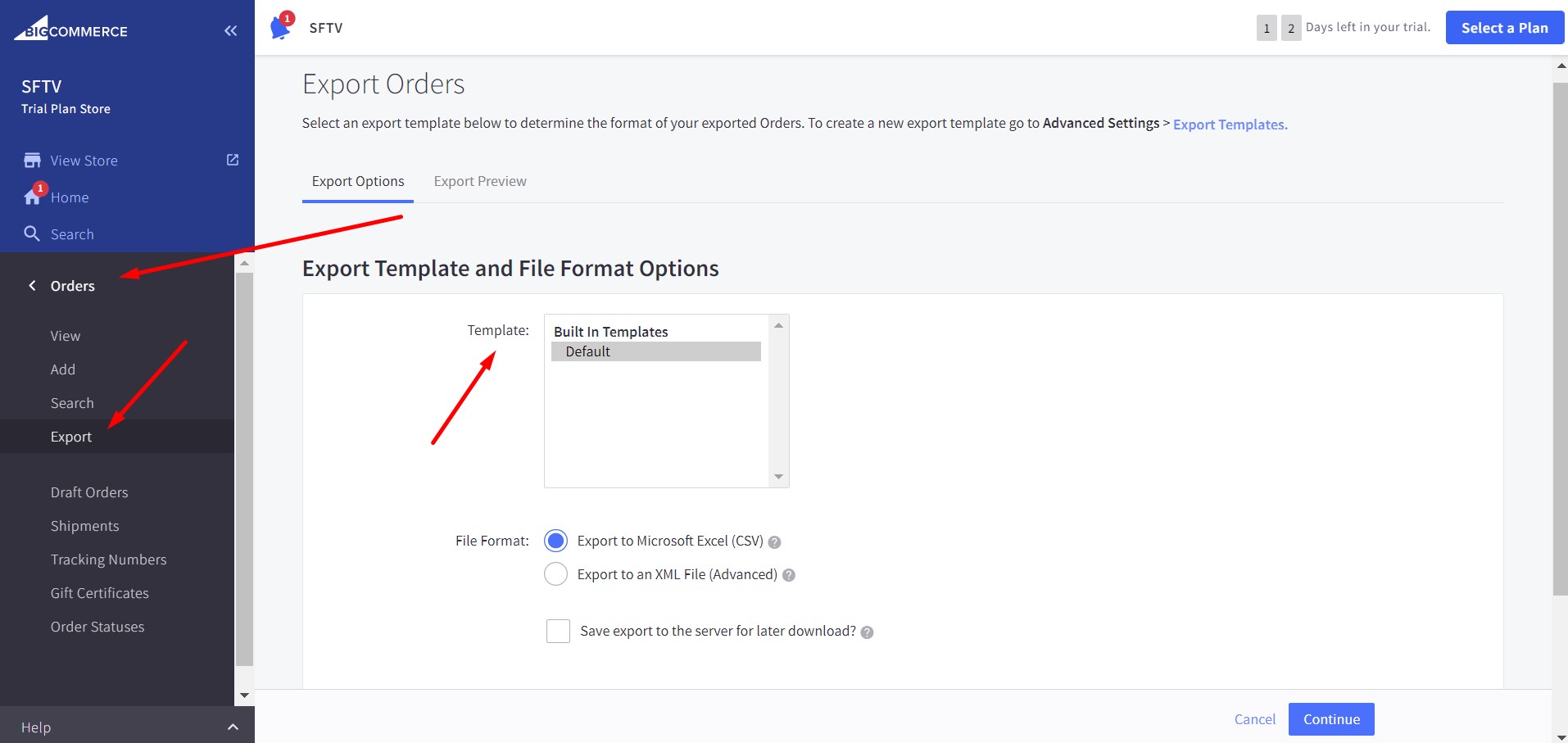
Click the Export button located at the top of the orders list. This takes you to the order export configuration page where you can choose your export template and file format.
Select an export template
Choose an export template from the dropdown menu. The Default template includes the most commonly used order fields. If you need specific columns, you can create a custom template under Settings > Export Templates by copying the Default template and selecting only the fields you need.

Choose CSV as the file format
Under File Format, select Export to Microsoft Excel (CSV). This is the default and recommended format. CSV files can be opened in any spreadsheet application and are compatible with most accounting software import tools.
Configure export options and start the export
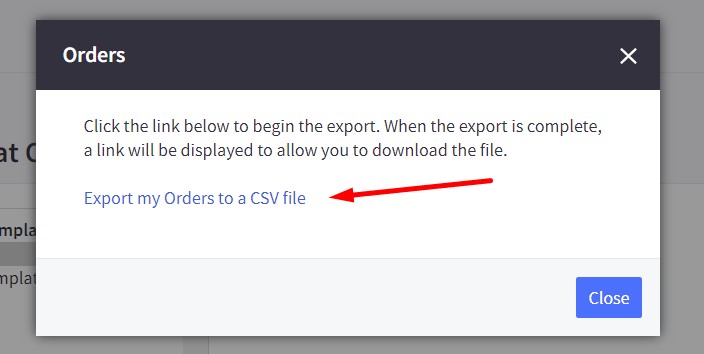
If you are exporting more than 1,000 orders, enable the Save export to the server for later download option to avoid browser timeouts. Click Continue to proceed, then click Export my orders to a CSV file in the confirmation popup.

Download the exported CSV file
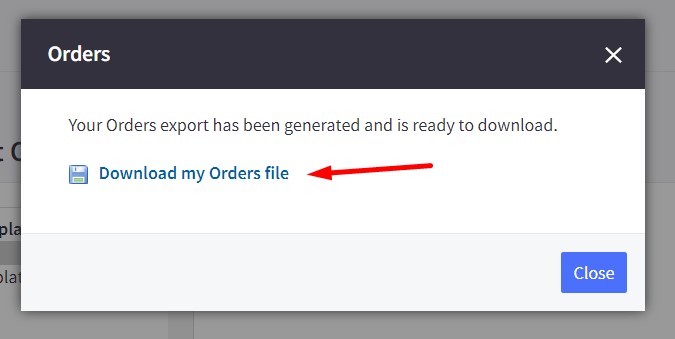
When the export is complete, click the Download my Orders file link to save the CSV to your computer. If you chose server-side export, check the export notifications area or your email for the download link.
Verify the exported order data
Open the downloaded CSV file in Google Sheets or a spreadsheet application. Confirm that order IDs, dates, customer names, amounts, and line items are all present and correctly formatted. Each line item in an order appears as a separate row with the order header repeated.
Required Orders Fields
| Field | Type | Description | Example |
|---|---|---|---|
| order_id | Number | Unique order identifier | 1001 |
| date_created | Date/Time | Order creation date/time | 2025-01-15 14:30:00 |
| order_status | Text | Order status | Completed |
| customer_name | Text | Customer full name | John Doe |
| customer_email | Text | Customer email address | john@example.com |
| subtotal_ex_tax | Currency | Subtotal excluding tax | 100.00 |
| order_total | Currency | Grand total (with tax and shipping) | 128.40 |
| product_name | Text | Product name | Blue Widget |
| quantity | Number | Quantity ordered | 2 |
| item_price | Currency | Unit price (excluding tax) | 50.00 |
Your BigCommerce export must include these fields for successful conversion.
